How Parents Can Turn Off Screen Time With or Without a Passcode
Apple's Screen Time helps parents review and manage a child's device and app use. A parent may need to turn it off temporarily when troubleshooting a device, changing family settings, or preparing an authorized device for a new user.
If you forgot the Screen Time passcode or cannot find the option to turn it off, use Apple's supported recovery tools instead of trying to bypass the restriction. This guide explains how parents can turn off Screen Time, recover access, and reduce unauthorized changes.
How Parents Can Turn Off Screen Time with the Passcode
If you are the parent, guardian, or authorized device owner and know the Screen Time passcode, you can turn off App & Website Activity from the device settings.
- Step 1.Open "Settings" on the parent or guardian's device. On some versions, tap "Screen Time" and select the child's name under "Family." On newer versions, tap "Family," select the child, and then tap "Screen Time."
- Step 2.Scroll down and select "Turn Off App & Website Activity." If "Manage Screen Time" appears, open it first. Menu wording may vary by software version.
- Step 3.Enter the four-digit Screen Time passcode if prompted.
- Step 4.Confirm that you want to turn off App & Website Activity.
For some child accounts, age-based or regional protections may prevent certain Screen Time controls from being turned off. Follow any notice shown on the device and confirm that you are using the authorized parent or guardian account.
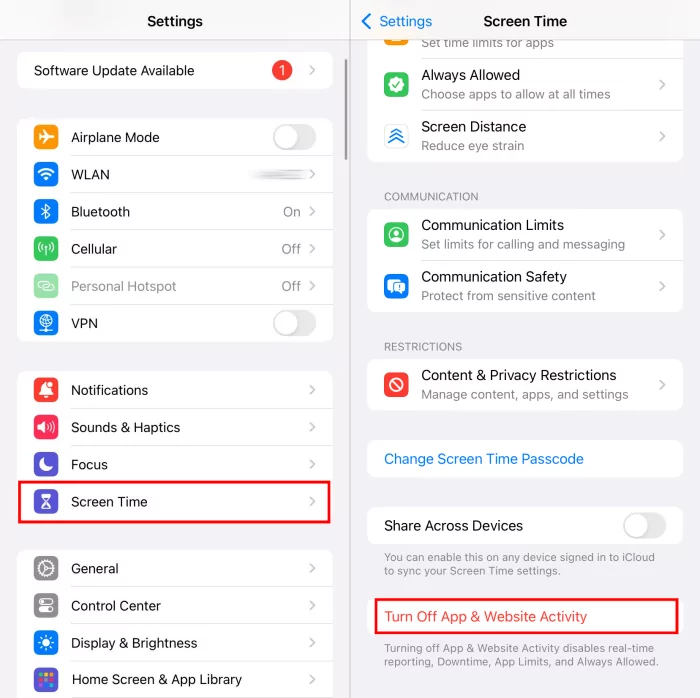
If your child uses more than one Apple device, review the "Share Across Devices" setting before making changes. It can synchronize Screen Time activity and settings across devices signed in to the same Apple Account, but it is not a tool for removing the restrictions.
How Parents Can Recover Screen Time Access without the Passcode
If you are the parent or authorized device owner but do not remember the passcode, start with Apple's passcode recovery or Family Sharing options. Restoring or erasing the device should be a last resort because it can remove personal data and does not remove Activation Lock.
| Recovery Method | What You Need | Data Loss Risk |
|---|---|---|
| Reset the Screen Time Passcode | The Apple Account used for passcode recovery | No |
| Reset a Child's Passcode through Family Sharing | Parent or guardian access to the Family Sharing group | No |
| Factory Restore an Authorized Device | A computer, a backup if available, and any required device credentials | Yes - the device is erased |
| Remotely Erase an Authorized Device with Find My | The linked Apple Account and Find My enabled | Yes - the device is erased |
Note: These options are for a parent, guardian, or authorized device owner. They should not be used to remove restrictions set by another parent, a school, an employer, or another device administrator.
Do not rely on signing out of iCloud as a workaround. When account changes are restricted by Screen Time, the sign-out option may be unavailable. Use the supported recovery steps below instead.

1Reset the Screen Time Passcode
If passcode recovery was set up, the parent or authorized owner can use the linked Apple Account to reset the Screen Time passcode without erasing the device.
- Step 1.Open "Settings" and tap "Screen Time." Tap "Manage Screen Time" first if that option appears, then select "Change Screen Time Passcode."
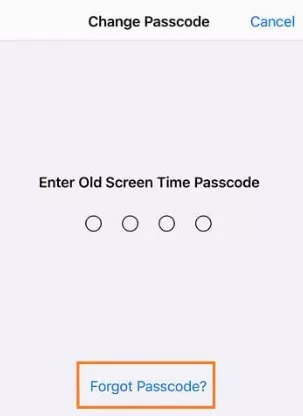
- Step 2.Tap "Change Screen Time Passcode" again. If a "Forgot Passcode?" option appears, select it.
- Step 3.Enter the Apple Account email address and password used when the Screen Time passcode was created.
- Step 4.Create and confirm a new Screen Time passcode.
- Step 5.Return to Screen Time settings if you still need to change or turn off App & Website Activity.
2Reset a Child's Passcode through Family Sharing
If the child's Screen Time is managed through Family Sharing, the family organizer or an authorized parent or guardian can change the passcode from their own Apple device. This is usually safer than resetting or erasing the child's device.
- Step 1.On the parent or guardian's iPhone or iPad, open "Settings" and tap "Screen Time."
- Step 2.Scroll down and select the child's name under "Family." On newer versions, the child profile may instead appear under "Settings" and then "Family."
- Step 3.Tap "Manage Screen Time," then tap "Change Screen Time Passcode" twice. Menu wording may vary by software version.
- Step 4.Authenticate as prompted on the parent's device, then create and confirm a new Screen Time passcode.
3Factory Restore an Authorized Device
A factory restore erases the iPhone or iPad and reinstalls the operating system. It is a device recovery procedure, not a recommended way to bypass Screen Time. Use it only when the supported passcode recovery options do not work and you are authorized to manage the device.
- Step 1.Back up any data you are authorized and able to preserve.
- Step 2.Turn off Find My on the device and enter the linked Apple Account password when prompted.
- Step 3.Connect the device to a Mac or Windows PC and open Finder or Apple Devices. Older supported systems may use iTunes.
- Step 4.Select the device, approve any trust prompts, enter the device passcode if requested, and choose the factory restore option.
- Step 5.After the restore, activate the device with the authorized Apple Account if required, then rebuild the family's Screen Time settings.
Important: Restoring a backup or reconnecting the device to Family Sharing or organizational management may reapply related settings. A factory restore does not guarantee that a Screen Time management issue will be resolved. Do not proceed unless you understand the data-loss risk and have the credentials needed to reactivate the device.
4Remotely Erase an Authorized Device with Find My
A parent who owns or is authorized to manage the device can erase it remotely through Find My. This removes personal data, apps, and settings, so it should be reserved for device recovery or security needs rather than used as a shortcut for changing Screen Time.
- Step 1.Open the Find My app or visit icloud.com/find.
- Step 2.Select the authorized device you need to erase.
- Step 3.Choose "Erase This Device" and review the warning.
- Step 4.Enter the linked Apple Account credentials to confirm the erase.
Activation Lock remains enabled after a remote erase. The linked Apple Account password is required to reactivate the device.
Why Parents Cannot Turn Off Screen Time
Before changing anything, confirm whether Screen Time is managed directly on the child's device, through Family Sharing, or by a school or other organization. The correct solution depends on who has management authority.
1Restart Settings or the Device
A temporary software issue may prevent the Screen Time controls from loading correctly. Close and reopen the Settings app first. If the option is still missing, restart the iPhone or iPad using the method for that model, then check Screen Time again.
2Check Family and Device Management
If the child's Screen Time is managed through Family Sharing, make changes from the authorized parent or guardian account. If the device has a school, employer, or other organization management profile, contact that administrator instead of trying to remove the profile.
- Step 1.Open "Settings," tap "General," and select "VPN & Device Management."
- Step 2.Review whether a management profile is listed and identify who installed or controls it.
- Step 3.If it belongs to a school or organization, contact the administrator. If it is a family-owned profile, follow the provider's authorized removal instructions.
If the supported recovery and troubleshooting steps do not resolve the issue, contact Apple Support and be ready to verify ownership or family-management authority.
How Parents Can Prevent Screen Time Workarounds
After regaining access, parents can reduce unauthorized changes by using a Screen Time passcode the child cannot guess, enabling passcode recovery, and managing the child's settings through Family Sharing. Explain the purpose of the limits and review them as the child's schedule and responsibilities change.
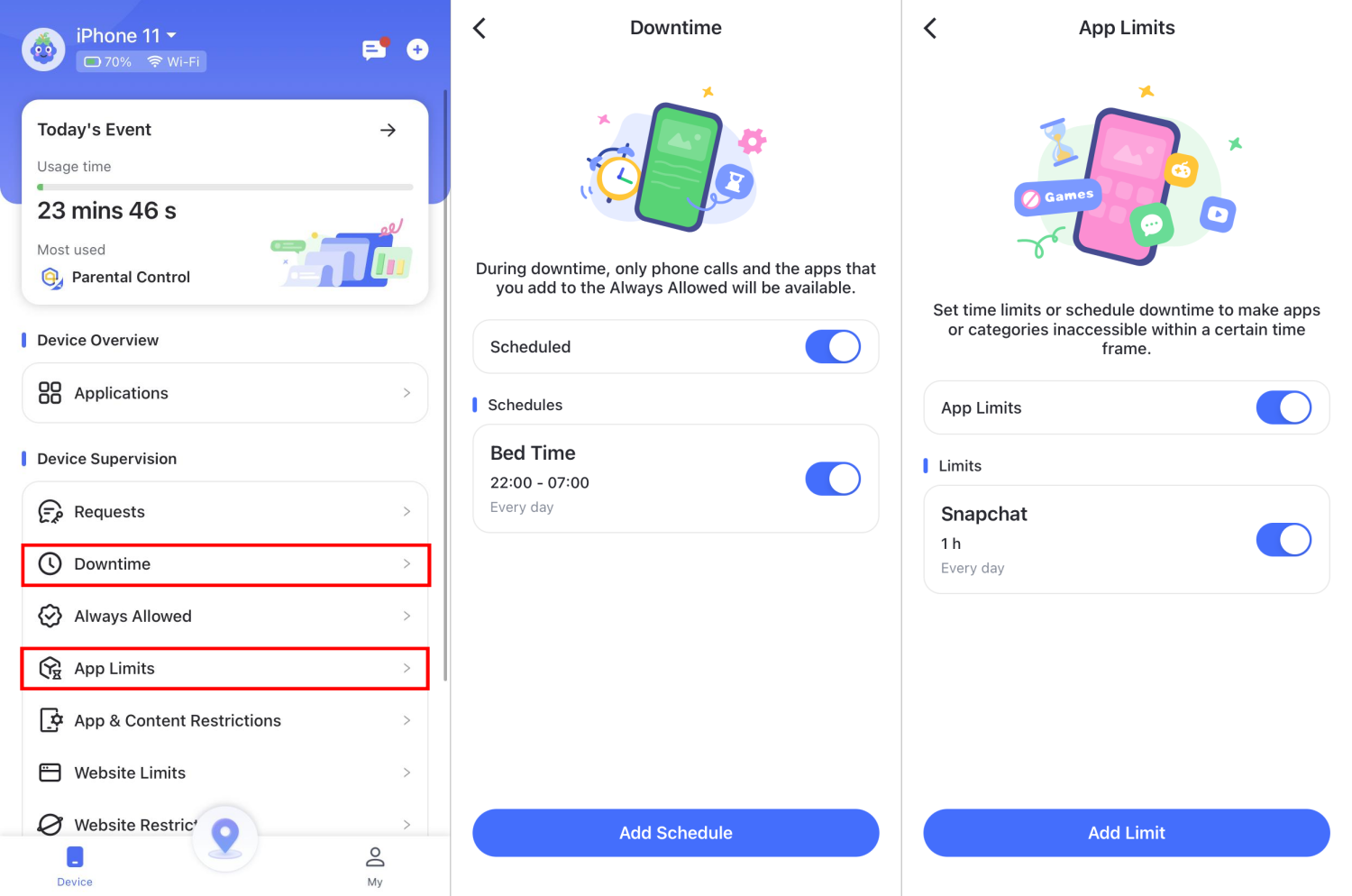
For families that need cross-platform controls, AirDroid Parental Control can help parents set app limits and downtime from the parent device. Available controls depend on the child's operating system, permissions, network connection, setup mode, and current app version. On a child's iPhone or iPad, AirDroid's current official guide requires Supervision Mode for additional controls such as App Time Limits and Downtime.
- Step 1.Install AirDroid Parental Control on the parent's device, connect the child's device, and complete the guided setup.
- Step 2.For a child's iPhone or iPad, enable Supervision Mode before using App Time Limits or Downtime.
- Step 3.Open "App Management" to create an app limit, or open "Downtime" to schedule periods such as bedtime, homework, or family time.
- Step 4.Keep essential apps available, discuss the rule with the child, and adjust it when the family's needs change.
Summing It Up
Parents who need to change a child's Screen Time settings should begin with the existing passcode, Apple Account recovery, or Family Sharing. Restoring or erasing a device carries significant data-loss and reactivation risks and should be treated as a last-resort recovery process, not a bypass.
Once access is restored, use a strong Screen Time passcode, keep recovery details current, and choose limits that fit the family's needs. Apple Screen Time or a supported parental-control tool can reinforce those rules, but clear expectations and regular conversations remain important.










Leave a Reply.