As of now, Samsung has not provided an option to turn off or disable digital wellbeing on their device.
AirDroid Screen Time Tracker
- View daily and weekly screen time usage
- Keep records for up to 30 days
- Limit usage to prevent addiction
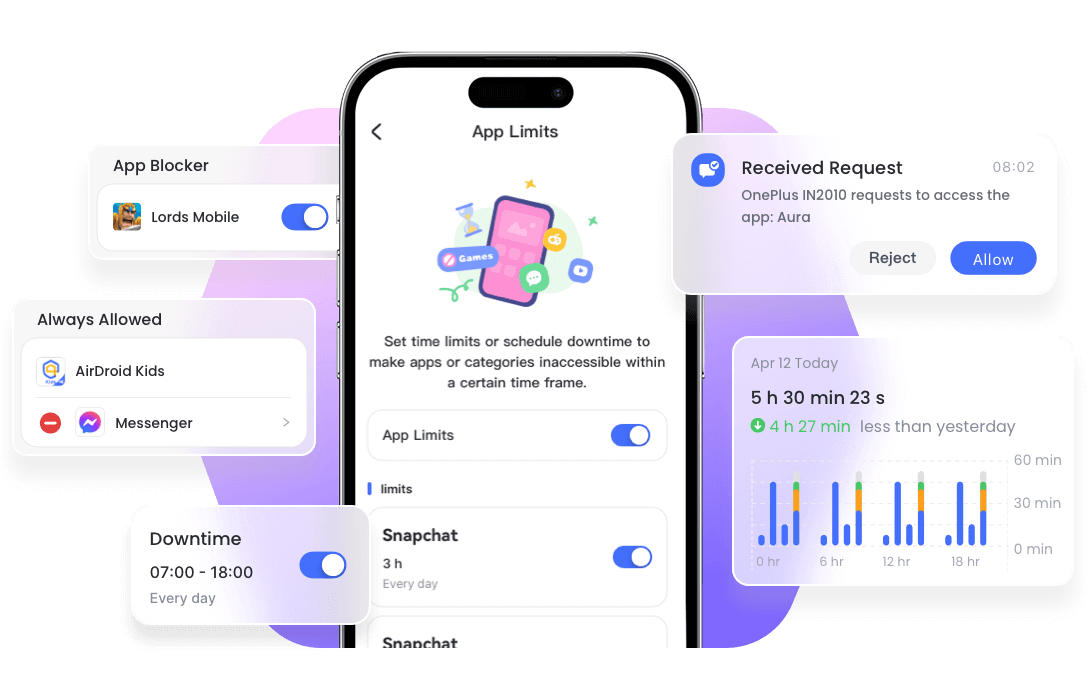
Check and Limit Screen Time on Samsung: A Parent's Guide
Wondering how much time your child spends on their Samsung phone? Whether games are running into homework time or scrolling is pushing back bedtime, checking their screen time is a useful place to start.
This guide shows you how to review usage on your child’s Samsung phone, set goals and app timers together, and use parental controls when you need to manage limits from your own device.
What Counts as "Screen Time" on Samsung
Not all activities on Samsung are reported in the screen time report. Therefore, before diving into the steps, it's essential to know what will be counted as your "screen time" on your Samsung.
Generally, only the foreground activities can be included in the screen time report on Samsung. Background activities that show your screen is not actively engaged don't count as screen time on Samsung.
| What counts as screen time | What doesn't count as screen time |
|---|---|
|
|
In short, as long as the screen is on, the screen time is counted.
How to Check Screen Time on Samsung
Start by deciding where you want to check your child’s usage. Digital Wellbeing lets you review it directly on their Samsung phone. A parental-control app provides a way to check usage from your own device after setup.
1Via Digital Wellbeing
Digital Wellbeing is an essential feature that is built into Samsung and other Android devices. It is designed for device owner to track and manage their own digital habits and screen time.
But remember, Digital Wellbeing only works on Samsung devices that run on Android 10 or later. To check your child's screen time on Samsung, all you have to do is:
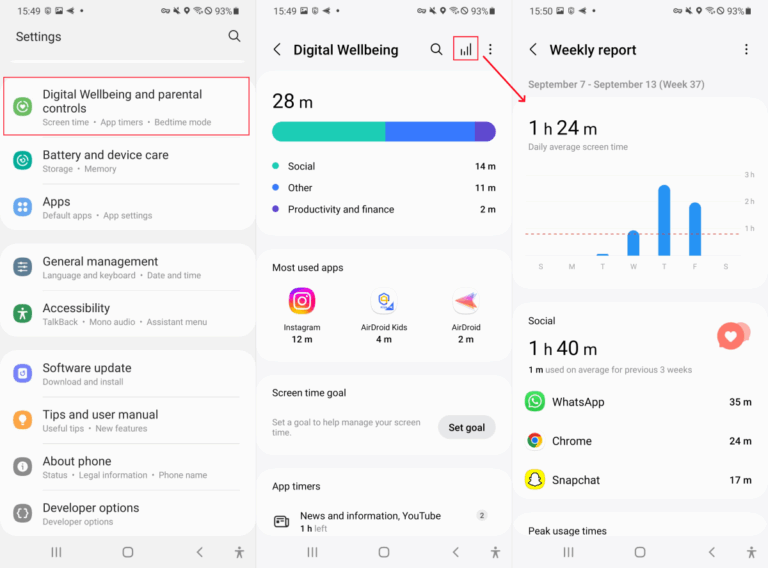
- Step 1.Open "Settings."
- Step 2.Scroll down and select "Digital Wellbeing & Parental Controls."
- Step 3.Then, you'll see the amount of time your child have spent on the phone today.
- Step 4.By tapping the "bar chart" icon, you can view their weekly screen time.
💡Tips: You Can Directly See Screen Time on Samsung Home Screen!
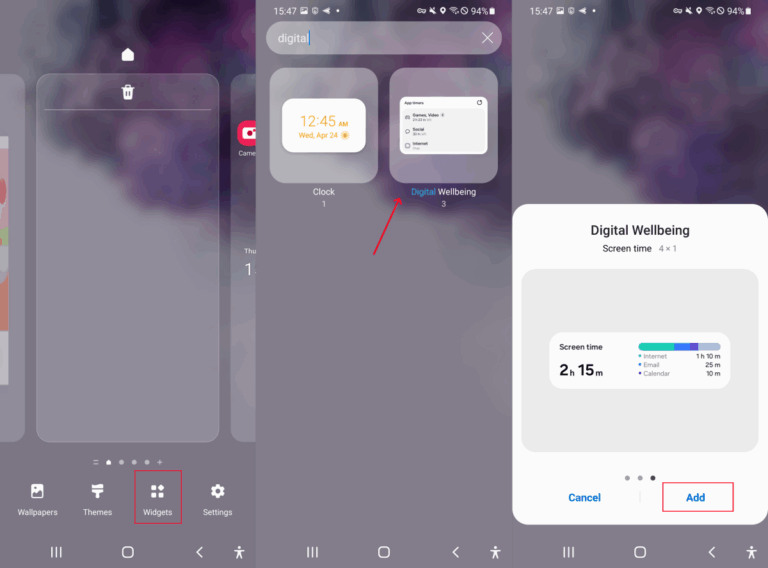
Want to help your child keep track of their own usage? Add the Digital Wellbeing widget to their Samsung home screen so they can check their progress toward an agreed goal. Here's how to do it:
- Step 1. Long-press any empty section of your Home Screen until a menu pops up.
- Step 2.From the menu, select "Widgets."
- Step 3.Search for "Digital Wellbeing."
- Step 4.Select one widget style.
- Step 5.The widget will now display screen time on your child’s home screen.
2Via Third-Party Apps
Samsung's built-in screen time tracker is not 100% perfect. It can only record screen usage time for the most recent week. So, what if you need to view your child's screen time last week or the past month?
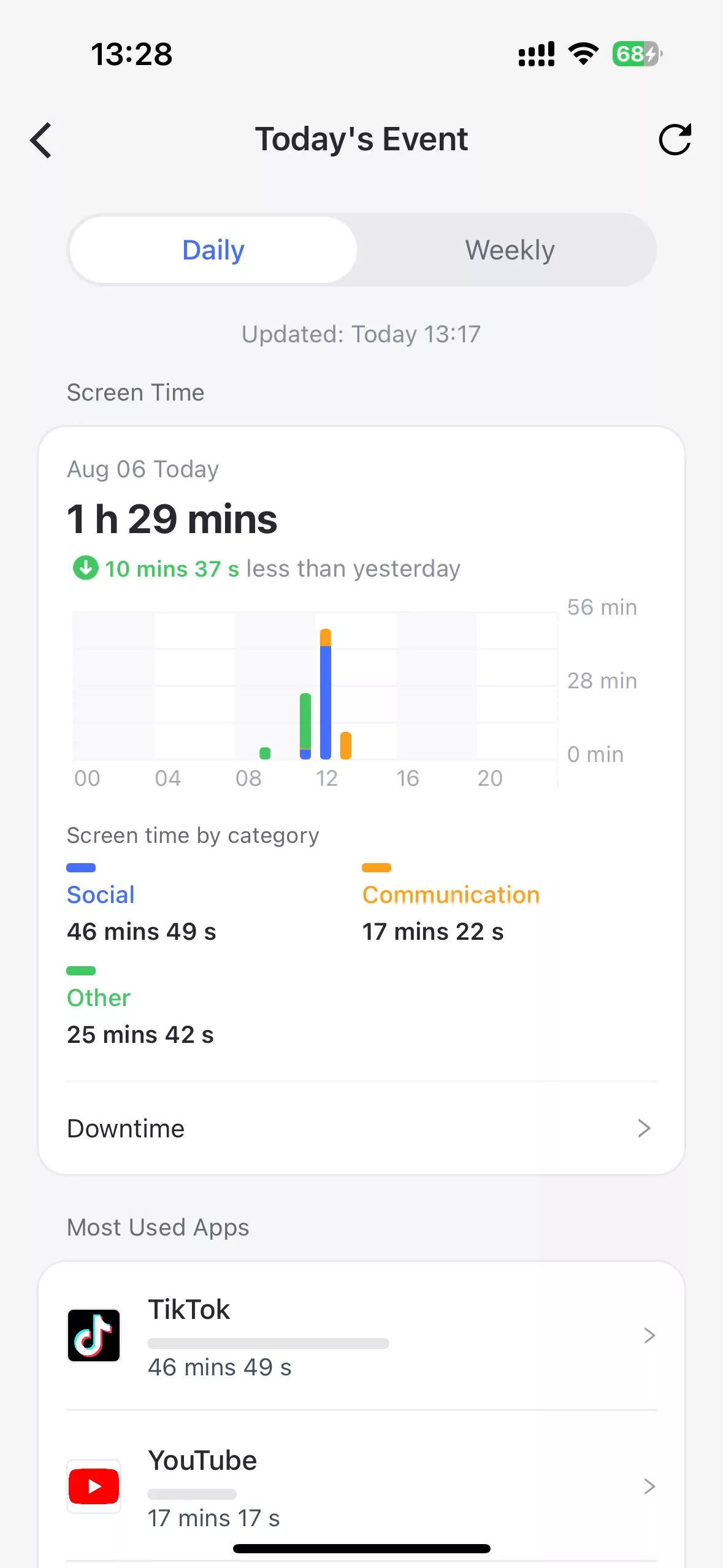
Consider trying third-party apps like the AirDroid Screen Time Tracker. It shows you exactly how much time your child spend on your screen each day or week for the last 30 days.
What's more? It even summarizes how often each app sends you notifications—so you'll know which apps are distracting you the most. To use AirDroid:
- Step 1.Install AirDroid Screen Time Tracker on your phone.
- Step 2.Connect the device you need to check the screen time.
- Step 3.Once done, tap on "Today's Events" to view today's phone and app usage.
- Step 4.Tap the date to switch and view past screen time records.


3Via Battery Activity
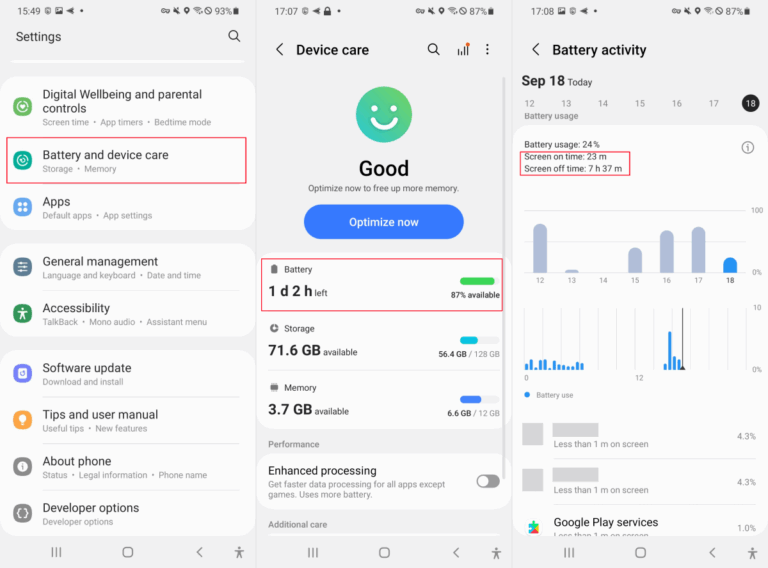
On your child’s Samsung phone, battery activity provides another view of app activity. Use it as supporting information: battery consumption and background activity do not necessarily show how long your child actively used an app. Start with Digital Wellbeing when discussing their screen time.
- Step 1.Open "Settings" and head to "Battery & Device Care."
- Step 2.Tap on "Battery Usage."
- Step 3.After that, you'll see the total screen time usage.
How to Limit Screen Time on Samsung
After reviewing your child’s usage, agree on rules that fit homework, entertainment, and bedtime. Choose a method based on what you need: a goal your child can work toward, a timer for particular apps, or restrictions managed through parental controls.
Set Screen Time Usage Goal
Best for: Helping your child become more aware of their daily phone use.
Set a screen time goal together on your child’s Samsung phone, using the steps below. Treat the goal as a way to track progress—it does not automatically lock the phone when the target is reached.
- 1.Navigate to "Digital Wellbeing & Parental Control" in Samsung settings.
- 2.Tap on "Set goal."
- 3.Choose your daily screen time limit.
Add Time Limits for Apps
Best for: Helping your child follow agreed limits for games or social apps.
Use Digital Wellbeing’s app timers on your child’s Samsung phone to set an allowance for selected apps. Discuss which activities need limits before choosing the duration.
- 1.In "Digital Wellbeing" settings, tap on the app timer.
- 2.Select the app you want to set a timer for.
- 3.Select your desired time limit.
- 4.When the time is up, the app icon will be greyed out. But it is easy to extend the time for it as it is not password-protected.
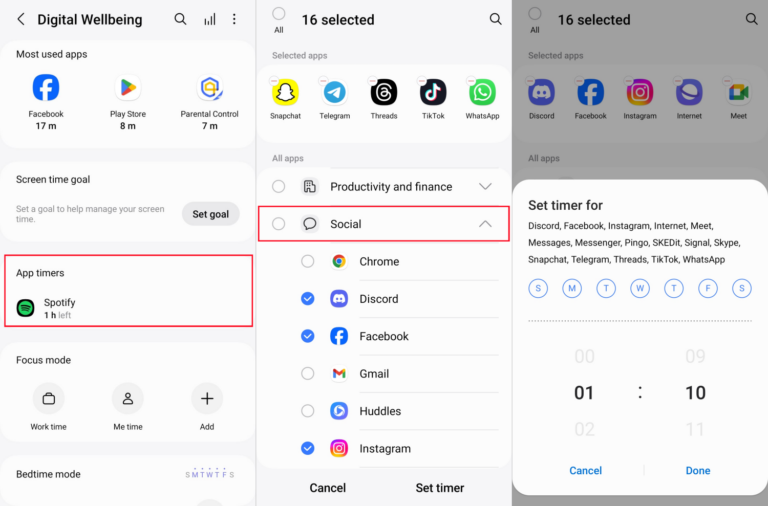
When a timer runs out, the selected app becomes unavailable until the timer resets or is changed. However, Digital Wellbeing timers can be edited or removed on the phone. If you need to manage restrictions from your own device, use a parental-control setup such as AirDroid Parental Control.
Set Downtime for Your Child's Samsung
Best for: Those who want screen-free hours during bedtime, study time, etc.
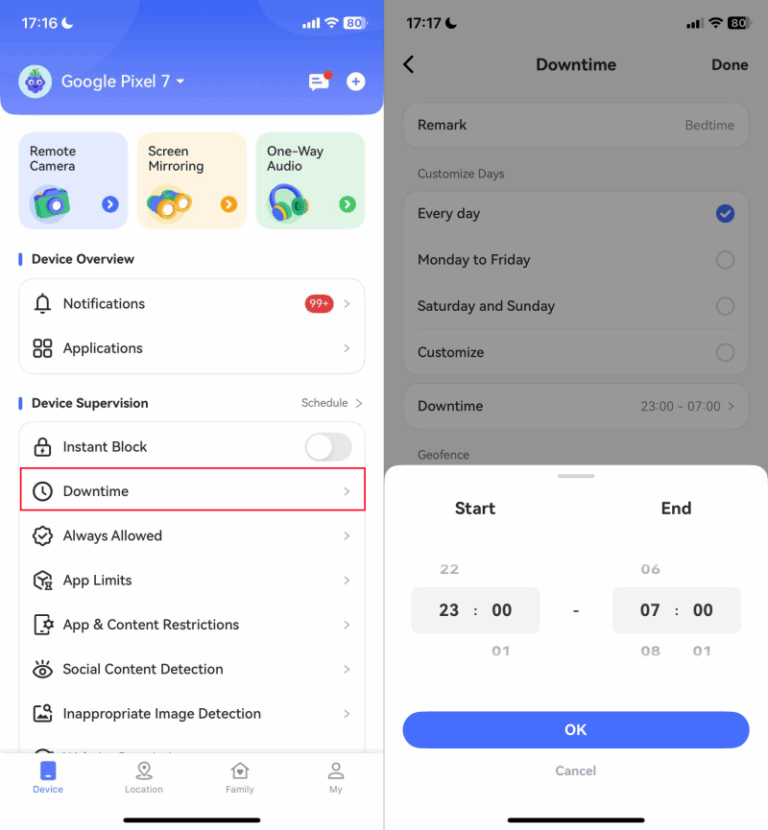
If you use AirDroid Parental Control, you can schedule restrictions for your child’s device or selected apps. After connecting your child’s Samsung phone, use the scheduling controls on your own device and follow the steps below.
Explain the schedule to your child and check that it fits their routine, including any apps they need for schoolwork.
- 1.Select "Downtime" in the AirDroid's dashboard.
- 2.Tap on "Add Schedule" to set up a downtime schedule for each day.
FAQs and More Tips
How to turn off screen time on Samsung?
How to limit screen time on a Samsung TV?
You can limit screen time on your Samsung TV by turning on the Sleep Timer mode or the Off Time mode. While the sleep timer mode automatically turns off your TV after a set countdown, usually between 15 and 180 minutes, the off-time mode allows you to schedule a specific time for the TV to turn off each day.
To set it up, use your remote to go to "Settings > General > System Manager > Time > Sleep Timer or Off Timer."
Conclusion
Start by reviewing your child’s Samsung screen time together and identifying where phone use is getting in the way of daily routines. Use goals and app timers to support agreed habits, or choose parental controls when you need to manage restrictions from your own device.
Revisit the rules as your child’s schoolwork, interests, and responsibilities change. The aim is to make expectations clear and help your child learn to manage their time.










Leave a Reply.