How to Limit YouTube Screen Time on Every Device
It starts with "just one more video." Soon, it's time for dinner or bed, and asking your child to turn off YouTube becomes a struggle. When watching runs long, it can cut into their sleep, schoolwork, and time for other activities.
As a parent, setting a time limit on YouTube can help, rather than completely blocking it. So, this guide will walk you through how to choose the right settings to limit YouTube time. Now, let's reclaim their time and yours.
Which Method Should You Choose?
Not sure where to start?
Find ways based on your child's device:
- iPhone or iPad: Use Screen Time to cap the YouTube app and website.
- Android: Use Family Link to set a limit from your own phone.
- Windows PC: Block the YouTube website on Windows Edge or limit overall Windows device time.
- Mac: Add a YouTube website limit in Screen Time settings.
- TV: Use the kids profile limit on Google TV or set up the sleep timer on Samsung TV and Roku TV.
Or, pick the situation that sounds like your child:
“They scroll Shorts for hours.”
Set a Shorts limit in YouTube's Family Center.
“They spend too long on YouTube each day or after school.”
Set a daily YouTube limit with built-in parental control tools: Family Link, Screen Time, Family Safety, or the TV's kids profile or sleep timer.
“I'm more worried about what they watch than how long.”
A parental control app like AirDroid can send risky content alerts for supported YouTube activities.
“They use different devices.”
Set controls on each device separately, or use your router's parental settings if you manage the Wi-Fi.
Use YouTube's Built-in Family Center
If Shorts are where your child loses track of time, YouTube lets parents set a separate limit for the Shorts feed through Family Center since January 2026.
Unlike a personal account's time management tool, the parent-set limit cannot be dismissed by the kid once time is up. Here's how to limit YouTube Shorts time for supervised kid account:
- Step 1.Open YouTube with the linked parent account.
- Step 2.Go to "YouTube > You > Settings > Family Center."
- Step 3.Select your child's YouTube account and tap "Time management." If there is no profile, set up the supervised YouTube kid account first.
- Step 4.Under "Shorts feed limits," set 0 to block Shorts or pick a daily limit of 15, 30, or 45 minutes, 1 hour, or 2 hours.
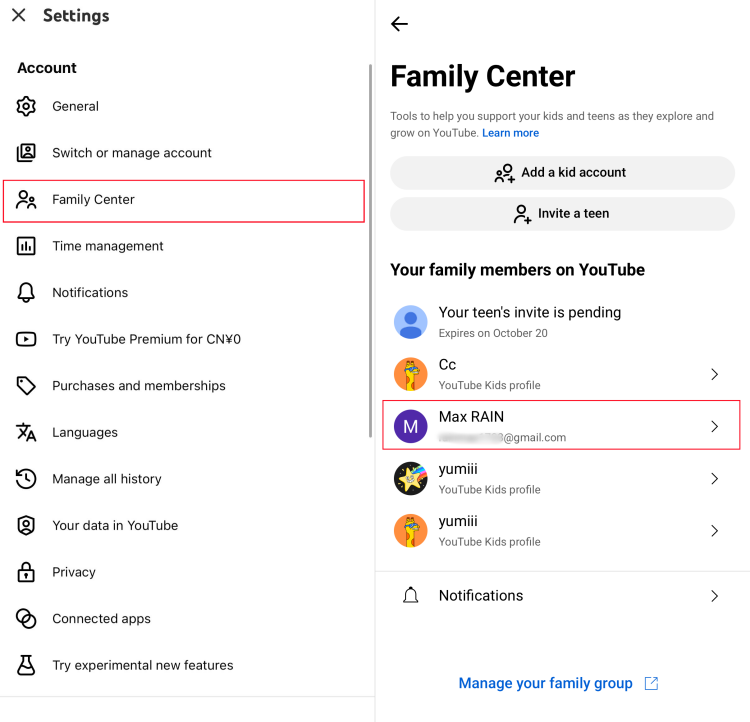
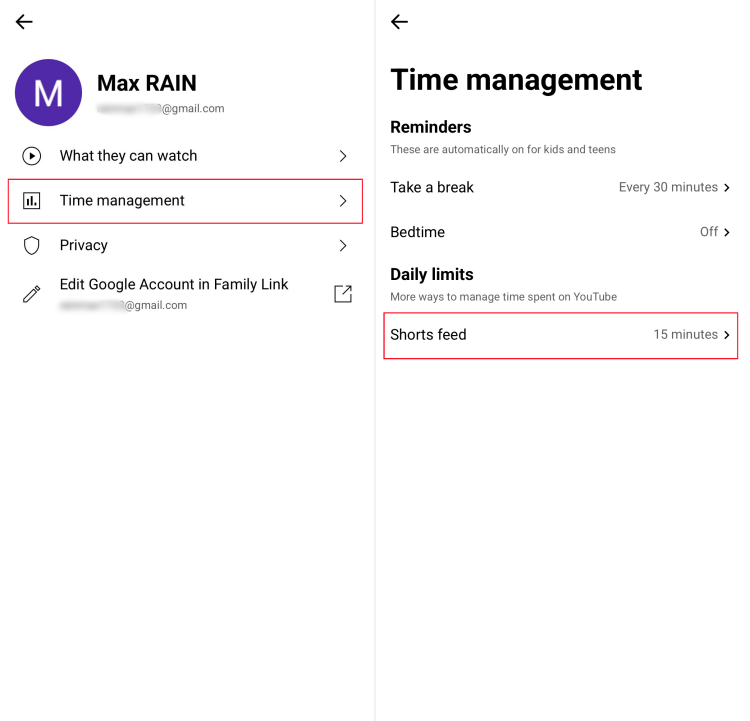
What happened when we tested: When the limit was reached, we (using the supervised account) could no longer scroll the Shorts feed. A screen appeared saying, "Scrolling on Shorts is paused. You can talk to your parent about changing this setting." However, other regular YouTube videos still played, and Shorts can also be watched on youtube.com.
Read Also: How to Set Timer for the YouTube Kids App
Limit YouTube Time on Android and iPhone
YouTube's Family Center is a good starting point; however, its Shorts daily time limit only covers the YouTube app. So, if your child also watches in a browser or you want to set total YouTube time limits (not just Shorts), use the parental control tools built into the phone.
Limit YouTube Time on Android with Family Link
If your child uses a supervised Android device:
- Step 1.Open the Family Link app on your phone and select your child.
- Step 2.Tap "Screen time > Time limits > App limits."
- Step 3.Find "YouTube," then tap "Set limit."
- Step 4.Enter the daily hours and minutes you want to allow.
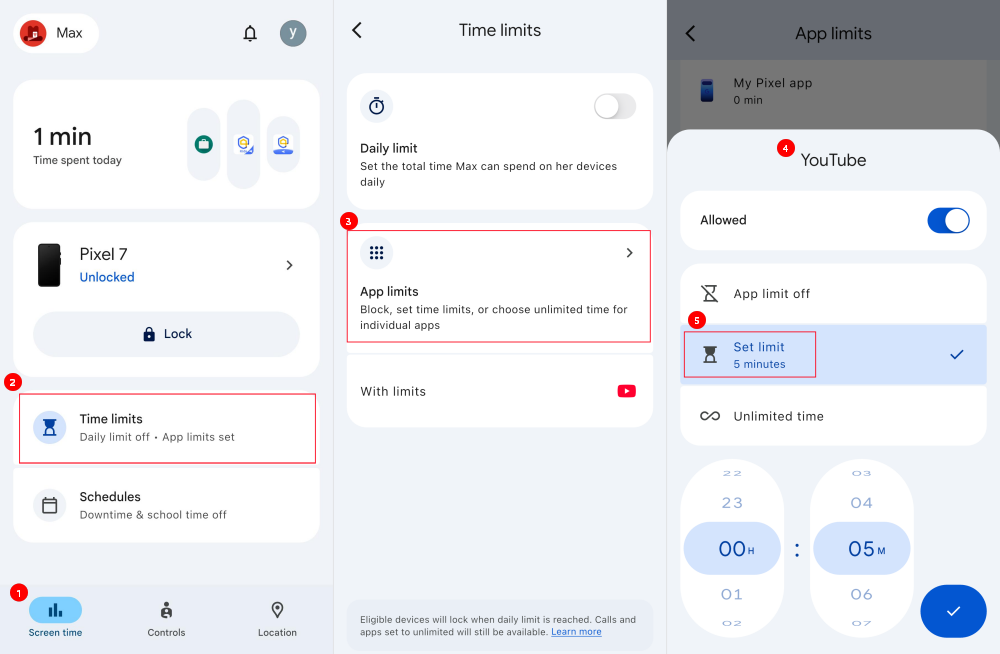
After setting a rule, open both the YouTube app and the website on your child's Android to check the effectiveness. If youtube.com remains available, restrict it with Family Link (there is no website time limit in Family Link).
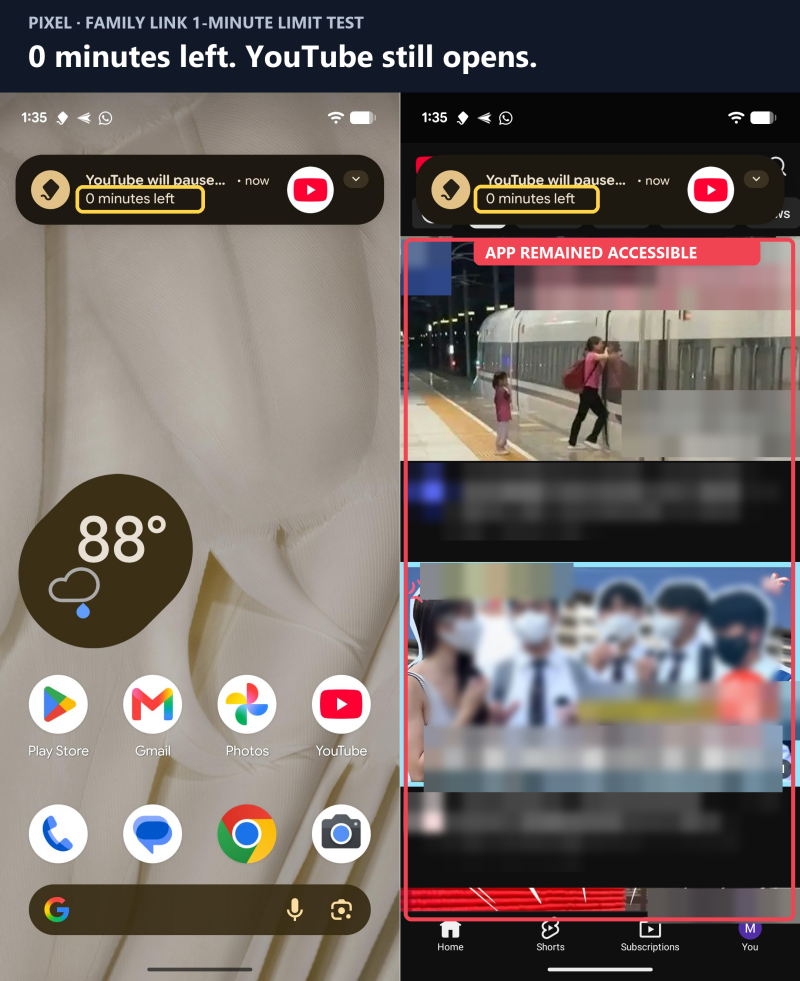
What happened when we tested: On the Pixel, signed in with the supervised child's Google account, we found YouTube remained accessible after its one-minute limit was reached (shown in the screenshot). Setting the limit to zero immediately grayed out the app and prevented us from opening it.
Limit YouTube Time on iPhone with Screen Time
For a child's iPhone or iPad, you can utilize Apple's Screen Time to schedule how long YouTube can be used:
- Step 1.Open "Settings > Family." Select your child's profile.
- Step 2.Tap "Screen Time > App Limits > Add Limit."
- Step 3.Search for "YouTube" to add the app and enter "youtube.com" under "Websites."
- Step 4.Set the daily time and tap "Add."
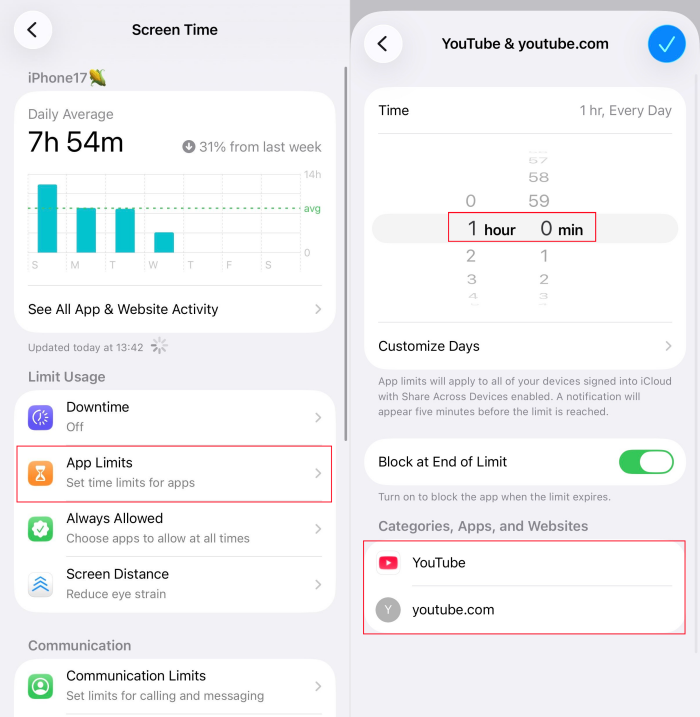
What happened when we tested: On our iPhone 17, YouTube became unavailable as soon as its one-minute Screen Time limit was reached. The app icon dimmed, and opening it showed a "Time Limit" screen with an "Ask For More Time" option.
Spot Concerning Content, Not Just YouTube Time
A time limit tells your child when to stop watching. It doesn't tell you what they encountered before time ran out. With AirDroid Parental Control, you can:
Limit YouTube Time on Computer
On a computer, YouTube generally runs in a browser. Therefore, the limits below mainly apply to the YouTube website on a computer.
Limit YouTube Time on Windows with Family Safety
If your child uses a Windows computer, Microsoft Family Safety helps to block youtube.com in Microsoft Edge.
⚠️Note that, Family Safety can not set a daily time allowance for a specific website on Windows. If you need a timed limit, try creating the total time limit for the entire device: In Family Safety Settings, locate the "Windows" tab. Toggle on "Turn Limits On."
- Step 1.Make sure your child signs in to Windows with an account in your Microsoft family group.
- Step 2.Sign in at family.microsoft.com and select your child.
- Step 3.Switch to the "Web Safety" menu at the top.
- Step 4.Under "Filter settings," turn on "Filter inappropriate websites and searches."
- Step 5.Add youtube.com under "Blocked sites." Also, select offersother YouTube domains that Microsoft offers for blocking.
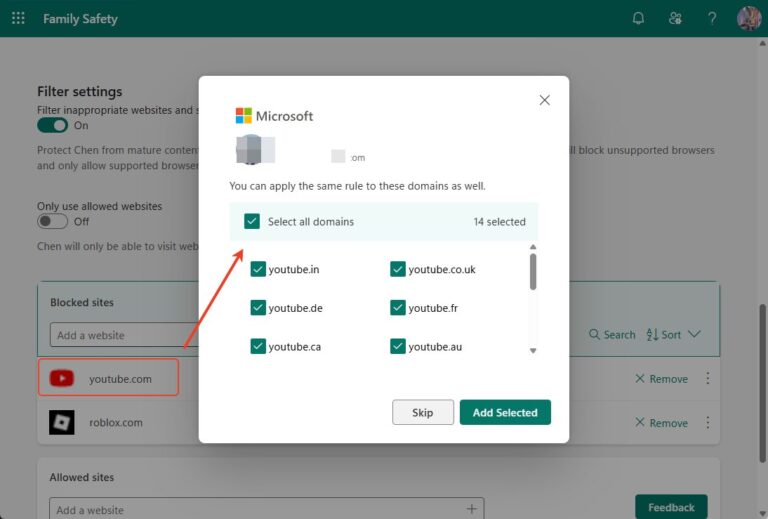
What happened when we tested: When visiting youtube.com or trying to open YouTube videos on Edge, YouTube was effectively blocked.
Limit YouTube Time on Mac with Screen Time
Since Mac is developed by Apple, the steps for limiting YouTube on Mac and iPhone are similar. Here's how:
- Step 1.Head to "Family > Screen Time" from the system settings.
- Step 2.Select your child from the family member menu.
- Step 3.Open "Screen Time > App Limits > Add Limit."
- Step 4.Scroll down to the bottom and expand the "Websites" category.
- Step 5.Type "youtube.com."
- Step 6.Choose a daily limit and click Done.
What happened when we tested: Once the time was up, YouTube was blocked not only in Safari but also in Chrome. So your child can't switch browsers to keep watching.
Limit YouTube Time on TV
For many families, YouTube is part of TV time, too. If your child watches on the TV, its built-in settings can help you set a daily limit to the kid's profile or the whole TV's viewing activity. Here's how:
Limit YouTube Time on Samsung TV
Samsung TVs have two timers: a Sleep Timer that turns the TV off after a set period, such as 180 minutes, and an Off Timer that turns it off at a clock time, such as 9:00 PM. To limit YouTube time on Samsung TV:
- Step 1.Use your remote to access the TV's Settings.
- Step 2.Go to "General & Privacy > System Manager > Time > Sleep Timer."
- Step 3.Choose how long YouTube and other TV activities should stay on, up to 180 minutes.
- Step 4.The TV will turn off when the timer ends.
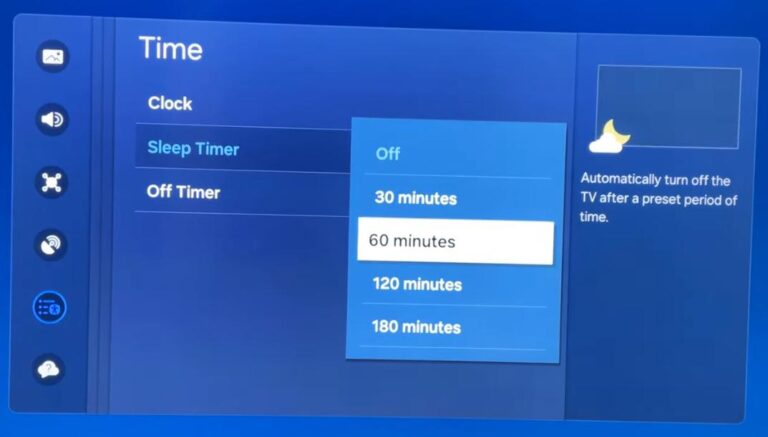
If you also want to stop your child from opening YouTube on TV, go to "Settings > Change PIN" to set a new PIN. Then, select "Parental Settings > App Lock > YouTube" and choose "Lock." ▶️You can also watch the video tutorial here: How To Lock YouTube App On Samsung TV
Limit YouTube Time on Roku TV
Roku TVs also have a sleep timer.
- Step 1.Press "Home" on your Roku remote.
- Step 2.Open "Settings > System > Time > Sleep timer."
- Step 3.Choose 30 minutes, 1 hour, 1.5 hours, 2 hours, or 3 hours.
- Step 4.The timer turns off the Roku TV whether YouTube is playing or not.
▶️Watch the video tutorial: How to Turn On Sleep Timer on Roku TV
Google TV
If your family uses Google TV, Google lets you set a daily screen time limit through the kid's profile. Once the time is up, they need your approval to keep watching. Surely, the limit covers the entire kid's profile, including other TV app activities, rather than YouTube alone.
- Step 1.On the Google TV home screen, select your profile picture first.
- Step 2.Go to "Add account" to create a child profile.
- Step 3.Switch to your child's account on TV and go to "Settings."
- Step 4.Click "Screen time > Daily limit."
- Step 5.Choose the days and the amount of TV time allowed.
▶️Watch the video tutorial: How to Set Hourly Time Limit for Kids User Profile on Google TV
Best Practice When Setting YouTube Limits
Agree on YouTube Time Limits With Your Child
Before setting a timer, talk with your child about when and how long they can watch YouTube. Agree on a realistic limit for school days and weekends and make it flexible. For example, reward your child with time if they complete schoolwork.
A limit imposed without agreement can make every cutoff an argument and disrupt trust. Also, if your child disagrees, listen to them and adjust the schedule together.
Watch with Your Children
Perhaps one of the most effective strategies is to watch YouTube with your children. This allows you to see what captivates their interest. It also provides teachable moments to discuss various aspects of the content, such as discerning fact from fiction or recognizing persuasive intent in advertisements.
What's more, co-viewing can strengthen your relationship and offer you a direct way to guide their understanding of media.










Leave a Reply.