AirDroid Parental Control
Set daily time limit on Instagram and keep a tab on your kid's Instagram
How to Set an Instagram Time Limit for Your Child
If Instagram is interrupting your child's sleep, homework, or family time, a clear daily limit can help. Parents do not need to label a child as "addicted" based on frequent use alone. Start with the behavior you can observe, agree on a realistic rule, and choose a control that matches the child's device.
The most direct option for a teen account is Instagram Family Center. Apple Screen Time, Android's on-device parental controls, and Google Family Link add device-level options, while AirDroid Parental Control can help families manage app rules across Android and iPhone. The methods below were checked against current official guidance on October 20, 2026.
Choose the Right Instagram Time Limit
Choose one primary method first. Stacking several limits can make rules harder to understand and troubleshoot.
| Method | Best For | What Parents Should Know |
|---|---|---|
| Use Instagram's Built-in Time Controls | Families that want an in-app reminder or a supervised limit for a teen | A personal Daily limit only sends a reminder. With Family Center supervision, a parent can choose a reminder or block Instagram when the limit is reached. |
| Apple Screen Time | A child's iPhone or iPad in Family Sharing | iOS 27 uses Time Allowances. iOS 26 and earlier use App Limits. |
| Android On-device Parental Controls | A single device running Android 17 or later | A parent can protect app limits with a PIN without installing a separate management app. |
| Google Family Link | Android 7 or later, especially for remote or multi-device management | Parents can change the Instagram limit remotely and manage requests for more time. |
| AirDroid Parental Control | Families that want one app-management workflow across Android and iPhone | App limits on a child's iPhone require AirDroid Supervision Mode and a USB setup. |
Note: Menu names and availability can vary by account, region, device, and app version. Update the relevant apps before starting.
Use Instagram's Built-in Time Controls
Instagram has three related but different time controls. Teen Accounts are defaulted to a 1-hour daily limit. Separately, the Daily limit setting under Time management is a personal reminder and does not create a parent-controlled lock.
With supervision enabled, a parent or guardian can choose whether Instagram should remind the teen to close the app or block access when the supervised limit is reached.
1Set a Parent-Controlled Limit with Family Center
- Step 1.Before sending an invitation, make sure the parent's Instagram account follows the teen's account. The teen does not need to follow the parent back.
- Step 2.On the parent's Instagram app, tap Profile or the profile picture in the bottom right, then tap Menu in the top right.
- Step 3.Under Family Center, tap Supervision for Teen Accounts, tap Create invitation, review the information, and tap Continue.
- Step 4.Choose Find your teen on Instagram or Send your teen a link, then follow the on-screen instructions. Supervision starts only after the teen accepts the invitation.
- Step 5.Open the teen's supervised account in Family Center, go to Time management, and set the Daily limit. Choose Block teen from Instagram for a hard stop or Remind teen to close Instagram for a prompt.
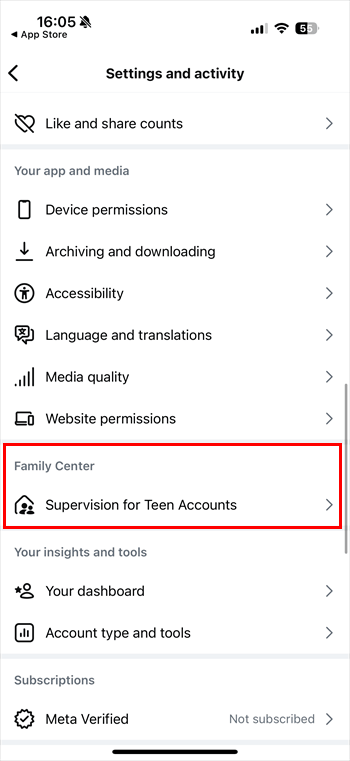
According to Meta's current eligibility rules, the supervised account must belong to a teen ages 13-17, the parent must be over 18, and both people need Instagram accounts. Supervision requires mutual consent and the latest Instagram app. See Meta's official supervision setup guide for current invitation and account requirements.
2Help Your Teen Set a Personal Daily Reminder
If supervision is not set up, a teen can use Instagram's Daily limit setting as a self-management reminder.
- Step 1.Open Instagram, tap Profile or the profile picture in the bottom right, and tap Menu in the top right.
- Step 2.Under How you use Instagram, tap Time management.
- Step 3.Tap Daily limit and choose the amount of time.
- Step 4.Tap the back arrow to save the selection.
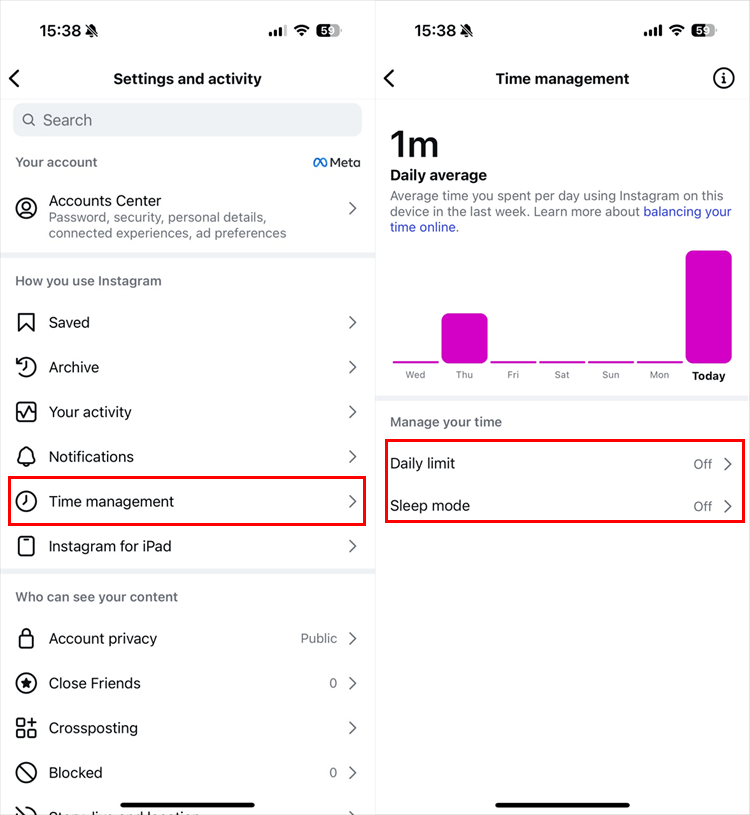
This setting is a reminder, not a parent-controlled block. If the family needs Instagram to become unavailable after the limit, use Family Center supervision or one of the device-level methods below. See Instagram's daily time limit instructions.
Set an Instagram Limit on iPhone
Apple changed the Screen Time interface in iOS 27. Use the instructions that match the Screen Time version shown on the parent's device.
1For iOS 27 and Later
Use this route only after every device in the Family Sharing group is on version 27 or later and the family has updated to Apple's new parental controls.
- Step 1.On the parent's iPhone, open Settings, tap Family, and select the child's name.
- Step 2.Tap Time Allowances, then tap Add.
- Step 3.Create or edit a category and assign Instagram to it when you want an Instagram-specific allowance.
- Step 4.Set the daily allowance for that category. Use Screen Time Schedule as well if Instagram should be unavailable during school, dinner, or bedtime.
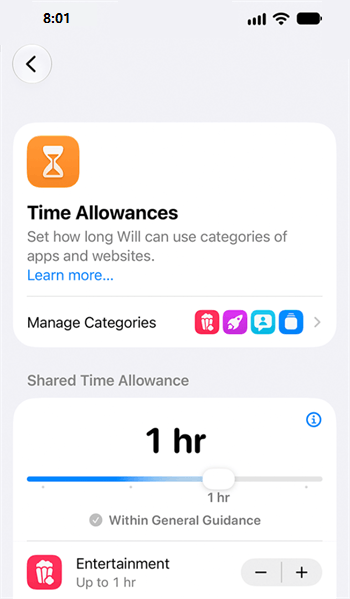
Apple states that Time Allowances manage time by app category and let parents change which apps belong to a category. See the iOS 27 Time Allowances guide.
2For iOS 26 and Earlier
This route also applies when a family has not moved to the iOS 27 parental-control experience.
- Step 1.On the parent's iPhone, open Settings, tap Screen Time, and select the child's name under Family.
- Step 2.Tap App Limits, then tap Add Limit.
- Step 3.Expand the Social or Social Networking category, select Instagram, and tap Next.
- Step 4.Set the daily time, customize individual days if needed, and tap Add or Done.
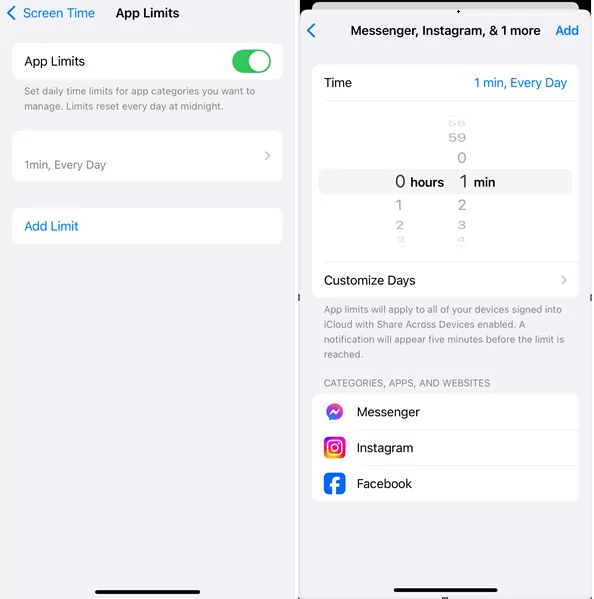
Manage the child's Screen Time passcode from the parent or family organizer's device. Do not share that passcode if the purpose is to preserve the family rule. Apple's iOS 26 Screen Time guide confirms the App Limits route.
Set an Instagram Limit on Android
Android now has two proper parental-control routes. For a single device running Android 17 or later, start with the built-in PIN-protected controls. Use Family Link for Android 7 or later when the parent needs remote access, multiple-device management, or broader account supervision. Digital Wellbeing app timers are mainly self-management tools, so they are not the primary recommendation for enforcing a child's limit.
1Use Native Parental Controls on Android 17 or Later
This is the simplest option when the parent can access the child's device directly and does not need to change the limit remotely.
- Step 1.On the child's device, open Settings and tap Parental controls.
- Step 2.Tap Set up Parental controls PIN, then enter and confirm a PIN of at least four digits.
- Step 3.Add and verify a recovery account so the PIN can be reset without erasing the device.
- Step 4.Return to Parental controls, tap App limits, and select Instagram.
- Step 5.Tap Set time limit, then choose the allowed hours and minutes.
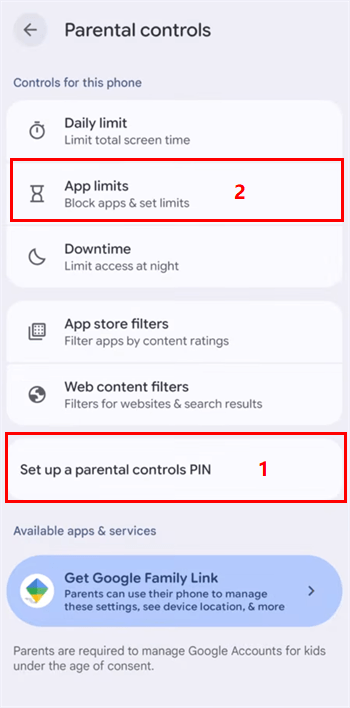
Google states that these on-device controls require the latest Android 17 or later. They cannot be enabled when the device has multiple profiles, such as a work profile or Private Space. The same parental-controls PIN applies to all users on the device. See Google's Android on-device parental controls guide.
2Use Family Link on Android 7 or Later
Choose Family Link when the child's phone does not support the Android 17 controls or when the parent wants to manage limits from their own phone.
- Step 1.Open Family Link on the parent's phone and select the child.
- Step 2.Tap Screen time, Time limits, and App limits.
- Step 3.Select Instagram and tap Set limit.
- Step 4.Choose the allowed hours and minutes, then tap Done.
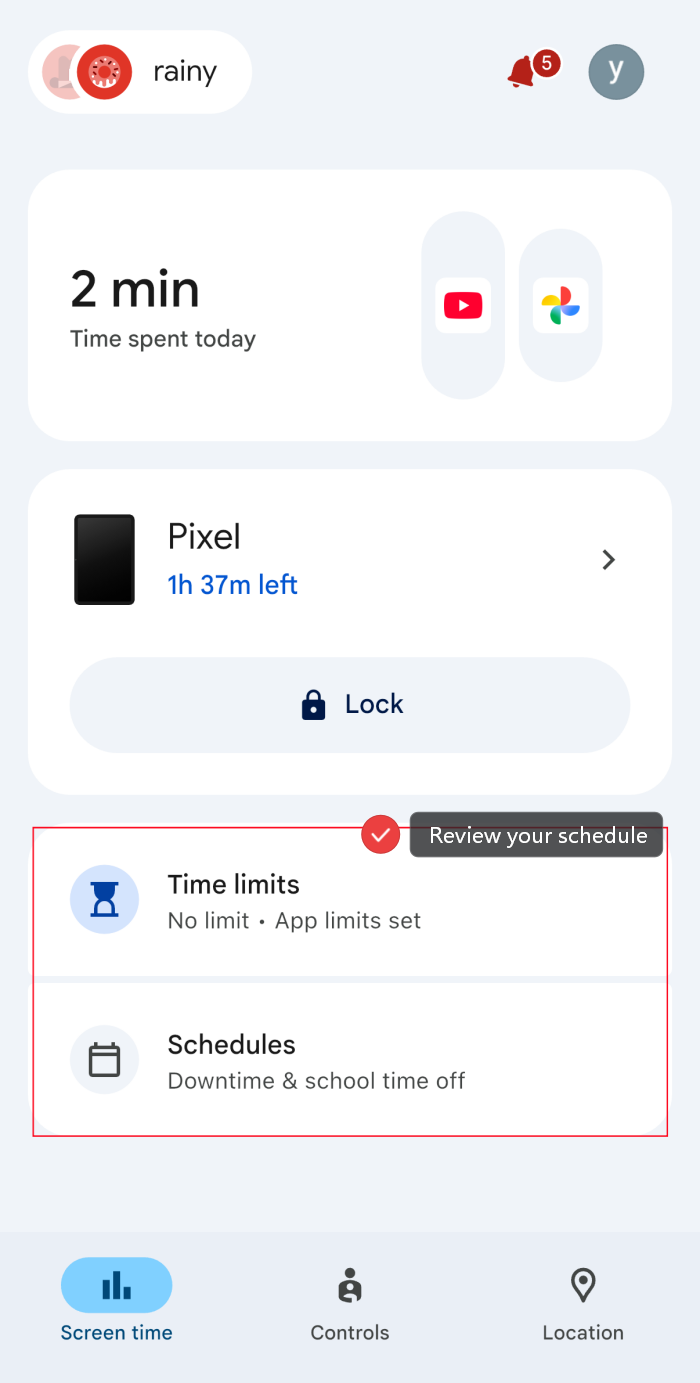
Google supports Family Link app limits on supervised devices running Android 7 or later. If the family also wants to prevent Instagram use in Chrome, open Family Link, select the child, then go to Controls, Google Chrome and Web, and Blocked sites to add the Instagram domain. These website controls apply to Chrome and some Android apps, not every browser. See Google's Family Link app limit guide and Chrome supervision guide.
Manage Instagram with AirDroid
AirDroid Parental Control offers Individual App Limits, shared Total Time Limits, and Downtime. For an Instagram-specific rule, use an Individual App Limit. The parent can then review the rule with the child and adjust it as school schedules and responsibilities change.
- Step 1.Install AirDroid Parental Control on the parent's phone, then bind the child's device by following the setup shown in the app.
- Step 2.For a child's iPhone or iPad, enable Supervision Mode before trying to use App Time Limits. This requires AirDroid Parental Connector on a Windows or Mac computer, or a supported Android device, plus a USB cable.
- Step 3.In AirDroid Parental Control, open App Management and tap Add Limit under App Limits.
- Step 4.Select Instagram, tap Next, choose Individual App Limits or Downtime, set the rule, and tap Done.


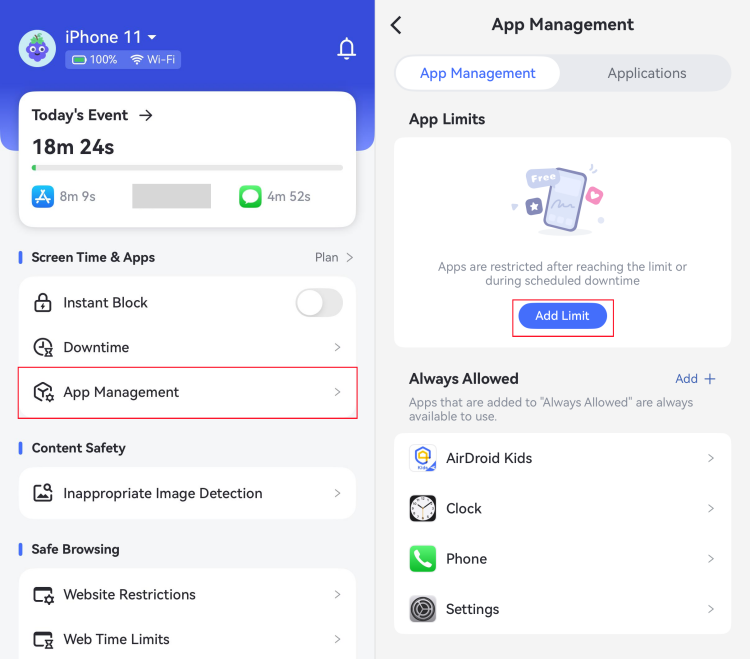
AirDroid does not need to be presented as a way to read everything a child does on Instagram. For this goal, app limits, downtime, and usage summaries are the relevant tools. Use them transparently and treat usage data as a basis for conversation, not proof of a child's intent or emotional state.
FAQs
The best limit is one the family understands and can review. Combine the technical setting with a clear reason, a predictable process for requesting extra time, and regular conversations about how Instagram affects sleep, school, relationships, and mood.










Leave a Reply.