AirDroid Parental Control
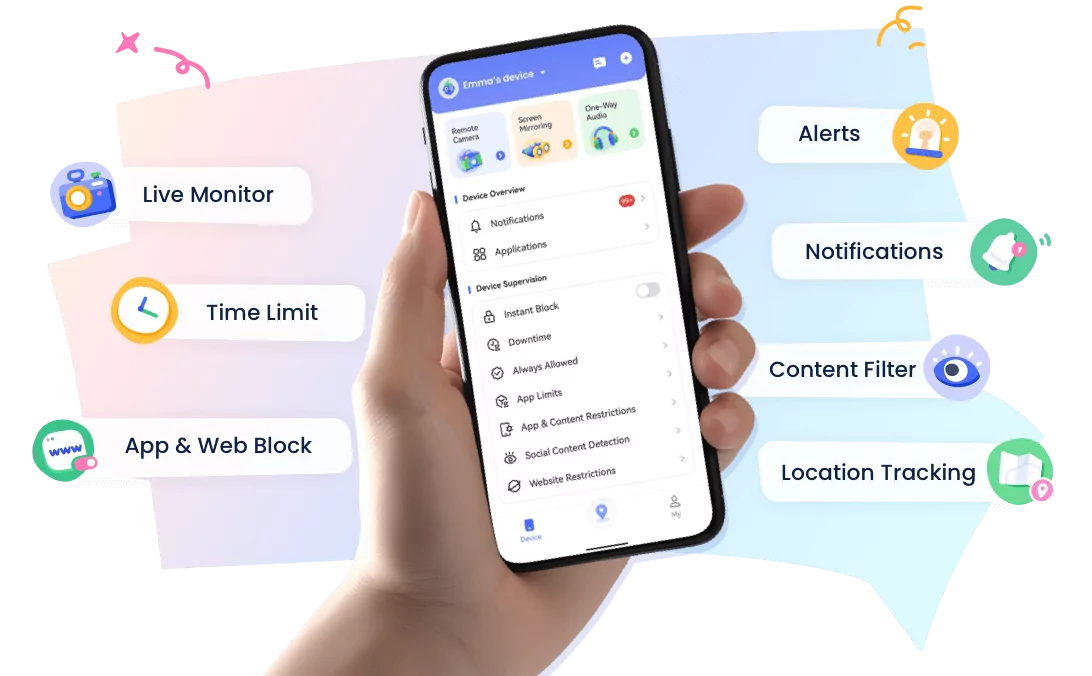
24/7 Kids' Guardian via App & Web
- 👀Live surroundings and location tracking
- 🔞Content Monitoring and App/Web Blocking
- ⚠Instant alerts for online risks and geofences
- ⌛Screen time control and monitor
How Parents Can Check Screen Time on a Child's Android Phone
Parents may start checking screen time when a child's phone use begins to affect homework, sleep, physical activity, or family time. Android provides built-in tools that show overall device use and time spent in individual apps.
This guide explains how parents can check screen time on a child's Android phone with Digital Wellbeing. It also introduces a parental-control option for families that need to review usage from a parent device and set consistent app or downtime rules.
Does Android Have Screen Time?
Many Android phones include a built-in Digital Wellbeing feature and parental controls. Some Huawei phones provide similar features under the name Digital Balance. Availability and menu names can vary by Android version and device manufacturer.
This feature provides a detailed report showing how much time is spent in each app. It can also include tools such as app timers, Bedtime mode, and Focus mode. If you want to check screen time for a specific day, open the daily dashboard and select the date where that option is available.
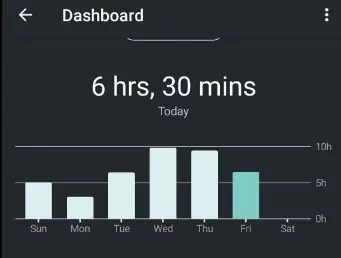
If Digital Wellbeing is not visible, search for it in Settings. The exact tools available depend on the phone manufacturer, Android version, and whether the device is using a personal, work, or child profile.
Check Screen Time on Android with Digital Wellbeing
It can be easy to get lost in a digital rabbit hole that leaves us feeling stressed and unproductive. Digital Wellbeing shows how much time is spent on the phone and allows users to set limits for specific apps.
1Set Up Digital Wellbeing
- Step 1.Open the phone's Settings app.
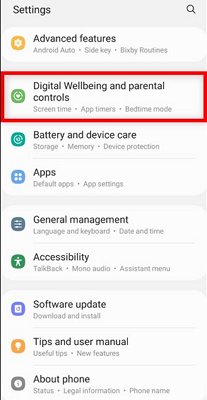
- Step 2.Tap Digital Wellbeing & parental controls. If you do not see this option, search for Digital Wellbeing in Settings.
- Step 3.Under Digital Wellbeing, open the dashboard or chart that summarizes device and app usage.
2Review Screen Time
To access the Digital Wellbeing report, go to Settings, Digital Wellbeing & parental controls, and open the dashboard. From there, you can see how much time has been spent on the phone overall and how much time was spent in specific apps.
You can also set app timers that remind the user to take a break after a selected amount of time. The available controls and labels may vary by device.
3Add the Screen Time Widget
- Step 1.Touch and hold an empty area of the Home screen.
- Step 2.Tap Widgets.
- Step 3.Find the Digital Wellbeing widget and add it to the Home screen.
The widget provides a quick view of screen time from the Home screen. Its appearance and availability may vary by device.
Check a Child's Screen Time with AirDroid
Digital Wellbeing is useful when viewing the child's phone directly. If parents need to review usage and manage family rules from their own device, AirDroid Parental Control provides screen-time and app-management tools for connected child devices.
- Review activity reports. Parents can check daily or weekly screen time and see which apps were used most.
- Set app limits. Families can create separate limits for individual apps or a shared total limit for selected apps.
- Schedule Downtime. Selected apps can be unavailable during homework, meals, bedtime, or other agreed family periods, while necessary apps can remain allowed.


Available controls depend on the child's operating system, permissions, connection, setup method, and current app version. Parents should explain the rules to the child, use limits for a clear purpose, and review them as the child's responsibilities change. See the current AirDroid Parental Control guide for setup and platform details.
Video Tutorial: Check Screen Time on Android
Why People Check Screen Time
There are many reasons someone might want to check screen time on an Android phone. With distractions only a few inches away, phone use can quickly affect productivity, sleep, or other daily priorities.
1Productivity
People working or studying from home may notice that their phones reduce productivity. The same can happen to students, artists, or anyone trying to complete a task. Tracking screen time can show when social media, videos, or games are taking time away from other priorities.
2Curiosity
Some people check screen time out of curiosity. Many apps are designed to keep users entertained for as long as possible. A screen-time report can show how much time is actually being spent on apps such as TikTok, Instagram, YouTube, or Facebook.
3Personal or Family Goals
Some people want to reduce social media use or make more time for other activities. They may set a daily goal or create phone-free periods for work, meals, or bedtime. Tracking screen time makes it easier to see whether those goals are being met.
Balance Digital Activity and Productivity
The world is full of digital distractions. Phones, tablets, and computers can make it harder to focus on work, study, sleep, exercise, and other offline activities.
A healthier balance between digital and physical activities can support productivity and well-being. Screen-time reports can help users identify where changes may be useful, but the purpose and timing of screen use matter as much as the total duration.
What Is an Appropriate Amount of Screen Time?
There is no single daily number that fits every child. Age, developmental needs, the type of content, school requirements, sleep, physical activity, and family circumstances all matter.
- Babies and toddlers. Families should prioritize sleep, movement, responsive caregiving, and real-world play, while following current pediatric guidance for age-appropriate media use.
- Preschool children. Choose high-quality content, watch together when possible, and make sure screens do not replace active play or sleep.
- School-age children. Set consistent boundaries around homework, bedtime, meals, and recreational use while allowing necessary educational activities.
- Teenagers. Involve teens in setting realistic rules and focus on whether device use affects sleep, responsibilities, relationships, or emotional well-being.
- Adults. Work-related screen use may be unavoidable, so breaks and boundaries around recreational use can be more practical than one fixed limit.
Final Thoughts for Parents
Checking a child's screen time is most useful when it leads to a calm conversation and a specific family goal. Digital Wellbeing can provide a quick view on the Android phone, while a parental-control tool can help families manage agreed limits from a parent device when additional support is needed.
Parents should look beyond the total number of hours and consider what the child is doing, when the phone is being used, and whether it is affecting sleep, school, exercise, or relationships. Start with the least restrictive setting that addresses the concern, explain the rule, and adjust it as the child develops healthier habits and greater independence.
Hottest Question Related to See Screen Time on Android










Leave a Reply.