What Is Event-Driven Automation in MDM?
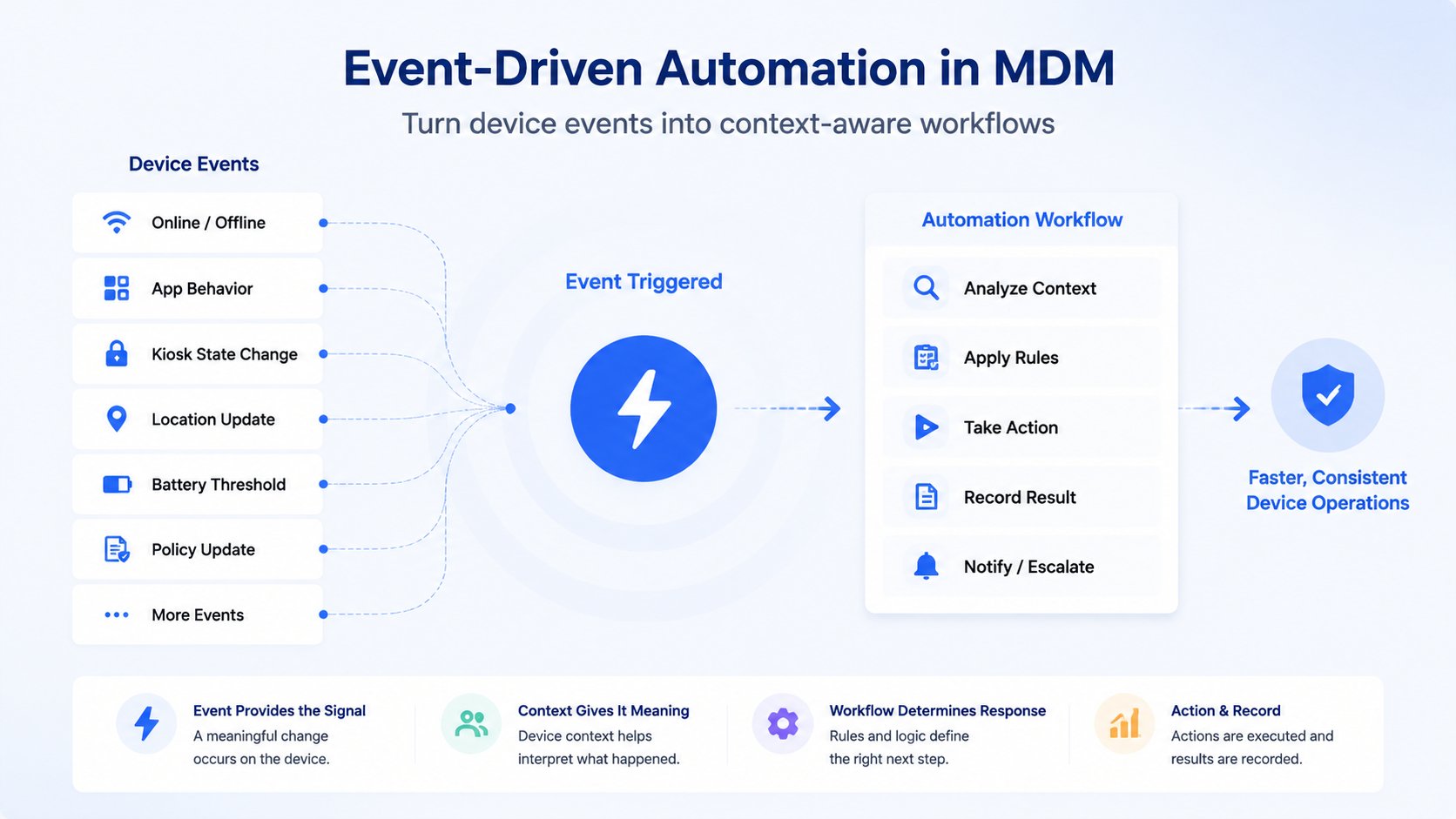
Managed Android devices constantly change state. A POS terminal goes offline, a warehouse application stops running, a Kiosk exits its expected mode, device storage reaches a threshold, or a tablet leaves an approved location.
Mobile device management software can detect these changes. The harder part is deciding what should happen next.
Event-driven automation starts a predefined workflow when a meaningful device event occurs. Instead of waiting for an administrator to notice an alert or for the next scheduled inspection, the event starts the configured response process.
The basic model is:
Event → Conditions → Workflow → Outcome
For example:
A POS terminal goes offline → Check its store, role, and last online time → Notify the responsible team → Record the workflow result
The workflow starts because something changed. Scheduled automation, by comparison, starts because a specified time or interval has arrived.
This guide explains what counts as a device event, how event-triggered workflows operate, how event-driven automation differs from scheduled and alert automation, and how IT teams can use it without giving up administrative control.
For a broader look at AI-assisted analysis, multi-step workflows, incident summaries, and intelligent escalation, read the AI-Driven MDM Automation guide.
- Part 1: What Is Event-Driven Automation in MDM?
- Part 2: Event-Driven vs. Scheduled vs. Alert Automation
- Part 3: How an Event-Driven MDM Workflow Works
- Part 4: How Event Data and ABEvent Variables Support Workflows
- Part 5: Event-Driven MDM Use Cases
- Part 6: Safe Event-Driven Automation Requires Control
- Part 7: Why AirDroid Business for Event-Driven Device Operations
- Part 8: Frequently Asked Questions
Part 1: What Is Event-Driven Automation in MDM?
Event-driven automation is a workflow model in which a device or system event starts a predefined process.
In an MDM environment, the event may be a device status change, an application or Kiosk change, a resource threshold, a location event, or a policy update. The workflow receives available information about the event, evaluates the conditions configured by the administrator, and starts the appropriate response.
The response may include:
- Sending a notification.
- Identifying affected devices.
- Collecting additional device information.
- Generating a report or exporting a device list.
- Routing the event for review.
- Preparing an approved device operation.
- Recording the workflow result.
The workflow does not have to change the device. In many cases, automation is useful because it gathers information and routes an issue consistently, even when an administrator must make the final decision.
1Event, Alert, and Workflow Are Different
- Event: The underlying change in device or system state.
- Alert: A notification generated when a configured condition is met.
- Workflow: The predefined process that determines what happens next.
For example, low device storage is an event. An alert may notify IT when storage falls below a configured threshold. A workflow can then generate a report, identify the affected device group, notify the responsible team, and record the outcome.
An alert can trigger a workflow, but not every event-driven workflow has to begin with an alert.
2Common Device Events in MDM
Device status changes
A device goes online or offline, fails to check in, changes enrollment or management status, or moves between groups.
Application and Kiosk changes
A required application stops, application status changes, Kiosk status changes, or a device exits its expected Kiosk environment.
Resource and network thresholds
Battery falls below a specified level, available storage crosses a threshold, mobile data reaches a limit, or network status changes.
Location changes
A device enters or leaves a geofence or moves outside its expected location. Location workflows should follow the organization's privacy policies and permission requirements.
Policy and configuration changes
A policy fails to apply, a configuration mismatch appears, or a device moves outside its expected management state.
The events available to a workflow depend on the MDM platform, product version, device capability, plan, permission, and workflow configuration.
Part 2: Event-Driven vs. Scheduled vs. Alert Automation
Event-driven, scheduled, and alert automation can all reduce manual MDM work, but they use different starting points.
- DimensionEvent-Driven AutomationScheduled AutomationAlert Automation
- TriggerA device or system eventA fixed time or intervalA configured alert rule
- Starts whenA condition changesA scheduled time arrivesAn alert condition is met
- Best suited forDevice state changes that need timely follow-upRoutine inspections and recurring reportsWorkflows that begin with an MDM alert
- ExampleKiosk status changesWeekly device health reportLow-storage alert triggers a report
1Event-Driven Automation Runs When Something Changes
Use event-driven automation when the timing of a device change matters. Examples include a production device going offline, a required application stopping, a Kiosk status changing, a device leaving a geofence, or a policy failing to apply.
2Scheduled Automation Runs at a Specified Time
Scheduled automation is better suited to predictable work such as daily health reports, weekly inventory exports, periodic compliance inspections, monthly data usage reports, and recurring battery or storage checks.
Most organizations need both models. Scheduled workflows provide routine visibility. Event-driven workflows provide condition-based follow-up.
3Alert Automation Begins with an Alert Rule
Alert automation is a more specific type of workflow. It starts when an MDM alert rule is triggered. Event-driven automation is broader because its trigger may be an alert, a device status change, an application event, a location event, or another supported event source.
For more information about alert-triggered workflows, read MDM Alert Automation: A Complete Guide to Automated Device Response.
AirDroid Business - Turn Device Events into Automated Workflows
Go beyond traditional MDM with early access to intelligent automation that helps streamline routine tasks and keep device operations running smoothly. Share your goals, and our team will review your request and follow up with next steps.
Part 3: How an Event-Driven MDM Workflow Works
A practical event-driven workflow follows five stages:
Detect Event → Capture Event Data → Evaluate Conditions → Start Workflow → Record Outcome
1Detect the Event
The process begins when the MDM platform detects a supported event. The trigger should represent a condition that matters to an operational process and should be specific enough to avoid unnecessary workflow executions.
2Capture Event Data
The workflow receives available information about the event and affected device. This may include the event type, device name or ID, trigger time, device group, alert rule, application or Kiosk status, battery, storage, network, location, policy, or configuration information.
3Evaluate Conditions
The workflow checks conditions configured by the administrator. It may determine whether the device belongs to a production group, whether the event occurred during business hours, whether the event is recurring, whether the device is online, and whether the next action requires approval.
An offline production POS terminal during store hours may require immediate attention. A test device that goes offline outside working hours may be added to a report for later review.
4Start the Configured Workflow
Depending on product support and configuration, the workflow may notify a support team, generate a summary or report, export affected devices, route the event for review, prepare a supported remote operation, or start another approved process.
If required data is missing or a high-risk action needs approval, the workflow should stop or route the issue for administrator review.
5Record the Outcome
The workflow should retain the triggering event, affected device, trigger time, conditions evaluated, selected path, generated output, success or failure status, failure reason, and any remaining manual task.
This gives IT teams a reviewable process instead of an isolated alert.
Part 4: How Event Data and ABEvent Variables Support Workflows
An event trigger is more useful when the workflow receives information about the event.
In the AirDroid Business workflow model, ABEvent variables can provide event-related data to the configured workflow. Depending on the event and product configuration, this data may include:
- Event type.
- Device name or identifier.
- Device group and trigger time.
- Alert information.
- Battery, storage, network, or location information.
- Application, Kiosk, Policy, or configuration status.
The workflow can use these variables to check conditions and select a predefined response path.
For example:
A Kiosk status event occurs → Read the device group and current Kiosk status → Check whether the device is in production → Notify support or add the event to a review report
ABEvent variables provide the event context. The workflow still needs configured conditions, supported actions, failure handling, and an accountable administrator.
Before publishing a workflow or making a product claim, confirm which events can trigger workflows, which ABEvent variables are available, which actions and integrations are supported, which actions require confirmation, and which plans and permissions apply.
AI may help summarize event information or organize affected devices, but AI is not required for event-driven automation. The defining feature is the event-based trigger.
For AI-assisted workflow orchestration, incident summaries, and intelligent escalation, see the AI-Driven MDM Automation guide.
AirDroid Business - Build Smarter Device Operations with Context-Aware
Go beyond traditional MDM with early access to intelligent automation that helps streamline routine tasks and keep device operations running smoothly. Share your goals, and our team will review your request and follow up with next steps.
Part 5: Event-Driven MDM Use Cases
The following examples show how device events can start workflows in different operating environments. They illustrate possible patterns rather than guaranteed product configurations.
- Industry or Use CaseDevice EventPossible WorkflowOperational Benefit
- RetailPOS terminal goes offlineCheck store and device role, notify support, record the resultFaster triage of checkout disruption
- LogisticsWarehouse scanner app stopsCollect app and device status, notify ITMore consistent warehouse support
- HealthcareTablet leaves an approved areaCapture context and route for authorized reviewBetter oversight of shared devices
- Kiosk OperationsKiosk status changesCheck profile and app state, notify supportFaster identification of service interruptions
- Device HealthStorage crosses a thresholdGenerate a report and notify the responsible teamEarlier response to capacity risks
- CompliancePolicy fails to applyCreate a review list and route it to an administratorMore consistent policy follow-up
1Retail: POS Terminal Goes Offline
Retail stores may depend on Android POS terminals for checkout, inventory lookup, and order processing. An offline terminal can affect store operations before central IT notices the problem.
POS terminal goes offline → Identify the store, terminal role, and last online time → Check whether the store is open → Notify the responsible support team → Record the workflow result
This workflow applies context before sending a notification. A production checkout terminal can follow a different path from a test device or a terminal outside business hours.
2Logistics: Warehouse Scanner Application Stops
Warehouse scanners and logistics tablets often rely on a required application for receiving, picking, packing, or shipment confirmation. A scanner may remain online even though its business application has stopped.
Required application stops → Identify the warehouse and scanner group → Collect application, connectivity, and Kiosk status → Notify warehouse IT → Prepare a supported troubleshooting process or route the issue for review
The workflow separates information collection from operations that could change device state.
3Additional Event-Driven Workflows
- A healthcare tablet leaves an approved area, so the workflow records available location context and routes the event to an authorized administrator.
- A self-service Kiosk changes status, so the workflow checks its profile and required application before notifying support.
- Device storage crosses a threshold, so the workflow generates a device report and notifies the responsible team.
- A policy fails to apply, so the workflow identifies affected devices and creates a review list.
For a detailed storage example, see How to Automate Android Low-Storage Alerts.
Part 6: Safe Event-Driven Automation Requires Control
Faster response requires clear limits. IT teams should control who can create workflows, which devices a workflow can affect, and which actions can run without review.
1Permission and Device-Scope Controls
Give administrators and workflow connections only the permissions required for the intended process. Limit the workflow to relevant device groups, roles, locations, or environments.
2Approval for High-Impact Actions
Notifications, reports, and device exports are generally lower risk. Actions that reboot devices, clear application data, change critical configurations, lock devices, factory reset, or unenroll endpoints should follow appropriate confirmation and approval requirements.
3Event Deduplication and Retry Limits
A device may generate the same event repeatedly. Use cooldown periods, deduplication rules, retry limits, and escalation thresholds to prevent notification floods or repeated device operations.
4Audit Trail
Record the triggering event, affected devices, workflow path, generated output, execution result, failure reason, and any administrator approval.
Event-driven automation should make response faster without removing administrator-defined boundaries.
Part 7: Why AirDroid Business for Event-Driven Device Operations
Traditional MDM tools often stop after displaying an alert. The administrator still has to open the console, locate the device, review its status, decide what to do, perform the action, and document the result.
A typical manual process looks like this:
Alert → Administrator checks the device → Manual decision → Manual action → Manual record
AirDroid Business can connect device monitoring with workflow-based follow-up:
Device Event → Device Context → Configured Workflow → Response or Approval → Recorded Outcome
This does not mean that every event automatically changes the device. The response may be a notification, report, device list, manual review request, or supported operation that requires administrator approval.
1Event-Driven Automation as an AirDroid Business Capability Model
Event-driven automation is not a single isolated feature. It is an operating model that connects several AirDroid Business capabilities.
- AirDroid Business CapabilityRole in Event-Driven Operations
- Alerts and Device EventsDetect meaningful changes in device or operating status
- Device Groups and Device InformationIdentify the affected endpoint and its operational context
- WorkflowEvaluate conditions and start the configured response
- Kiosk and PolicyProvide application, profile, policy, and configuration context
- Remote Access and Supported OperationsHelp administrators investigate issues or perform controlled follow-up
- Reports and Operation RecordsPreserve workflow outputs and results for review
2Example: Responding to a Kiosk Status Change
Consider a self-service Kiosk that exits its expected operating state. With a traditional process, an administrator may need to find the device, check its group and location, review the Kiosk profile and application, contact support, start troubleshooting, and document the result.
Kiosk status changes → Identify the device and location → Read available Kiosk and application status → Notify support or route for review → Open a controlled troubleshooting path → Record the result
Remote Access remains an administrator-controlled tool for investigation. The workflow can route the issue to Remote Access or another supported process without implying that every Kiosk problem will be fixed automatically.
3Device Management and Workflow Working Together
AirDroid Business provides Android device enrollment and organization, device groups and information, monitoring and alerts, Kiosk management, Policy and configuration management, Remote Access, supported remote operations, reports, and operation records.
Device events and ABEvent variables provide information about what changed. GoInsight.AI Workflow can use available variables and configured conditions to organize the follow-up process. Administrators remain responsible for workflow scope, permissions, approval requirements, and exception handling.
The available events, variables, integrations, and executable operations depend on the product release, plan, device capability, workspace configuration, and administrator permissions.
AirDroid Business - Manage Business-Critical Devices with Automated Monitoring and Support
Go beyond traditional MDM with early access to intelligent automation that helps streamline routine tasks and keep device operations running smoothly. Share your goals, and our team will review your request and follow up with next steps.
Part 8: Frequently Asked Questions
From Device Events to Repeatable Workflows
Event-driven automation helps IT teams respond consistently when managed-device conditions change.
The event identifies what happened. Event data identifies the affected device. Conditions determine which path should run. The workflow creates the response and records its outcome.
Not every event needs automatic remediation. Notifications, reports, routing, and administrator review can remove repetitive work while keeping IT teams in control.
AirDroid Business connects device events, MDM context, workflow logic, Kiosk and Policy information, supported management actions, and administrator controls. This gives organizations a more structured way to manage device changes across distributed Android fleets.








Leave a Reply.