AirDroid Parental Control
AI-powered Content & Web Filter
- 🔞Inappropriate apps, websites and call blocking
- ⚠ Instant Alerts for potential online risks
- 👀Social Apps & Messages content monitor
How to Block YouTube on iPhone and iPad [2026]
- Quick Comparison: Ways to Block YouTube on iPhone and iPad
- How to Block YouTube with AirDroid Parental Control
- How to Block YouTube with Apple Screen Time
- What About Supervision Mode?
- Can Kids Still Access YouTube After Blocking It?
- How to Unblock YouTube on iPhone or iPad
- FAQs About Blocking YouTube on iPhone and iPad
Blocking YouTube on an iPhone or iPad may require two separate rules: one for the YouTube app and another for youtube.com in Safari and other browsers. The best method depends on whether you want a simple built-in restriction, remote parental management, or more comprehensive control of a supervised device.
A complete iOS YouTube restriction plan should cover four areas: the YouTube app, browser access, the device's supervision status, and a clear way to restore access when the restriction is no longer needed.
For a child's device, explain why YouTube is being restricted and agree on when access can return. A clear homework, bedtime, or age-appropriate content rule is usually more helpful than an unexplained permanent block.
Quick Comparison: Ways to Block YouTube on iPhone and iPad
AirDroid Parental Control is the most comprehensive option in this guide when a parent wants to block both the YouTube app and browser access from their own device. Apple Screen Time is the simplest free option, while device supervision is intended for stronger device-management policies.
| Method | YouTube app | Safari and web | Remote management | Best for |
|---|---|---|---|---|
| AirDroid Parental Control | Yes | Yes | Yes, after the required setup | Parents who want app and website rules in one dashboard |
| Apple Screen Time | Yes | Yes | Yes, for a child account through Family Sharing | Families that prefer Apple's built-in controls |
| Supervised device | Depends on the applied restriction | Depends on the applied web policy | Yes, through the management system | Advanced family setup, schools, or organization-owned devices |
Important: Blocking the YouTube app does not automatically block youtube.com. Test the app, Safari, and any other installed browser after configuring the rules.
How to Block YouTube with AirDroid Parental Control
AirDroid Parental Control lets parents manage the YouTube app and supported browser access from the parent app. On a child's iPhone or iPad, AirDroid supports App Blocker, Website Filtering, and related device-management controls that require Supervision Mode.
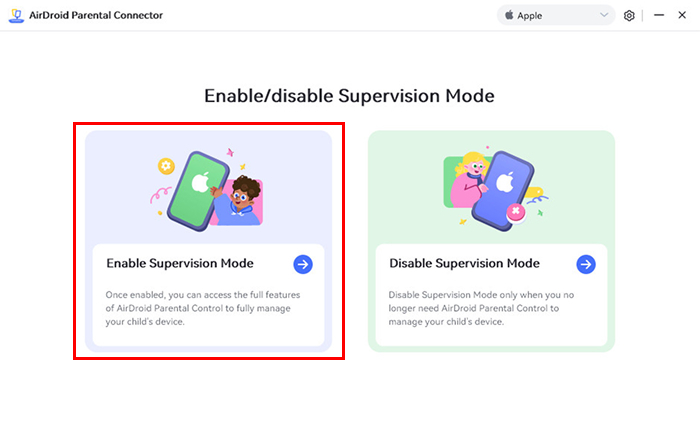
Complete the AirDroid Kids binding process first. Then use AirDroid Parental Connector and a USB cable to enable Supervision Mode on the child's iPhone or iPad.


1Block the YouTube App
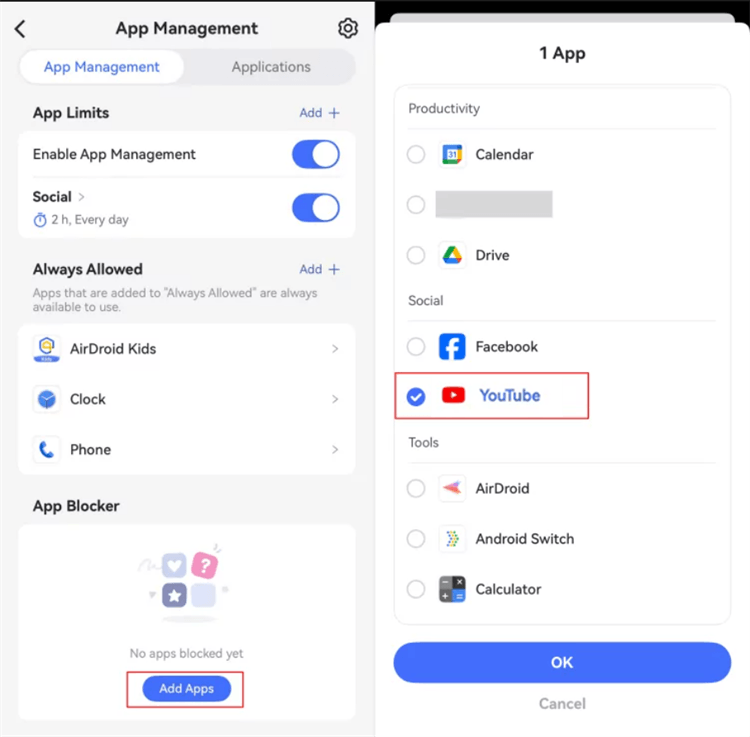
- Step 1.Open AirDroid Parental Control and select the child's iPhone or iPad.
- Step 2.Go to App Management > App Blocker, choose YouTube, and confirm the restriction.
- Step 3.Keep the child device online, allow the rule to sync, and confirm that the YouTube app no longer opens.
If permanent blocking is unnecessary, parents can instead utilize AirDroid to create an individual YouTube limit or schedule Downtime for school, homework, bedtime, or family time. Supported setups also allow a child to request more time, which the parent can approve or refuse.
2Block YouTube on Safari and Other Browsers
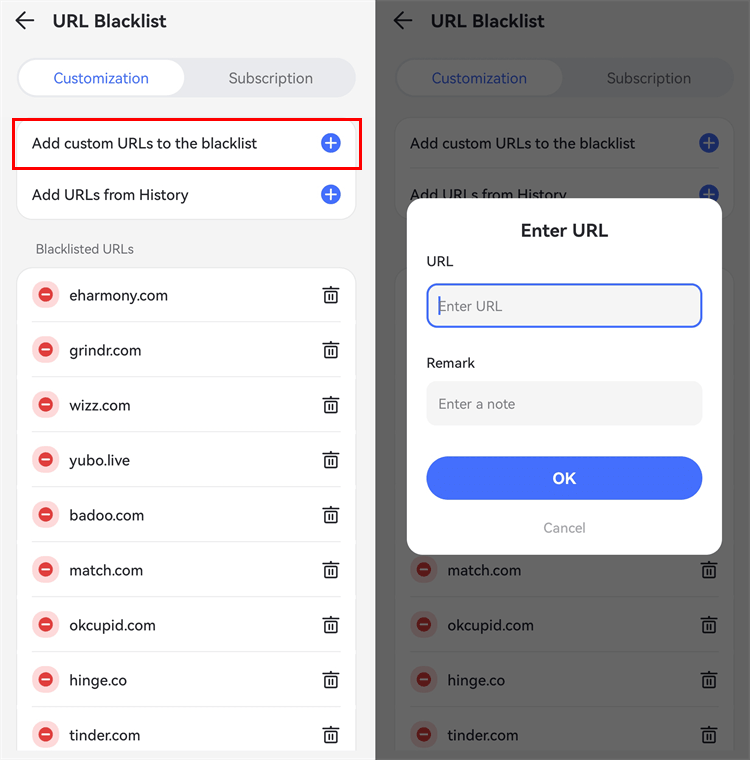
- Step 1.Open Website Restrictions > Mode and select Blacklist Mode.
- Step 2.Open URL Blacklist > Add Custom URLs and add the YouTube domains you want to restrict, starting with youtube.com, m.youtube.com, youtu.be, and youtube-nocookie.com.
- Step 3.Test youtube.com in Safari and every other browser installed on the child's device. If embedded videos remain available, review the browser activity and add the relevant YouTube domain to the blacklist.
AirDroid also provides Web Time Limits on supported child iPhones and iPads. This can be useful when the goal is to allow YouTube for a limited period instead of blocking the website all day.
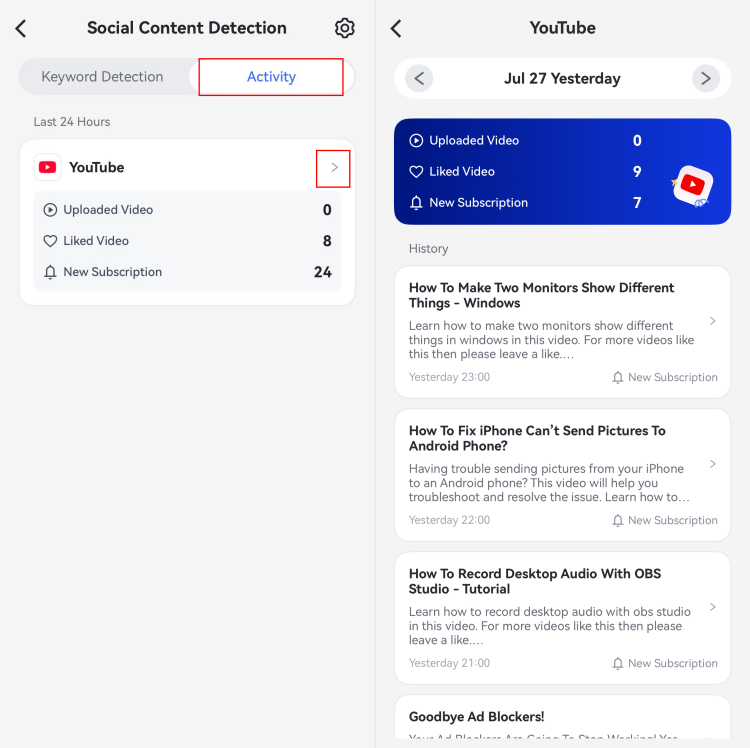
YouTube Detection is a sub-feature under Social Media Detection in AirDroid Parental Control, and it functions independently from app blocking.
On a child's iPhone or iPad, it works through authorized Google account linking rather than device-wide YouTube monitoring. After the child account holder signs in and grants access, AirDroid can show defined linked-account activity, including videos uploaded or liked by the child and new subscription.
It can also alert parents when selected keywords appear within supported fields such as video titles and descriptions. It does not perform complete audio or video-content analysis.
How to Block YouTube with Apple Screen Time
Apple Screen Time is built into the iPhone and iPad. In the updated iOS 27 and iPadOS 27 experience, a Family Sharing organizer or parent or guardian can block a specific app or website from the parent's device.
Apple says every device in the Family Sharing group must use the current software and the family's parental controls must be updated to access this interface.
If not every family device can be updated, Apple allows the family to continue using the previous Screen Time experience or change the controls directly on the child's device. The current and previous methods are both included below.
1Block the YouTube App in iOS 27 or iPadOS 27
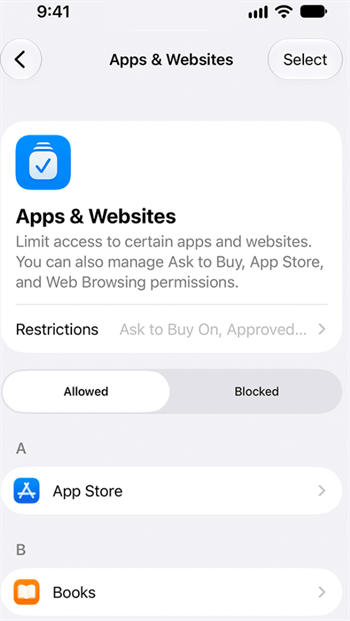
- Step 1.On the parent's iPhone or iPad, open Settings > Family > Child's Name > Apps & Websites. Enter the Screen Time passcode if requested.
- Step 2.Select YouTube, tap Block App, and tap again to confirm.
- Step 3.Open YouTube on the child's device to verify the restriction. Apple notes that a blocked app is not deleted; its icon is dimmed on the Home Screen.
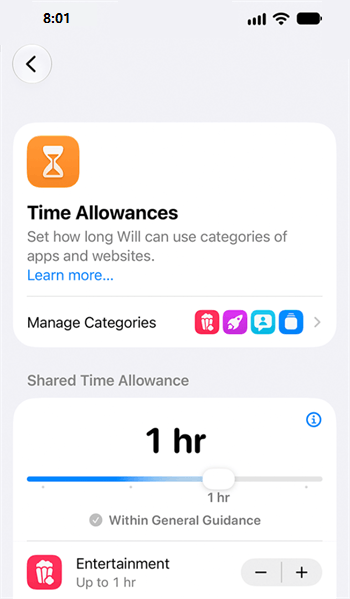
If the goal is limited use instead of a full block, open Settings > Family > Child's Name > Time Allowances, tap the Add button, and follow the onscreen instructions. The current system sets time boundaries across app categories and lets the parent adjust the allowance by category. On iOS 26, iPadOS 26, and later, a child may be able to request an exception for a Screen Time limit or restriction, which the parent can approve or decline.
2Block the YouTube Website in iOS 27 or iPadOS 27
- Step 1.Open Settings > Family > Child's Name > Apps & Websites.
- Step 2.Select youtube.com when it appears in Apps & Websites, tap Block Website, and tap again to confirm.
- Step 3.Test youtube.com in Safari and every other supported browser installed on the child's device. Also test alternate YouTube addresses used by the family, such as m.youtube.com and youtu.be.
If YouTube is not listed, open Settings > Family > Child's Name > Apps & Websites > Restrictions > Filtering under Websites. Choose Ask to Browse, which uses Approved Websites Only, when the child should request permission before opening a new website in Safari or another supported browser. This is broader than blocking only YouTube, so test other websites the child still needs.
3Use the Previous Screen Time Method
On an older or mixed-version family setup, Apple says you can keep using the previous Screen Time controls. Menu labels vary by iOS or iPadOS release, but the following paths remain useful:
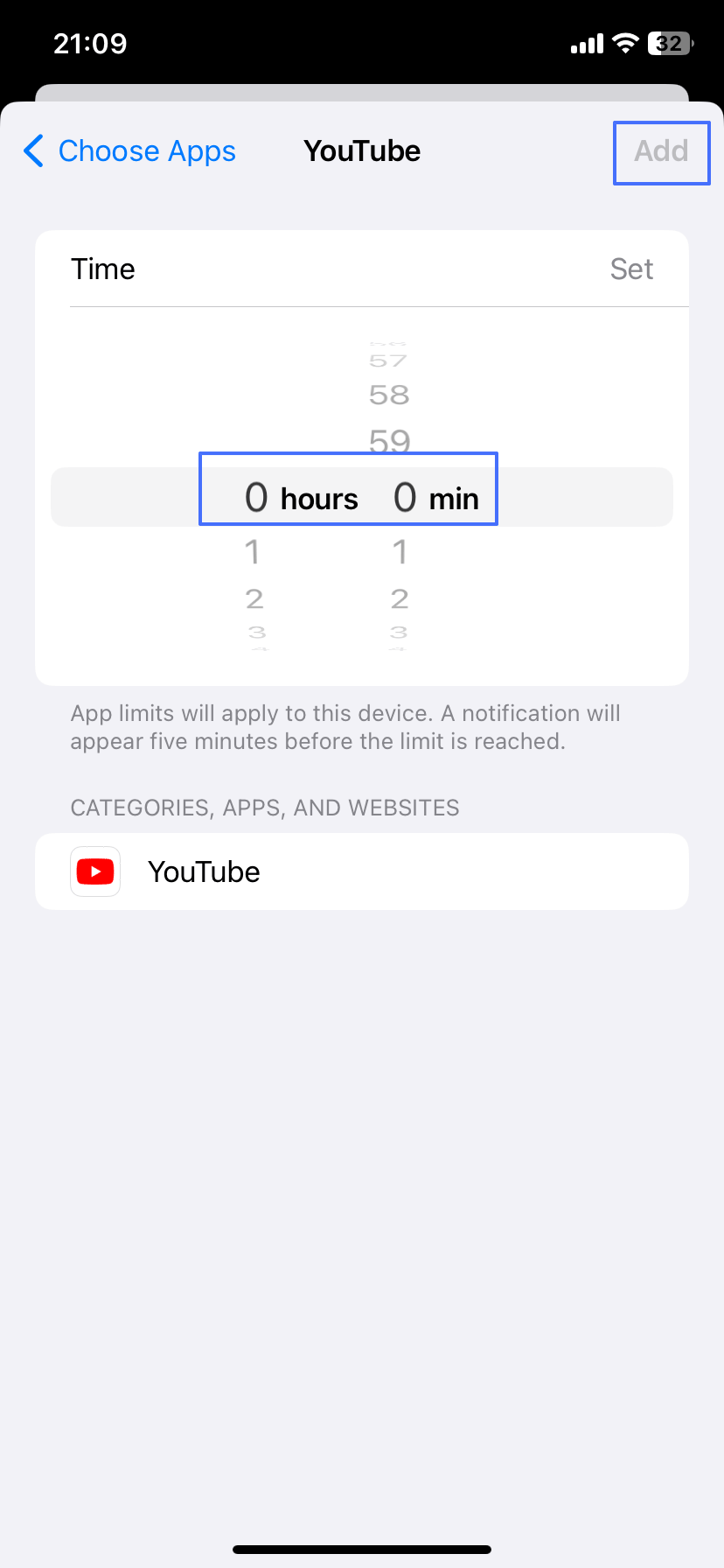
- Limit the YouTube app. Open Settings > Screen Time > App Limits > Add Limit, select YouTube if it is available, set the allowed time. A one-minute limit can reduce access, but it is not the same as an immediate app block.
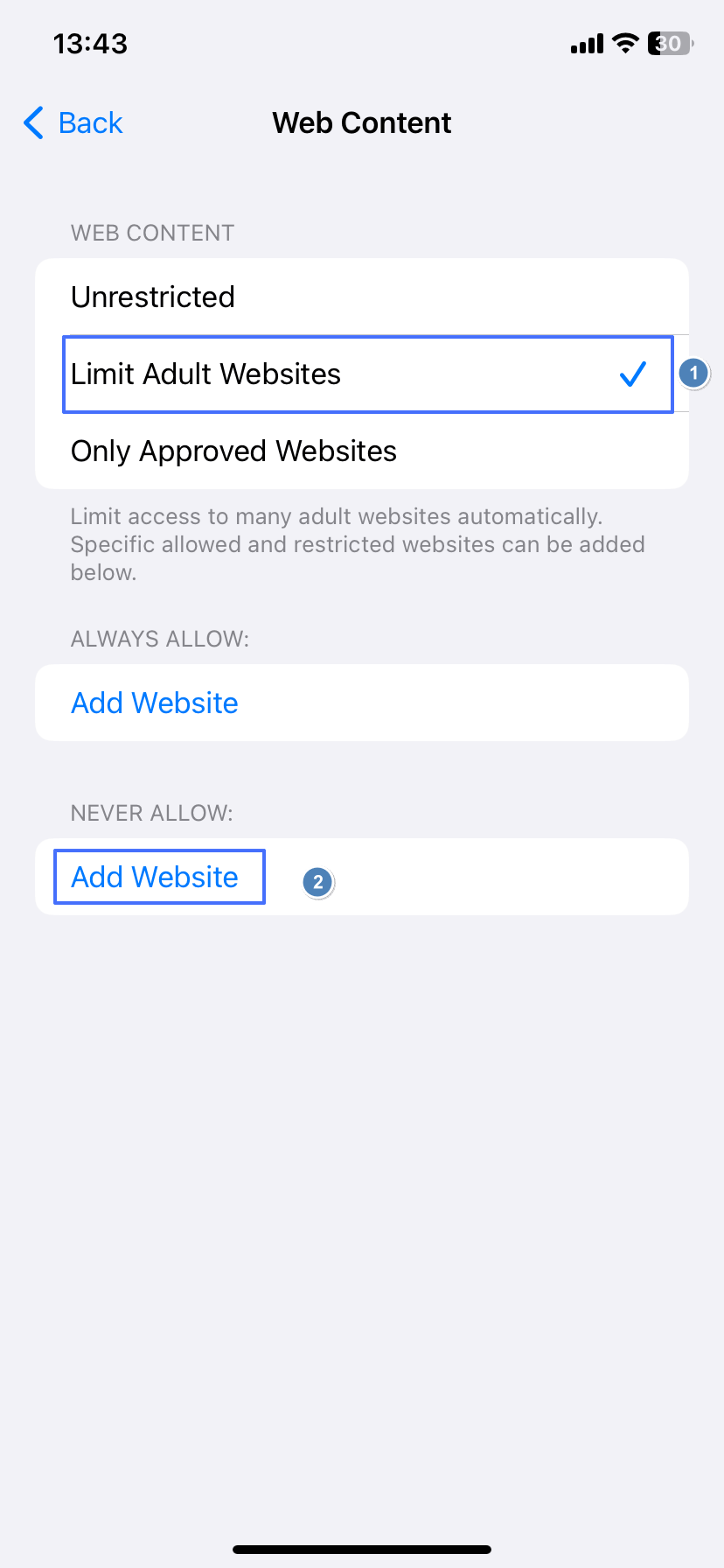
- Block the YouTube website. Open Settings > Screen Time > Content & Privacy Restrictions, then look for Content Restrictions > Web Content. Choose Limit Adult Websites and add youtube.com and m.youtube.com under Never Allow.
- Avoid an overly broad app-rating rule. Restricting apps by age rating can hide every app above the selected rating, not only YouTube.
4Delete YouTube and Prevent Reinstallation
This fallback removes the app and blocks new app installations when a direct YouTube block is unavailable or the family wants YouTube removed from the device.
- Step 1.Touch and hold the YouTube icon, then choose Remove App > Delete App.
- Step 2.In iOS 27 or iPadOS 27, open Settings > Family > Child's Name > Apps & Websites > App Store > Installing Apps.
- Step 3.Choose Blocked, then separately block the YouTube website because deleting the app does not prevent browser access.
In the previous Screen Time interface, use Settings > Screen Time > Content & Privacy Restrictions > iTunes & App Store Purchases > Installing Apps > Don't Allow.
Tradeoff: Blocking app installation affects other new apps as well, not only YouTube. Change the setting temporarily when the parent needs to install an approved app.
Apple's current parental-control instructions document direct app and website blocking, web filtering, App Store controls, time allowances, and child exception requests. Because menus differ across software generations, verify the result on the child's device after setup.
What About AirDroid Parental Control's Supervision Mode?
Supervision Mode in AirDroid Parental Control enables additional device-level controls, but supervision by itself does not automatically block YouTube. A parent must still configure an explicit app restriction, website rule, or management policy after setting it up.
Apple's native supervision system is designed for school- or business-owned devices managed through Mobile Device Management (MDM). AirDroid Parental Control builds on this iOS mechanism to offer its own dedicated Supervision Mode for a child's iPhone or iPad.
To activate Supervision Mode in AirDroid Parental Control, parents must connect the child's device to a computer via USB using the AirDroid Parental Connector tool. Once set up, it enables features such as App Blocker, app limits, Downtime, website filtering, and browsing history tracking. This USB setup requirement should be considered before choosing AirDroid specifically to block YouTube on iOS.
For a personal device that needs only a simple YouTube rule, Apple Screen Time may be sufficient. AirDroid Parental Control's Supervision Mode is best suited for families needing deeper remote management or tighter restrictions against bypass attempts.
Can Kids Still Access YouTube After Blocking It?
Yes, YouTube may remain accessible if only one route was restricted. Use this short bypass check after setting up AirDroid, Screen Time, or a supervised-device policy.
| Check | What to test | What to do if YouTube still works |
|---|---|---|
| YouTube app | Can the installed app still open or play a video? | Confirm that YouTube itself is selected in App Blocker or Screen Time |
| Safari | Can youtube.com, m.youtube.com, or youtu.be load? | Add the accessible domain to the website restriction |
| Other browsers | Can YouTube open in Chrome, Firefox, Edge, or another installed browser? | Confirm that the selected web-control method covers that browser |
| YouTube Kids | Can the YouTube Kids app or youtubekids.com still open? | Apply a separate app and website restriction if the family also wants to block YouTube Kids |
| Embedded videos | Can a YouTube video play inside search results, Messages, or another app's browser? | Review the accessible domain and recognize that some in-app playback may fall outside the selected browser rule |
| Settings | Can the child change the rule, remove the profile, or guess the passcode? | Protect the settings with a parent-only passcode and review device-management permissions |
Tip: Recheck the restrictions after an iOS update, app reinstall, permission change, account change, or device-management reset.
If YouTube works in a browser after the app has been blocked, configure website restrictions separately. Avoid claiming that a block is impossible to bypass until the app, browser routes, settings, and synchronization have all been tested on the actual device.
1Limits and Related Options
- Restrictions apply to the managed device. Blocking YouTube on one iPhone or iPad does not automatically block it on another phone, computer, smart TV, game console, or school device.
- App and website rules are separate. YouTube, YouTube Kids, alternate domains, and embedded playback may require separate checks.
- Children may request exceptions. Apple Screen Time and AirDroid can allow supported access requests. Protect the settings with a parent-only passcode and review each request rather than approving it automatically.
- YouTube Detection has an iOS boundary. AirDroid can provide selected account-based YouTube activity and keyword alerts after account linking; it does not provide a complete watch history, YouTube notification syncing, or real-time screen mirroring on the child's iPhone or iPad.
- Restricted Mode is not a block. YouTube Restricted Mode may filter some mature content, but it does not prevent access to YouTube and should not replace an app or website restriction.
- Guided Access is temporary. Guided Access can keep a shared iPhone or iPad inside one approved app during a supervised session, but it does not create a permanent YouTube app or website block.
How to Unblock YouTube on iPhone or iPad
Remove only the restriction that is no longer needed. You do not normally need to disable every parental-control setting or remove device supervision just to restore YouTube.
- AirDroid Parental Control. Open App Management and remove YouTube from App Blocker. Then open Website Restrictions and remove the YouTube domains from the URL blacklist. Keep the child device online while the changes sync.
- Apple Screen Time. Open the child's Apps & Websites settings, select the blocked YouTube app or website, and choose the available unblock or allow option. Adjust any Time Allowance or schedule separately.
- Supervised device. The parent or administrator must change the applied app or web restriction. If a school or employer manages the device, contact that organization rather than removing its profile.
After unblocking, test both the app and website. If access is still restricted, check for an active schedule, app limit, website blacklist, approved-websites rule, or management profile.
FAQs About Blocking YouTube on iPhone and iPad










Leave a Reply.