No. A child’s account may already be supervised, but YouTube access depends on the rules configured for it. Check the account setup and actual restrictions separately. See Google’s child-account guidance.
How to Block YouTube on Child's Android Phone
To block YouTube on your child’s Android phone, check both the YouTube app and website access. An app restriction does not establish whether videos remain accessible through a browser or shared link.
This guide covers Google Family Link, AirDroid Parental Control, and Digital Wellbeing. It explains how to configure each method, where its controls apply, and what happened in our device checks.
If you want to allow some viewing, the guide also distinguishes app allowances from website timers. These settings do not necessarily share one time limit.
Catalogue Contents[Showhide]
- Before You Start: Choose the Restriction You Need
- Method 1: Block YouTube with Google Family Link
- Method 2: Manage YouTube with AirDroid Parental Control
- Method 3: Use Digital Wellbeing on a Supported Android Phone
- Can These Methods Limit YouTube Website Use?
- Why Can My Child Still Access YouTube?
- How to Allow YouTube Again
- FAQs about Blocking YouTube on Android
Before You Start: Choose the Restriction You Need
Start with your household’s goal:
- Stop viewing: Configure app restrictions and review website access.
- Allow a daily session: Choose the relevant time allowance and check what it counts.
- Restrict use during homework: Configure an appropriate schedule.
- Manage content: Review content settings rather than assuming access controls select individual videos.
List the routes your child normally uses: the YouTube app, installed browsers, and school or messaging apps that open video links. Keep that list available for verification.
For Family Link, check whether supervision is already established. Creating a personal Google Account for a child below the applicable age involves parental consent and supervision. Older children can have supervision added to an existing account. Supervision does not automatically block YouTube.
Before adding supervision to an existing younger child’s account, review the consequences. Google says the change deletes subscriptions and certain YouTube account content, and recommends downloading the child’s data first. Read the YouTube account guidance.
Method 1: Block YouTube with Google Family Link
This method requires a supervised Google Account signed in on a compatible Android device. Follow Google’s instructions for signing your child into Android if the device is not connected to the managed account.
Block the YouTube App
On the parent device:
- Step 1. Launch Family Link and choose your child’s profile.
- Step 2. Navigate to Screen time >> Time limits >> App limits.
- Step 3. Choose YouTube, change Allowed to Blocked, and confirm with Done.
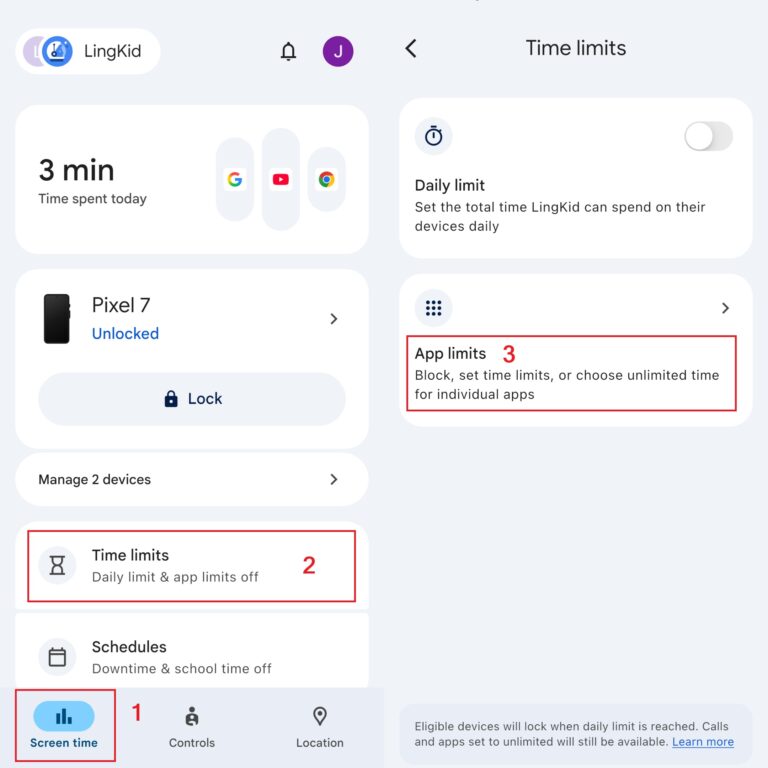
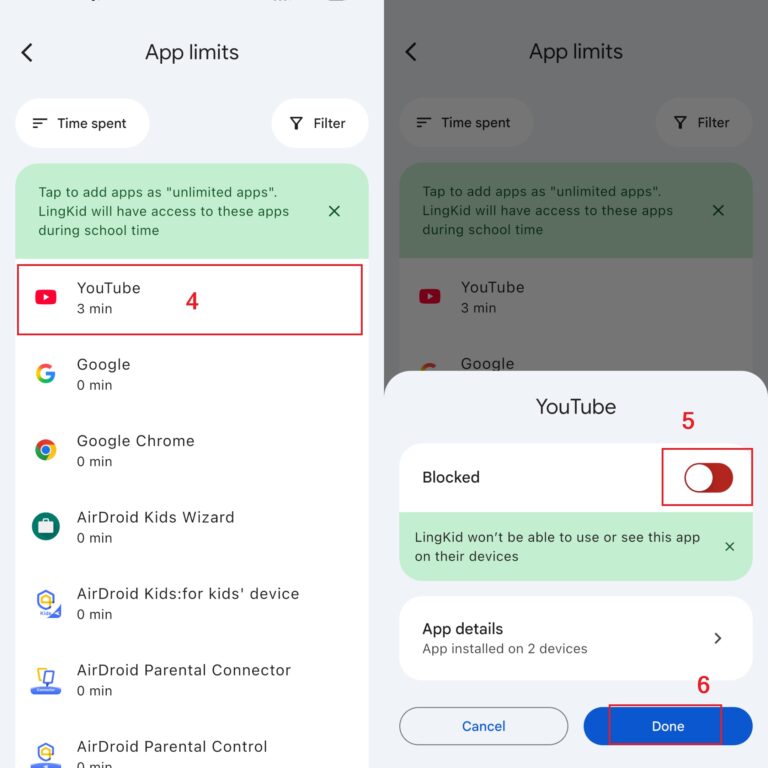
Google says an app restriction generally applies within about five minutes, or when the child’s device reconnects to the internet. Some apps cannot be blocked. Refer to its app-management instructions if the control is missing.
Restrict YouTube Website Access
Configure the website rule separately:
- Step 1. In Family Link, choose the same child.
- Step 2. Navigate to Controls >> Google Chrome and Web.
- Step 3. Choose Only allow approved sites.
- Step 4. Under Manage sites, open the blocked-sites list.
- Step 5. Choose Add site and add domain (YouTube) or a web address (www.youtube.com) and save.
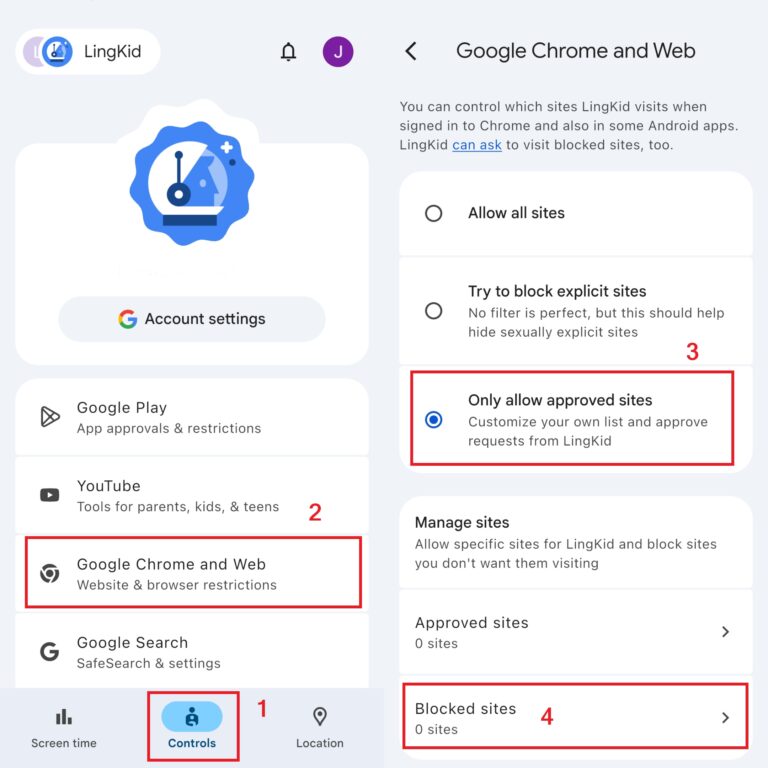
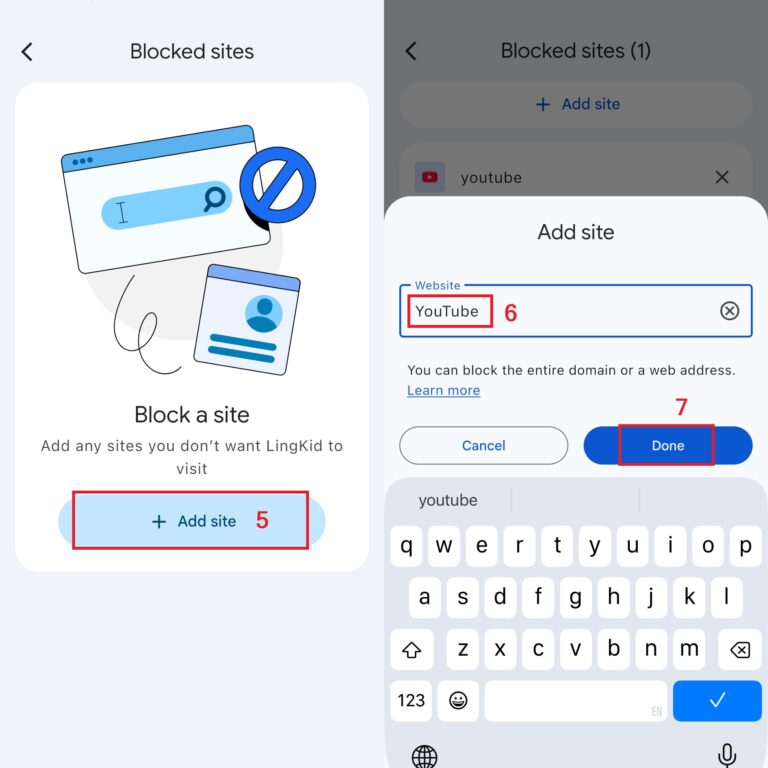
Google distinguishes individual website entries from broader domain rules. Review its website instructions when deciding which addresses to restrict.
These controls cover Chrome and some Android apps. Test the other routes your child uses.
What Happened in Our Family Link Test
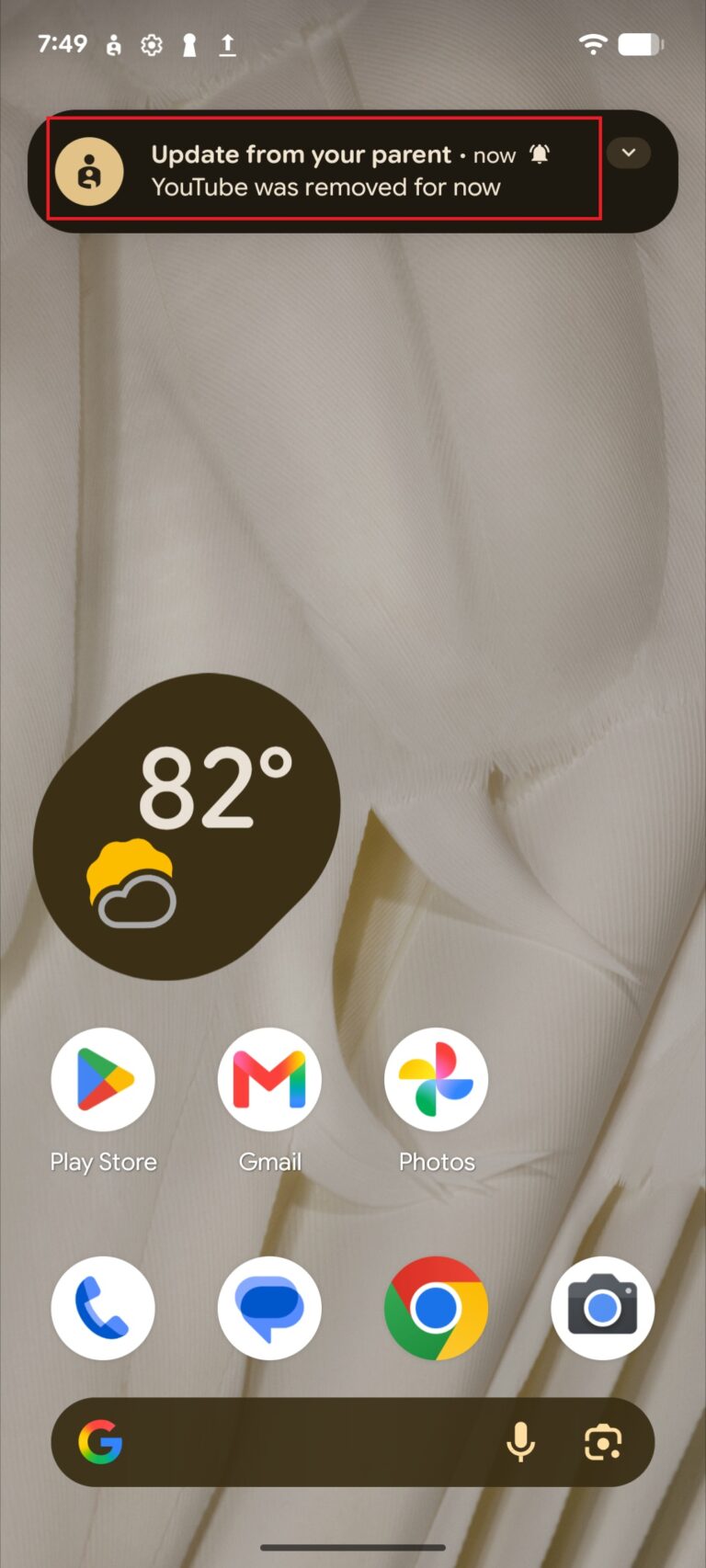
Family Link successfully blocked the YouTube app on our child’s Android device. After the restriction took effect, YouTube disappeared from the home screen.
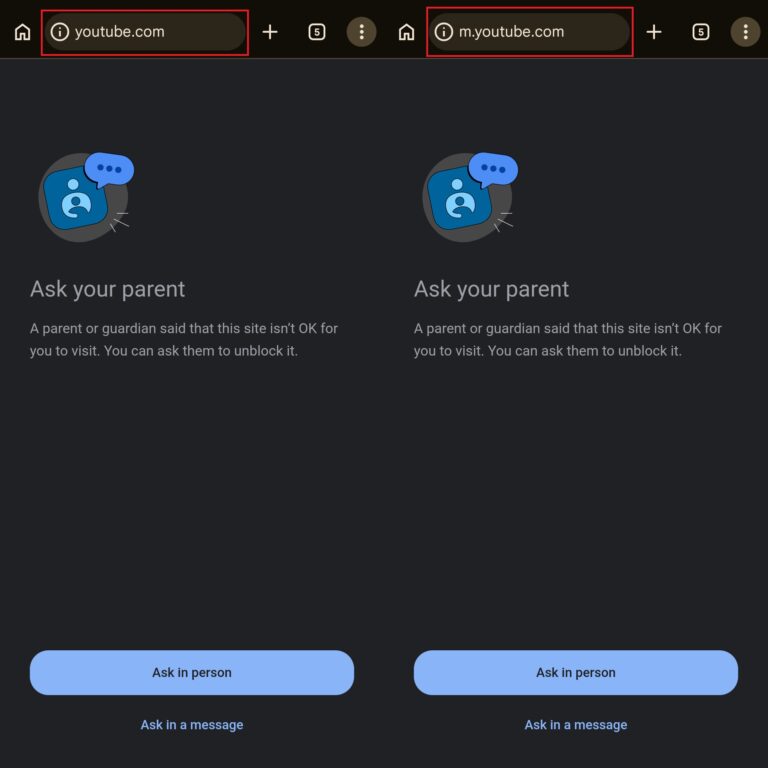
Website blocking also worked in our tests. Both domain-based and URL-based entries successfully restricted access to the desktop and mobile versions of YouTube. A single saved rule covered both versions, so we did not need to configure them separately.
The less convenient part was setting up an approved-sites-only browsing environment. YouTube was not automatically blocked by the explicit-site filter. When we selected Only allow approved sites, Family Link did not provide a ready-made list of permitted websites in the setup we tested. We had to build that list ourselves or review access requests whenever our child wanted to visit a site that had not yet been approved.
That distinction matters when choosing your settings: blocking YouTube specifically and allowing only approved websites create different browsing restrictions. The approved-sites approach gave us control over which websites were accessible, but required more ongoing management, particularly for schoolwork involving unfamiliar links.
If You Prefer a Viewing Allowance
Use Set limit in YouTube’s app settings to configure an allowance. This controls the app; it is not a YouTube website timer. See Google’s app-limit instructions.
Family Link also offers Downtime and School time schedules. Consult the schedule guide if you want restrictions during particular periods.
Method 2: Manage YouTube with AirDroid Parental Control
AirDroid Parental Control is another option for families managing YouTube alongside other app rules. You can configure restrictions, then review the result on the connected child device.
Connect Your Child’s Device
Install AirDroid Parental Control on your device and sign in. Follow the pairing process to install and connect AirDroid Kids on your child’s Android phone, then complete the required permissions.


Configure App and Website Restrictions
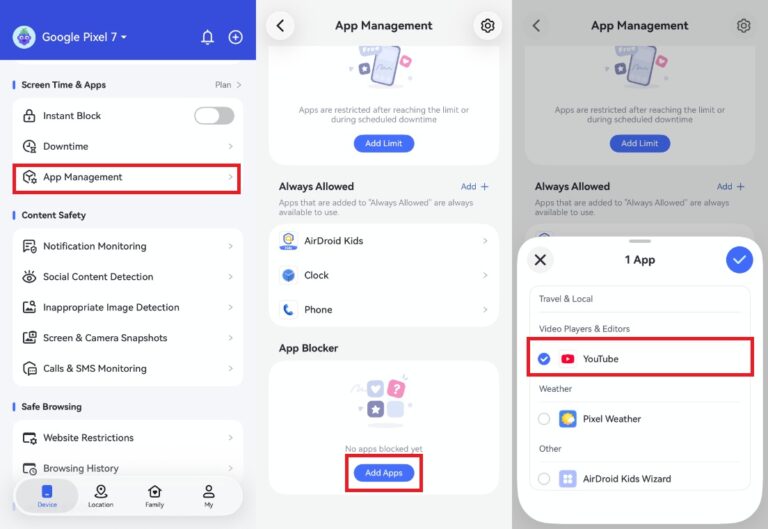
For the app, enter App Management, locate App Blocker, choose Add Apps, and select YouTube. AirDroid explicitly lists YouTube among the apps its App Blocker can restrict.
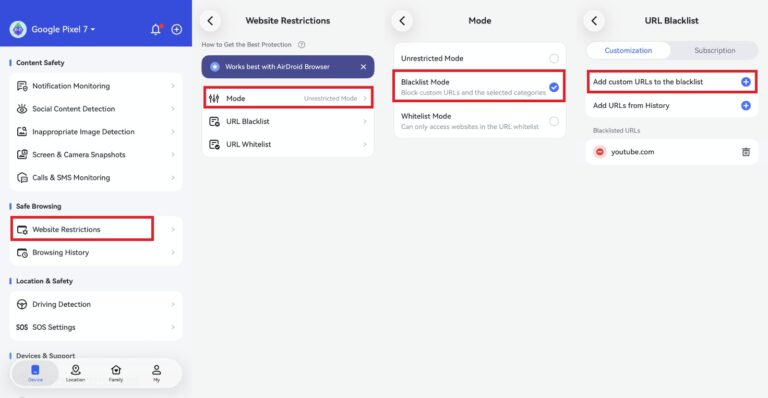
For web access, enter Website Restrictions, choose Blacklist Mode, and add the relevant addresses under URL Blacklist.
Check the current website-restriction guidance against the browsers installed on your child’s phone. Do not treat an app restriction as confirmation that web access is also restricted.
What Happened in Our AirDroid Test
AirDroid Parental Control successfully blocked the YouTube app and the YouTube website addresses we added to its blacklist. When our child attempted to open a blocked YouTube page, we received a notification on the parent phone. Notifications also worked when accessing the site in incognito mode in the browser we tested.
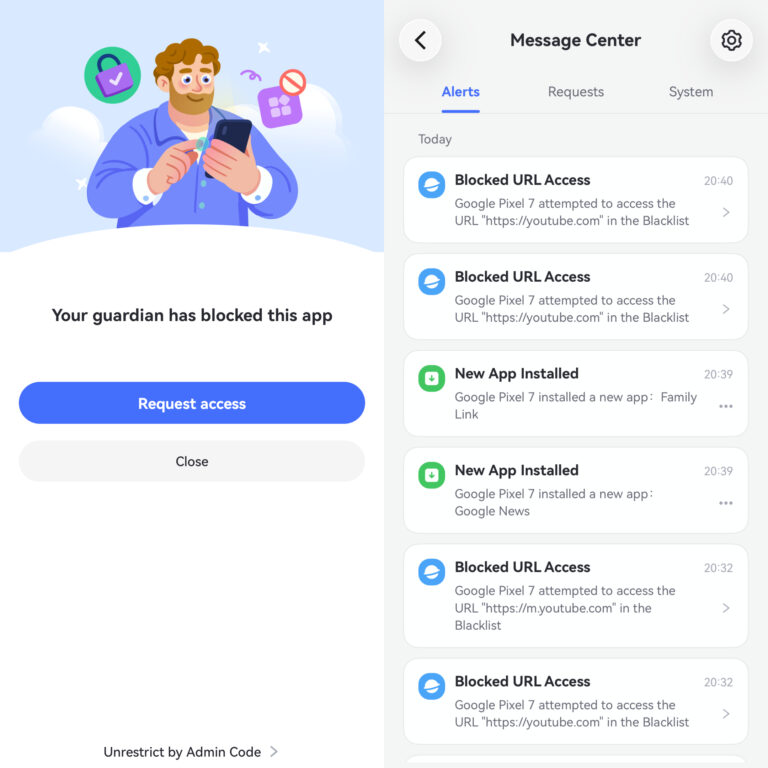
Website management was convenient from the parent side. We could enable content-category subscriptions to proactively restrict related websites, alongside manually blacklisting specific addresses.
We could also review browsing history and open the recorded URLs on our own phone to inspect the pages. This made it easier to understand what our child was accessing and add concerning websites to the blacklist as needed.
The main limitation we noticed was an occasional delay in blocking under poor network conditions. Changes did not always take effect immediately, so we checked the result on the child’s device after applying a restriction.
Options for Families That Allow Some Viewing
AirDroid documents individual app limits, scheduled restrictions, and a Total Time Limit shared across selected apps. For example, a household could assign one entertainment allowance to YouTube and other selected apps.
It also offers keyword-based monitoring and alerts for supported content. These may help parents identify activity worth discussing when viewing remains available. Alerts should not be described as guaranteeing detection or blocking of every concerning video.
Method 3: Use Digital Wellbeing on a Supported Android Phone
On our Google Pixel 7 running Android 17, Digital Wellbeing and Parental controls appeared as separate settings. We used Parental controls directly on the child’s phone to restrict YouTube.
Set Up a PIN and Block YouTube
- Step 1. Enter Settings >> Parental controls.
- Step 2. Tap Set up a parental controls PIN. Create a PIN containing at least four digits and keep it private.
- Step 3. Open App limit and select YouTube.
- Step 4. Set the available time to 0 minutes and save.
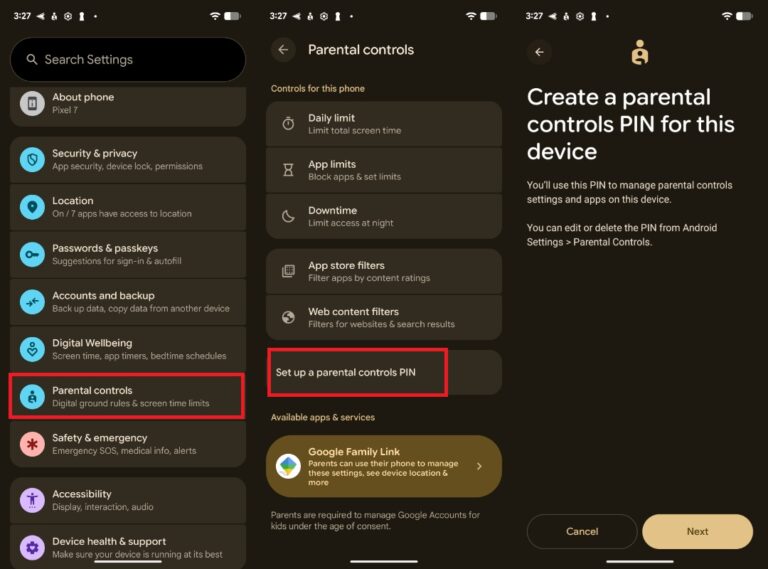
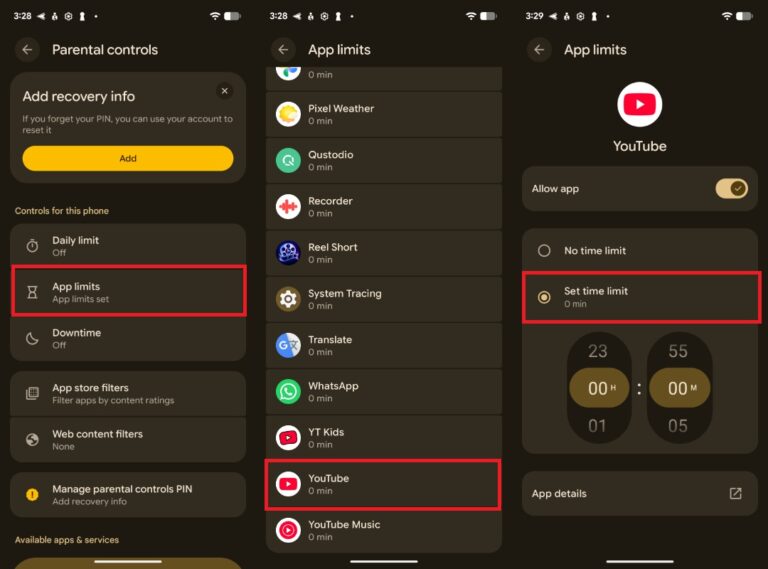
What Happened in Our Test
After we applied the zero-minute limit, the YouTube icon became grayed out and the app was unavailable.
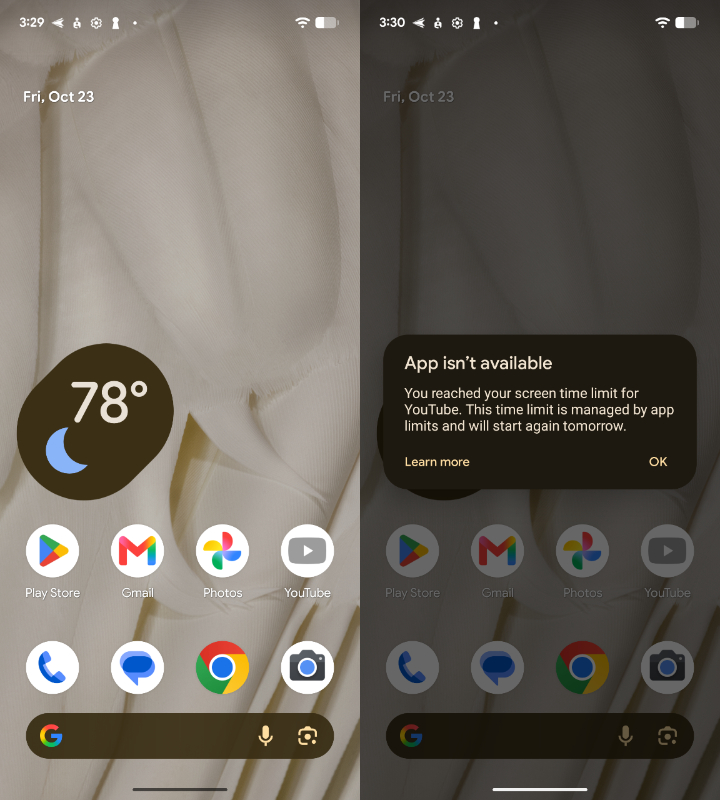
These steps reflect our Pixel 7 setup. Menu names and available controls may differ on other Android devices.
This setting restricts the YouTube app. Website access needs to be checked separately.
Set a Chrome Website Timer in Digital Wellbeing
On our Google Pixel 7 running Android 17, Chrome website timers remained under Digital Wellbeing, separate from Parental controls.
Before configuring a timer, we had to visit both the mobile and desktop versions of YouTube in Chrome so that both addresses appeared in Chrome activity:
- Open Chrome and visit youtube.com. In our test, it redirected to m.youtube.com.
- Open Chrome’s three-dot menu in the upper-right corner and select Desktop site.
- Enter youtube.com again to visit the desktop version.
After these visits, both youtube.com and m.youtube.com appeared in Chrome activity.
To configure the website timer:
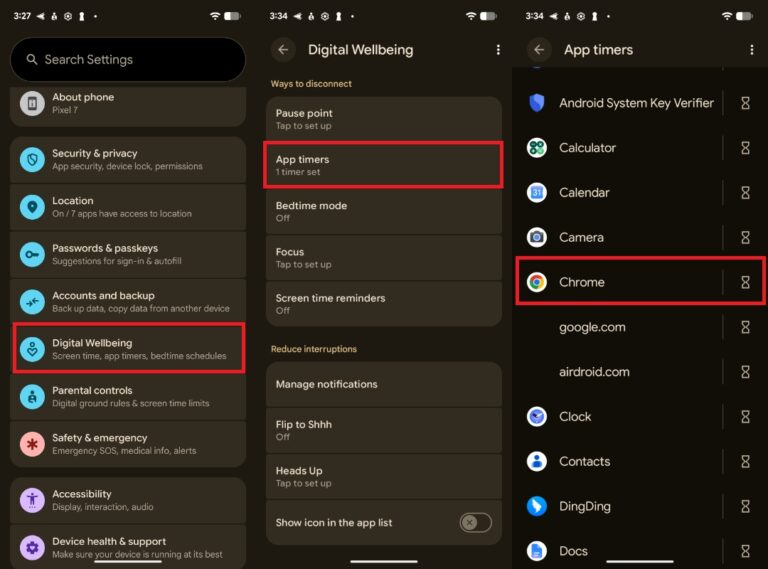
- Step 1. Open Settings >> Digital Wellbeing’s usage chart.
- Step 2. Select App timers, then Chrome.
- Step 3. Find the YouTube website entries listed near the bottom.
- Step 4. Select both YouTube mobile and desktop versions set its allowance to 0 minutes.
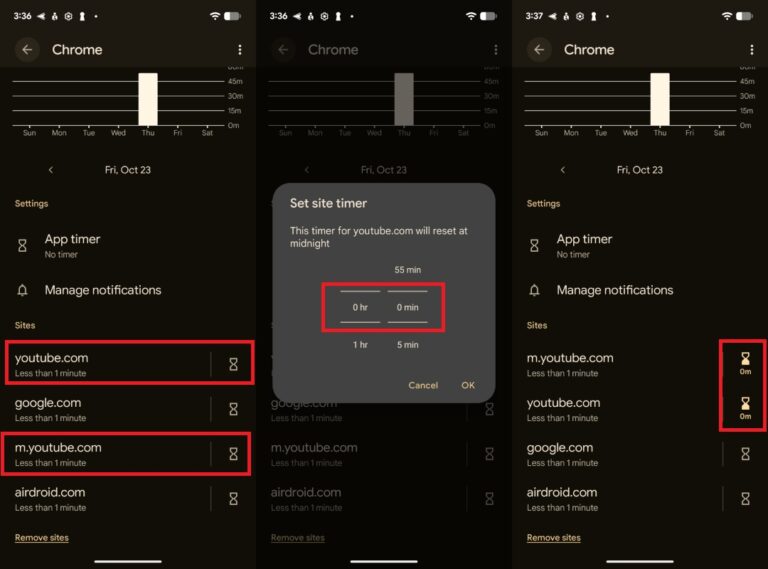
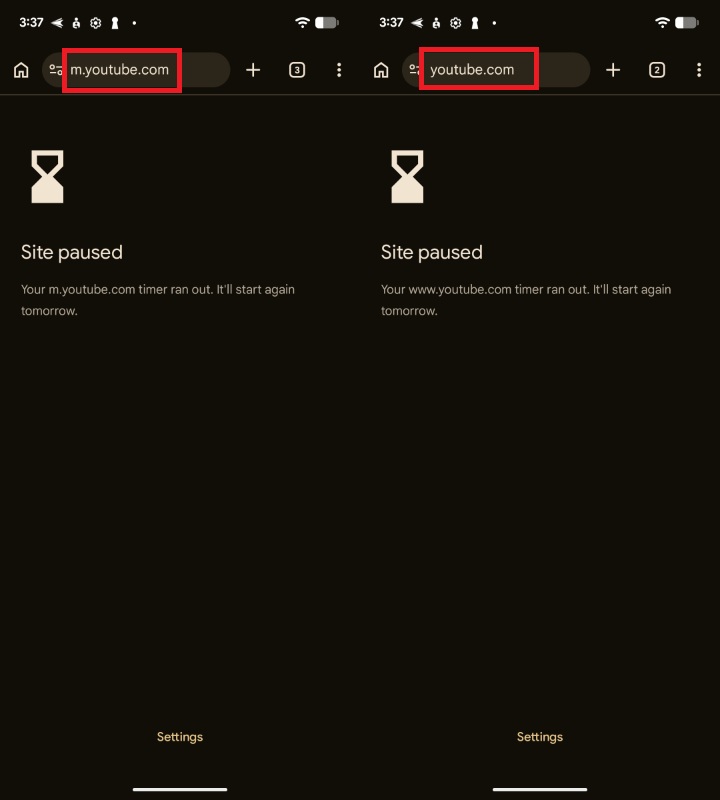
The important limitation was PIN protection. On our test device, the PIN configured under Parental controls did not protect changes in Digital Wellbeing. Our child could adjust the website allowance without entering that PIN. The Chrome timer therefore provided a website restriction that the child could modify, rather than a parent-protected block.
Can These Methods Limit YouTube Website Use?
Website blocking, browser limits, and website timers are different controls.
Family Link documents app allowances and website restrictions separately; its current instructions do not provide a URL-specific daily allowance.
AirDroid labels its URL-specific Web Time Limits feature as available for child iOS devices. It should not be presented as an Android feature. See the platform-specific description.
Digital Wellbeing documents Chrome website timers on supported devices, as described above.
Why Can My Child Still Access YouTube?
1The Account or Device Does Not Match
Check the selected child profile and the phone’s current account or user profile.
For Family Link, Google notes that settings do not apply to another device user profile where the supervised account is not signed in.
For AirDroid, confirm that you are managing the intended connected device.
2A Viewing Route Was Not Covered
Identify the app, browser, and address where playback occurs. Review the corresponding control rather than changing unrelated settings.
If a school or communication app opens the video, investigate its role before restricting it. The aim is to address the observed access route while keeping necessary tasks available.
3The Change Has Not Applied
Confirm that the rule saved and that the child device is online. Allow for synchronization before repeating the check.
If a control is absent, compare the account, device, operating system, and app version with the current official guide.
How to Allow YouTube Again
Reverse the controls you configured:
- Family Link: Restore the app to Allowed, review blocked-site entries, and adjust remaining allowances or schedules.
- AirDroid: Remove the relevant app and website restrictions, then review time-based rules.
- Digital Wellbeing: Adjust or remove the app timer and Chrome site timer separately.
Frequently Asked Questions
1. Does Family Link Automatically Block YouTube?

2. Does Restricted Mode Block YouTube?
Restricted Mode helps filter potentially mature content. It does not prevent access to the service. See YouTube’s Restricted Mode explanation.
3. Does Uninstalling YouTube Block Its Website?
After uninstalling or disabling the app, check browser access and shared links separately. App removal alone does not establish the result for those routes.
4. Can I Keep School Videos Available?
Identify how the lesson is delivered: a direct link, embedded player, or learning application. Check that exact lesson before deciding which access arrangement to use.
For ongoing content management, review YouTube’s supervised viewing options. Explain how your child can request access when a restriction interrupts schoolwork.
Keep a record of your household’s rules and the routes you checked. Revisit the setup when your child changes phones, accounts, or browsers.










Leave a Reply.