How Can Parents Check App Usage on an iPhone?
Parents may want to understand how a child uses apps on an iPhone before adjusting screen time rules or discussing digital habits. Apple's Screen Time report is the main built-in source for app usage time, while Battery, Cellular, and iPhone Storage answer different device-management questions.
If the family uses Family Sharing, a parent with a supported Apple device can review the child's Screen Time information from the parent account. Parents who use Android cannot access an equivalent Apple Screen Time dashboard, so a compatible cross-platform parental-control service may be useful when remote management is needed.
These reports should be treated as device activity, not proof of the child's intent or well-being. Review the information with the child, focus on patterns over time, and use only the controls needed for the family's actual concern.
Quick Answer: How Can Parents Check App Usage on an iPhone?
The most direct method is Apple's Screen Time. On the child's iPhone, open "Settings" and then "Screen Time" to view App & Website Activity. Depending on the software version, the detailed report may appear under "See All App & Website Activity" or a daily activity summary.
If you manage the child through Family Sharing on an iPhone or iPad, open "Settings" and select the child's Screen Time profile. On some versions, the child appears under "Screen Time" and "Family"; on newer versions, the path may begin with "Settings," "Family," and the child's name.
Battery, Cellular, and iPhone Storage reports can provide extra context, but they do not replace Screen Time. Battery use does not equal active use, cellular totals do not include Wi-Fi activity, and storage size does not show how often an app was opened.
If parent using Android while your child uses an iPhone, Apple's built-in tools may not provide cross-device management. In this case, AirDroid Parental Control can help you understand iPhone app usage and create healthier screen habits.
Check a Child's App Usage Time with Screen Time
Screen Time is Apple's built-in tool for understanding app and website activity. It can show usage by app or category, daily and weekly patterns, pickups, and notifications.
To review the report directly on the child's iPhone:
- Step 1.Open "Settings" and tap "Screen Time."
- Step 2.Turn on App & Website Activity if it is not already enabled.
- Step 3.Open "See All App & Website Activity" or the available activity summary. Menu wording may vary by software version.
- Step 4.Select the daily or weekly view, then tap an app or category for more detail.
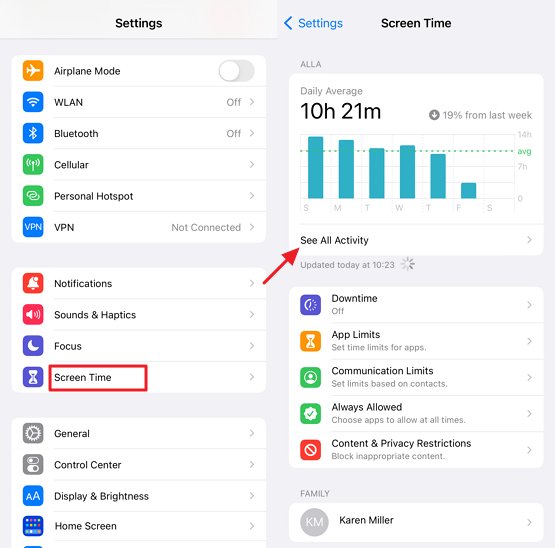
Screen Time reflects activity recorded by the device. A high total can help start a conversation about sleep, homework, or family routines, but it does not by itself explain why the app was open or whether the child was actively engaged for the entire period.
Use Battery Data as Supporting Context
Battery data can help a parent investigate why the child's iPhone loses power quickly or whether an app is running heavily in the foreground or background. It should not be used as a substitute for Screen Time because background syncing, navigation, notifications, and poor cellular coverage can also consume power.
- Step 1.On the child's iPhone, open "Settings" and tap "Battery."
- Step 2.Open "View All Battery Usage" if that option appears, then select a day or the available reporting period.
- Step 3.Review the App and System Activity list, including any available on-screen and background activity details.
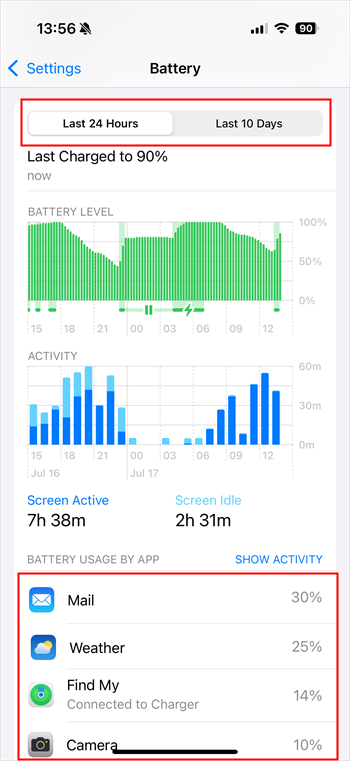
A large battery percentage means the app used a large share of the battery during the selected period. It does not necessarily mean the child spent the most time actively using that app.
Review Cellular Data Usage by App
Cellular data can show which apps used mobile data on the child's iPhone. This can help a parent understand unexpected data-plan usage, but it does not include Wi-Fi traffic and does not measure app usage time.
- Step 1.On the child's iPhone, open "Settings" and tap "Cellular."
- Step 2.Scroll to the app list and tap "Show All" if it appears.
- Step 3.Review the cellular data amount shown below each app.
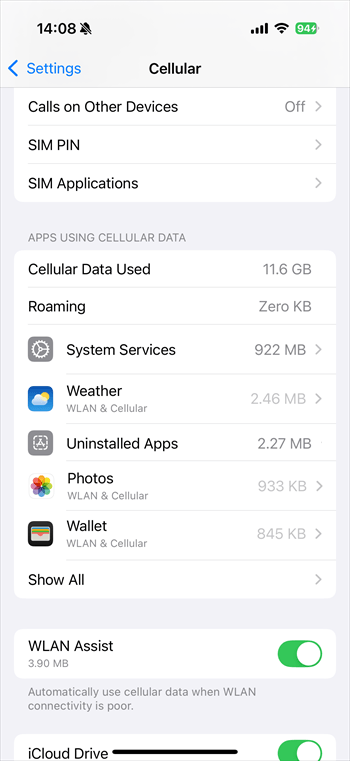
The figures normally cover the current statistics period rather than a fixed daily window. Check when the statistics were last reset, and use the carrier's report when billing accuracy matters.
Check How Much Storage Each App Uses
iPhone Storage shows how much device space an app and its related data occupy. It is useful when the child's phone is nearly full, but it does not indicate how often the child uses the app.
- Step 1.On the child's iPhone, open "Settings," tap "General," and then tap "iPhone Storage."
- Step 2.Review the app list and tap an app to see more information about its storage.
- Step 3.If space is needed, review the available Offload App or Delete App option before making a change.
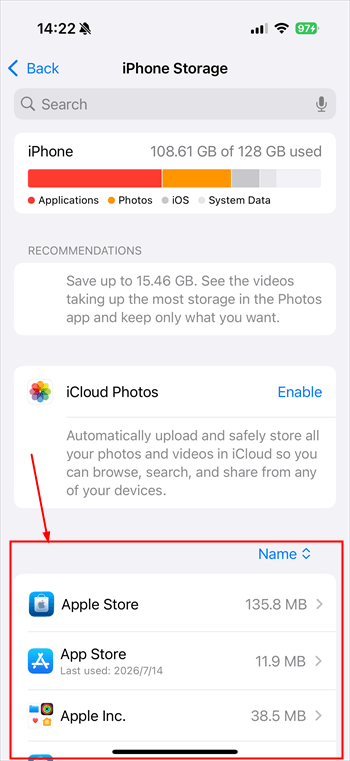
Offloading an app removes the app while keeping its documents and data. Deleting an app removes the app and its related data. Before deleting a child's app or files, confirm what will be lost and discuss the change when appropriate.
1Choose the Report That Matches the Parent's Question
| Parent's Question | Best iPhone Report | Important Limitation |
|---|---|---|
| How long was an app or category used? | Screen Time | Activity totals do not explain the child's intent or full context |
| Which app used the most power? | Battery | Background activity can consume power without active use |
| Which app used mobile data? | Cellular | It excludes Wi-Fi traffic and is not a time report |
| Which app occupies the most device space? | iPhone Storage | Storage size does not show how often an app was opened |
Check iPhone App Usage from an Android Parent Device
Apple Screen Time can be managed from a supported Apple parent device through Family Sharing, but Apple does not provide an equivalent Screen Time dashboard for an Android parent. This creates a gap for families that use an Android phone for the parent and an iPhone for the child.
For this setup, AirDroid Parental Control can provide supported cross-platform reports and controls. On a child's iPhone or iPad, Activity Report, App Time Limits, and Downtime require Supervision Mode. The setup uses AirDroid Parental Connector on an Android device or computer, a USB connection, and physical access to the child's iPhone during setup.
For this article's app-usage goal, the most relevant AirDroid capabilities are:
- Review usage patterns. View supported daily or weekly reports, including screen time and most-used apps.
- Set proportionate limits. Apply supported app limits or Downtime after completing the required iPhone setup.
- Keep essential access available. Review Always Allowed options before restricting the child's device.
- Discuss the report together. Treat activity data as a starting point for family rules, not proof of wrongdoing.
Feature availability and update behavior can vary with the child's operating system, permissions, network connection, setup mode, and current app version. No report should be treated as a complete record of everything the child does on the iPhone.


Start with Screen Time when the question is how long the child uses an app. Use Battery, Cellular, and Storage only for the narrower questions they answer. If the parent uses Android, a properly configured cross-platform tool can add remote access to supported iPhone reports and controls, while clear family expectations provide the context the data cannot.








Leave a Reply.