Qustodio Review 2026: We Tested Screen Time, Alerts & Location
- 1. Qustodio Review at a Glance
- 2. How We Tested Qustodio
- 3. Screen Time, Apps, and Web Filtering
- 4. Smart Alerts and Content Monitoring
- 5. Location, My Places, and SOS
- 6. Setup, Reliability, and Tamper Protection
- 7. Qustodio Pricing: Is Premium Worth It?
- 8. Who Should Choose Qustodio?
- 9. Is Qustodio Worth It in 2026?
- 10. Frequently Asked Questions
Qustodio Review at a Glance
| What we tested | What we found |
|---|---|
| Daily screen-time limits | Worked quickly on Samsung and Pixel, but background activity sometimes counted toward the daily total |
| Per-app limits | Flexible and easy to set |
| Extra-time approval | Extra time applied to the whole device, not just the requested app |
| Routines | Rules started and stopped promptly at scheduled times |
| Internet Pause | Applied quickly, including with Battery Saver on; required the child device to reconnect if it was offline |
| Web filtering | Blocked our test website promptly and logged the visit |
| Search alerts | More responsive than the social-message alerts in our listed test scenarios |
| WhatsApp alerts | Generated alerts in our listed test scenarios, but delivery timing varied and was not immediate |
| Instagram alerts | Less responsive than WhatsApp in our listed test scenarios, and one scenario did not generate an alert |
| Live location | Manual refresh produced fresh locations promptly in our listed test setup |
| My Places | Both arrival and departure push alerts appeared in our listed test setup; parent-device notification permission required |
| My Places alert history | No event appeared in Timeline or Alerts, and no email was sent in our tests |
| SOS / Panic Button | Test email arrived promptly, but we did not get a Qustodio app push or audible alert |
| Restart / network recovery | Core rules recovered normally |
| Permission-loss alert | Child device prompted for repair, but parent received no warning when Accessibility was disabled |
| Android compatibility | No major issues on our Samsung and Pixel test phones |
1.Our Verdict
Qustodio remains one of the more capable parental-control apps for families whose first priority is managing time and access rather than reading everything a child does online.
The strongest part of the experience is how many ways parents can structure device use. You can combine daily device limits, app-specific limits, Always Allowed apps, scheduled Routines, web rules, and Internet Pause. Qustodio has also added app-category controls for Premium Complete users, making it possible to manage groups such as gaming, social, entertainment, or education rather than configuring every new app individually.
But “more features” does not automatically mean every feature performs equally well. Our tests found meaningful differences between Qustodio's controls and its monitoring features. Screen-time rules were generally fast and predictable in our test setup; Smart Alert behavior varied by channel; and we observed both live location and My Places functioning once parent notification permissions and stable connectivity were confirmed. My Places did have one workflow limitation: its arrival and departure events appeared only as device push notifications in our tests, with no corresponding Timeline, Alerts, or email record.
That distinction matters when deciding what you're actually paying Qustodio to do.
2.What's Changed in Qustodio in 2026?
Qustodio has expanded substantially since our previous review.
Its current product includes custom Routines, app-category controls, AI-powered search and message alerts, social monitoring, location alerts, Calls & Messages monitoring, and Gaming Alerts. Qustodio also added ChatGPT alerts for protected Android devices in September 2026.
Gaming Alerts are another newer feature, but parents should pay attention to the platform requirement. Qustodio's current help documentation says Gaming Alerts monitor supported voice activity on Windows devices, rather than Android phones.
These additions make Qustodio more than a traditional screen-time app, but they also make it more important to distinguish what Qustodio officially supports from what we actually tested.
How We Tested Qustodio
We tested Qustodio primarily on two Android child devices:
| Test environment | Device |
|---|---|
| Child test phone 1 | Samsung Galaxy S20+ 5G (SM-G986U) |
| Child test phone 2 | Google Pixel 7 |
| Parent test environments | iPhone 17 Pro, Android Parents App, and Qustodio Web, depending on the feature tested |
Not every feature was tested through every parent interface. We report parent-device or interface differences only where they were relevant to the result.
We report device, version, permission, and test-condition details only where they were recorded during testing. We do not infer missing OS, app, browser, subscription, or permission-state information after the fact. Our hands-on tests show what happened in the listed devices and scenarios; they are not designed to establish product-wide reliability, detection rates, or guaranteed alert timing.
We tested the parts of Qustodio that most directly affect a parent's day-to-day experience: screen-time enforcement, per-app rules, Routines, Internet Pause, web filtering, Smart Alerts, location, My Places, SOS, Android setup, permissions, restart and network recovery, settings protection, and pricing.
For Smart Alerts, we used controlled test conversations and searches rather than real child conversations.
Those tests tell us whether a specific synthetic scenario triggered an alert during our test. They do not establish a detection rate for real-world bullying, grooming, self-harm, or other risks.
We also distinguish between three kinds of evidence throughout this review:
Tested: We performed the action on our own test device.
Officially supported: Qustodio documents the capability, but it was not part of our complete controlled test set.
Not fully retested: We may have tested an earlier version, but we are not treating that older result as proof of current performance.
Qustodio currently supports child Android devices running Android 9 or later. Its documentation notes potential compatibility limitations on Android Go and forked Android versions.
For more detail on our broader testing standards, device checks, repeat-test approach, and limitations, see how we test parental control apps.
Disclosure: AirDroid publishes this review. Where we compare Qustodio with AirDroid, we separate hands-on findings from official product claims and limit comparisons to the test configurations described here. A feature difference should not be read as proof that one product is automatically safer or better for every family.
Screen Time, Apps, and Web Filtering
This was the strongest part of Qustodio in our testing.
1.Daily Limits and Per-App Rules Worked Well
Qustodio gives parents several layers of screen-time control.
We could set a daily device allowance, block individual apps, give apps their own daily limits, mark selected apps as Always Allowed, or leave them unrestricted.
Rules generally applied quickly on both our Samsung and Pixel test phones.
There is, however, an important reporting limitation.
On both phones, we sometimes saw background activity contribute to Qustodio's daily device-use total. That means the number shown in Qustodio should not automatically be interpreted as the exact amount of time your child spent actively looking at the screen.
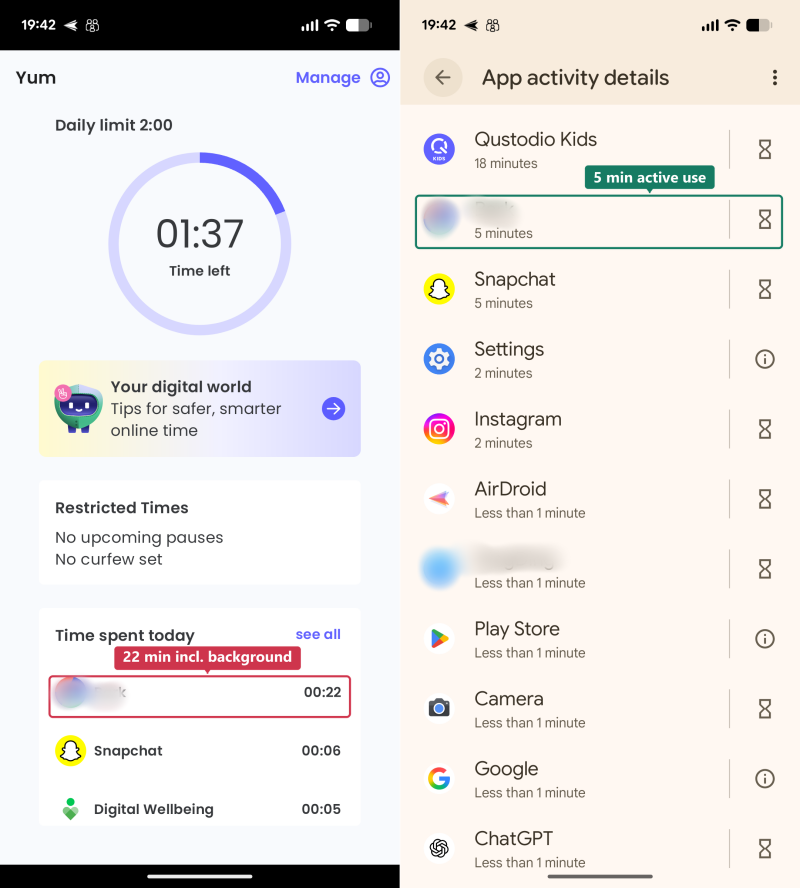
For parents using Qustodio mainly to understand broad patterns, that may not matter much. If you're using the number to enforce a very precise daily allowance, it matters more.
2.Extra-Time Requests Are Less Precise Than the Original App Limit
We found another limitation once an app reached its individual allowance.
Qustodio lets a child ask for more time, but in our test, approving that request added more time to the device allowance rather than only extending the app that triggered the request.
For example, a child could say they wanted more time on Snapchat. Once the parent approved additional time, that time could also be used on other available apps such as Instagram or Roblox.
That's a meaningful distinction.
Qustodio lets you create a very specific rule at the beginning: Snapchat gets X minutes. But the exception becomes broader: The device gets additional time.
If your goal is simply to give your child a little more screen time, that may be fine. If you're intentionally limiting one particular app while keeping other apps unchanged, the approval workflow is less precise than the original rule.
In our listed Android test configuration, AirDroid Parental Control handled this workflow differently: the child could request more time for the app that had reached its limit, and the parent could approve additional time for that app specifically. You can see the two workflows side by side in our AirDroid vs Qustodio comparison.
Disclosure: AirDroid publishes this review. We include this as a tested workflow difference in the configurations described above, not as evidence that AirDroid is automatically the better choice for every family.
3.Routines Are One of Qustodio's Best Features
Qustodio's Routines are more useful than a simple bedtime schedule because they let parents change which rules apply at different times of day.
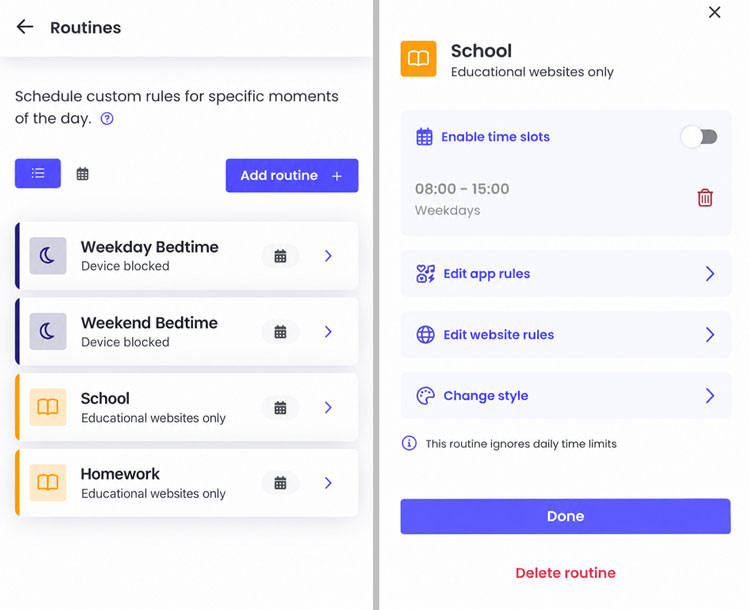
Qustodio officially supports scheduled app rules, website-category rules, internet blocks, and device blocks through Routines.
We tested different rules for school or homework time and downtime.
The scheduled rules took effect promptly when the time slot began. When we disabled the time slot, the Routine stopped applying promptly.
That makes Routines useful for families that want different expectations at different points in the day rather than one blunt “phone on / phone off” rule.
For example, a family could allow educational websites during homework hours while restricting entertainment apps, then use a different rule at bedtime.
Qustodio has also added category-based app management for Premium Complete users. A rule can now apply to a group such as social, gaming, or entertainment while still allowing individual exceptions.
4.Internet Pause Was Fast, With One Predictable Offline Limit
Internet Pause worked quickly when we turned it on and off.
It also continued to work with the child phone in Battery Saver / low-power mode during our tests.
If the child phone had no internet connection when we sent the new rule, however, Qustodio couldn't receive it. Once connectivity returned, the rule applied quickly.
That's expected behavior for a remotely managed parental-control app, but it is worth knowing: a parent action sent while the child device is completely offline isn't instantaneous.
5.Web Filtering Worked in Our Test
We added Roblox.com to Qustodio's blocked websites.
When the child tried to open it, Qustodio blocked access promptly. The attempted visit also appeared in the child's Timeline.
Qustodio currently documents web reporting and blocking support for Chrome and Firefox on Android and automatically blocks unsupported browsers by default.
The practical combination of web blocking plus Timeline reporting is useful because parents can see not only that a rule exists, but also when a child tried to visit a restricted site.
Smart Alerts and Content Monitoring
Qustodio's monitoring capabilities have become much broader, but this is also where our test results were most uneven.
1.Search Alerts Were More Responsive in Our Test Scenarios
Chrome Search Alerts were more responsive than the social-message alerts in our listed test scenarios.
In the listed test scenarios, the Search Alerts we triggered arrived promptly.
That makes Search Alerts one of the more convincing additions to Qustodio's traditional screen-time controls.
Still, an alert should be treated as a reason for a parent to check context, not proof that a child is actually experiencing bullying, self-harm, grooming, or another problem.
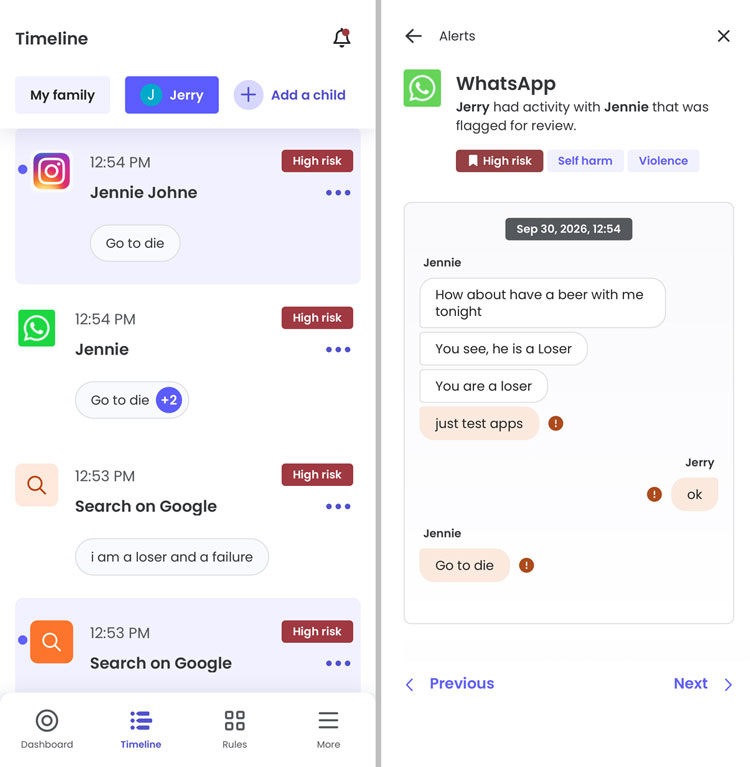
2.WhatsApp Alerts Appeared, but Were Not Immediate
WhatsApp generated the expected alerts in our listed test scenarios.
Delivery timing varied and was not immediate.
For routine parental awareness, that may be reasonable. For an urgent safety situation, parents should not treat Qustodio as a real-time emergency-monitoring service.
3.Instagram Was Less Responsive Than WhatsApp in Our Test Scenarios
In our listed test scenarios, Instagram alerts were slower than WhatsApp.
Successful alerts took noticeably longer, and we also had a controlled Instagram scenario that did not generate an alert.
Our synthetic test set is too small to estimate a real-world miss rate.
What it does show is that parents should not interpret “Instagram monitoring supported” as “every concerning conversation will be detected immediately.”
4.What Qustodio Can Actually Read Matters
Qustodio’s Social Monitoring documentation explains the supported social platforms and the difference between app activity visibility and monitored social content. Qustodio can surface potentially concerning content from supported services, while other apps may only expose usage information rather than conversation content.
That is different from ordinary app monitoring.
Qustodio explicitly says apps such as Reddit, Discord, and BeReal can still be tracked for usage and time limits, but Qustodio does not reveal what was said inside those apps through its standard Social Monitoring feature.
This distinction is easy to miss when looking at a long list of supported apps.
App usage visibility is not the same as message-content monitoring.
5.Qustodio Uses Preset Risk Categories, Not Custom Keywords
Qustodio's Smart Alerts are built around predefined concern categories.
Parents can adjust many of those categories, but Qustodio does not work like a custom keyword alert system where you can simply enter any word or phrase you want to watch for.
In our test environment, categories such as Grooming, Privacy & Sharing, and Self-Harm could not be disabled.
This is a design tradeoff.
Preset AI categories require less setup and may be easier for parents who don't know what terms to monitor. But families that want to create their own very specific alert rules get less control.
6.ChatGPT Alerts Are New, but We Would Treat Them Separately From Our Social Tests
Qustodio added ChatGPT alerts for protected Android devices in September 2026. The company says the feature reviews ChatGPT conversations for potentially concerning topics and sends parents an alert with a summary when something is flagged.
Because this feature launched very recently, it should not be bundled into conclusions from our WhatsApp and Instagram tests.
It is a current Qustodio capability, but it needs its own controlled testing before we would draw conclusions about detection consistency or alert delay.
7.Calls and SMS Require a Separate Android Download
This is one of the most important Android setup details parents should know before enabling Qustodio's Calls & Messages monitoring. Qustodio’s Android calls and SMS setup guide documents the separate Android installation path and required permissions.
In our tests on both the Samsung Galaxy S20+ 5G and Google Pixel 7, having the standard Qustodio Kids app already installed was not enough. To enable Calls & Messages, we had to follow Qustodio's Android setup instructions and download the child app again directly from Qustodio's website, then complete the additional permissions required for calls, contacts, and SMS.
On our Pixel, Android's Restricted Settings protection added another step before some of those permissions could be enabled.
So we would describe the setup this way: Basic Qustodio installation is relatively straightforward. Enabling Calls & Messages on Android requires a separate Qustodio website download and additional permissions, even if Qustodio Kids is already installed on the child device.
Parents should also note that Qustodio recommends disabling Google Family Link before installing this full Android version.
In our tests, neither Samsung nor Pixel prompted us to remove Family Link during setup, so we would still follow Qustodio's official guidance rather than assume the two services will always coexist reliably.
Location, My Places, and SOS
Location was one of Qustodio's stronger areas in our hands-on Android testing.
We observed both live location and My Places functioning once the required parent notification permission and stable connectivity were confirmed.
1.Live Location Was Fast
Manual location refreshes produced fresh locations promptly in our listed test setup.
Location also continued to update in low-power mode when GPS reception and connectivity were available.
When we temporarily disconnected the child phone from the internet, Qustodio stopped receiving new location information and continued showing the last reported location. Once connectivity returned, fresh location information appeared quickly.
Qustodio officially requires both GPS and internet connectivity for live location tracking.
That behavior was similar to what we observed with AirDroid during the same kind of connectivity test.
One small UX difference in the listed test configurations: after several rapid manual location refreshes, AirDroid warned that frequent requests could increase battery use. Qustodio did not show us a similar warning.
Disclosure: AirDroid publishes this review. This comparison reflects the specific test workflows described here.
2.My Places Alerts Appeared, but Parents Need Notifications Enabled
Qustodio's My Places feature sends a notification when a child enters or leaves a saved area.
After confirming parent-side notification permission and stable connectivity, we observed both arrival and departure push alerts in the listed test setup.
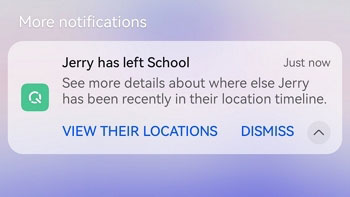
There is one important setup detail: the parent must allow Qustodio to send notifications at the phone's system level. Without that permission, a parent can miss a My Places event even though the child's live location continues updating normally.
We also found that My Places notifications behaved differently from some of Qustodio's other alerts. In our listed test setup, the arrival and departure events:
- appeared as device push notifications;
- did not appear in the child's Timeline;
- did not appear in Qustodio's Alerts or Notification Center;
- did not generate an email.
That means the geofence functioned in our listed test setup, but the notification workflow depends heavily on the parent phone's system notification settings. If the push is muted, cleared, or missed, we did not find a corresponding My Places event in Timeline, Alerts, or email that the parent could review later.
Our conclusion: We observed Qustodio's live location and My Places functioning once correctly configured. In our test setup, My Places events appeared as push notifications rather than events preserved in Qustodio's activity history.
3.Qustodio Does Not Include Driving Detection or Driving Reports
Qustodio offers current location, location history, and saved-place alerts, but we did not find an official driving-detection or driving-report feature comparable with parental-safety products that track driving behavior.
Families specifically looking for trip detection, speed events, or driving reports will need another solution. Our teen driving safety guide explains the broader safety questions parents may want to consider when choosing tools for a new driver.
4.Panic Button Worked, but the Alert Experience May Not Be What Parents Expect
Qustodio’s Panic Button guide explains that the Android feature lets a child trigger an SOS alert to trusted contacts and is not a replacement for emergency services.
Officially, Qustodio sends those contacts an email or SMS containing a link to the child's recent location, and location can continue updating while Panic Mode remains active.
In our test, the email arrived promptly.
What we did not get was a loud Qustodio app notification or an obvious push alert on the parent's phone.
That does not mean the Panic Button failed. Email is one of Qustodio's intended alert channels.
But parents should understand the workflow before relying on it. An emergency email sitting in an inbox may be easier to miss than an app that produces a prominent audible SOS notification.
Qustodio also makes clear that the Panic Button is an Android feature and is not a replacement for emergency services.
Setup, Reliability, and Tamper Protection
A parental-control app is only useful if its rules stay active after normal phone use.
We therefore tested not just whether we could create a rule, but what happened after rebooting, disconnecting the phone, using Battery Saver, and changing an important permission.
1.Android Setup Was Smooth Until We Needed Advanced Monitoring Permissions
On our Samsung phone, the basic Qustodio installation was straightforward.
We installed the parent app or used Qustodio Web, signed in, installed Qustodio Kids, named the child device, and worked through the requested permissions.
Pixel was similar until we enabled permissions associated with the more advanced Calls & Messages setup. Android's Restricted Settings protection required an additional step.
That extra friction is not unusual for parental-control apps that need sensitive Android permissions, but it means parents should not assume every Qustodio feature becomes available after the basic Play Store installation.
2.Core Rules Recovered After Restart and Network Loss
On Samsung, Qustodio's rules recovered normally after reboot.
They also recovered after a temporary network interruption.
Internet Pause continued working with Battery Saver enabled.
That is encouraging because normal phone behavior such as restarting the device or switching networks did not require us to rebuild the rules.
3.Permission Loss Was More Concerning
We specifically tested what happened when Accessibility access was changed.
Qustodio protected the process: disabling Accessibility required the Qustodio account credentials.
Once we authenticated and turned Accessibility off, the child phone displayed a Qustodio warning and guidance to restore the permission.
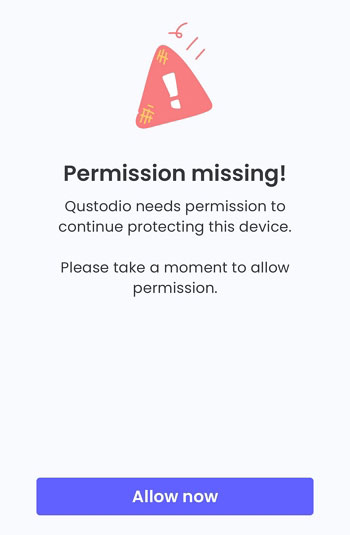
The parent side was different.
In that test, we received no Qustodio parent-app push notification, no email, and no dashboard alert telling us that Accessibility had been disabled.
For comparison, we received parent-side permission warnings from AirDroid and Norton Family in similar tests. Bark and Qustodio did not notify the parent in the scenarios we tested.
This doesn't mean Qustodio has no tamper protection. It does.
It means the parent may not immediately know that an important permission has already been removed.
For us, that is a meaningful distinction between:
preventing a child from changing settings
and
warning a parent after protection has been weakened.
4.Qustodio Adds Several Barriers to Ordinary Uninstallation
Qustodio includes multiple protections against casual changes.
Protect Qustodio Settings required our account credentials before accessing Qustodio's own protected settings.
With Protect Android Settings enabled, attempting to access Qustodio through Android Settings also required authentication in our test.
When Device Administrator was active, uninstalling Qustodio required both authentication and disabling Device Administrator first.
Those barriers make casual removal more difficult.
We would not describe Qustodio, or any software parental-control product, as impossible to bypass. The more useful question is whether ordinary attempts to change settings are blocked, whether the parent gets notified, and whether protection recovers.
Qustodio performed better on the first of those than on parent notification in our Accessibility test.
5.Child Transparency Varies by Device
We also noticed a small but interesting difference between test phones.
On Pixel, the child device continuously displayed a Qustodio icon in the lower area of the screen.
Our Samsung did not show the same persistent icon.
That means Qustodio's visible presence may vary by Android environment.
More broadly, we think parental controls work best when children understand what rules are active and why. A control being technically less visible should not be treated as a reason to monitor secretly.
Qustodio Pricing: Is Premium Worth It?
Pricing is one of the biggest reasons to evaluate Qustodio carefully before subscribing.
During our September 2026 U.S./USD price check, Qustodio’s current Premium plans showed the following web prices and device limits:
| Plan | Qustodio Web price | Device coverage |
|---|---|---|
| Basic | $59.95/year | Up to 5 devices |
| Complete | $104.95/year | Unlimited family devices |
Qustodio also retains a free tier for one protected device.
1.The Price Changed Depending on Where We Tried to Buy
We saw different prices depending on the parent purchase channel. These were U.S. prices in USD observed in September 2026. We checked the Android parent-app purchase path on more than one Android device; not every feature was tested through every parent interface.
| Purchase channel we checked | Basic | Complete |
|---|---|---|
| Qustodio Web | $59.95/year | $104.95/year |
| Android parent app | $65.99/year | $114.99/year |
| iPhone parent app | $69.99/year | $119.99/year |
That made the web purchase noticeably cheaper in our September 2026 check.
Prices and app-store offers can change. Compare the final U.S./USD checkout price shown on Qustodio Web, Google Play, and the Apple App Store before subscribing.
2.Our Trial Was Three Days, but Trial Offers Can Vary
Our account received a 3-day full-feature trial without requiring a credit card.
Qustodio also operates promotional signup pages with different trial terms, so parents should check the offer shown to their account rather than assume every signup gets the same trial length.
Qustodio says plans purchased directly on its website can be refunded by contacting its Support Team within 30 days of purchase. If you subscribe through the Apple App Store or Google Play, cancellation and refund requests are handled by Apple or Google under their applicable terms. See Qustodio's refund policy for the current terms.
3.Basic or Complete?
Basic makes more sense if your needs center on the core Qustodio experience and you only need to cover up to five devices.
Complete becomes easier to justify for larger households or parents who need Qustodio's more advanced customization and broader premium features. Qustodio currently positions Complete as its unlimited-device plan.
One newer Complete-only feature is app-category rules, which let parents block or allow categories while still creating individual app exceptions.
The main question isn't whether Complete contains more features.
It's whether your family will actually use the features that justify roughly $105 per year on the web, or more if purchased through the app stores we checked.
4.What Recent Google Play Reviews Add
We analyzed 705 Google Play reviews of Qustodio retrieved using the United States and English settings, posted from January 1, 2025 through October 19, 2026. Of these, 511 were one- or two-star reviews, and 470 described a specific problem clearly enough to categorize.
For theme analysis, the 470 classifiable one- and two-star reviews formed the low-star analysis sample. A single review could be assigned to more than one theme when it described multiple distinct issues. We keep the detailed screening rules, labels, and review-level verification records internally for reproducibility.
Recent comments continued to raise concerns about price, setup, reliability, and resistance to tampering. Two issues became especially visible: screen-time or app limits that failed, reset unexpectedly, or were difficult to adjust, and children bypassing controls by disabling or uninstalling the app, restarting the phone, or using airplane mode. Other reviewers mentioned permission problems, inaccurate location alerts, battery drain, and unhelpful support.
A smaller group praised Qustodio's easy limit setting, website and app blocking, alerts, and cross-platform management.
These reviews are self-selected experiences, not product failure rates. We used the review patterns to identify issues worth stress-testing rather than treating them as proof of product performance. In our own Samsung and Pixel tests, Qustodio's core screen-time and web controls generally worked as expected, but the reviews suggest that real-world results can vary by device, operating system, permissions, connectivity, and setup.
Who Should Choose Qustodio?
1.Qustodio Is a Good Fit If...
Qustodio makes the most sense if you want to build structured rules around when and how a child uses a device.
Its strongest use case is a family that wants different weekday and weekend limits, app-specific allowances, scheduled school or homework rules, web filtering, Internet Pause, and enough flexibility to create exceptions.
In our listed test setup, live location and My Places both functioned once system notifications and connectivity were correctly configured. My Places arrival and departure events appeared as push notifications.
It is also a reasonable fit if you want risk alerts as a secondary safety layer but do not expect those alerts to detect every concerning interaction immediately.
The combination of screen-time controls and newer Smart Alerts makes Qustodio more comprehensive than a basic device-management tool.
2.Consider Another Option If...
Qustodio is less convincing if your main decision hinges on something it did not perform especially well in our tests.
Disclosure: AirDroid publishes this review. The alternatives below are framed around different family needs, and any AirDroid comparison reflects the specific test configuration described in this article.
If you need a completely free first layer of Android supervision, Google Family Link covers many basic device and app controls without an annual subscription.
If automated content-risk alerts across supported social activity are your main priority, Bark takes a more alert-centered approach. See our hands-on Bark review for the Android alert and control results behind that recommendation.
If you want customizable keyword alerts or Android tools that can provide more situational context after a specific concern comes up, AirDroid Parental Control takes a different approach. In our listed screen-time test configuration, AirDroid also let the child request additional time for a particular app and let the parent extend that app specifically, while Qustodio's extra-time approval gave additional device time more broadly.
That tested workflow difference does not make one approach automatically better for every child.
A younger child who mainly needs predictable schedules may benefit more from simple boundaries. A teenager who has earned more independence may need fewer controls and more conversation. The right level of supervision should match the actual risk you're trying to manage.
Is Qustodio Worth It in 2026?
For families buying Qustodio primarily for screen-time management, app rules, Routines, and web filtering, we think the product makes a strong case.
Those were the features that performed most consistently in our Android testing.
The case becomes more nuanced if you're primarily paying for Smart Alerts.
Search Alerts were more responsive than the social-message alerts in our listed scenarios. WhatsApp generated alerts but was not immediate, while Instagram was slower and one test scenario did not generate an alert.
Location performed better in our listed setup. Manual refreshes were prompt, and after confirming the required parent notification permission and stable connectivity, we observed both My Places arrival and departure push alerts.
The main My Places limitation was not detection speed but notification history: in our tests, those events appeared as device push notifications and were not preserved in Timeline, Alerts, or email.
So our overall conclusion is not that Qustodio is equally strong at everything.
It's more specific:
Qustodio is strongest when parents want detailed, structured rules for screen time and app access. Its live location and geofence tools also performed well once correctly configured, while its newer content alerts are useful as an additional signal rather than complete or immediate visibility into everything a child does online.
Frequently Asked Questions











Leave a Reply.