Android Kiosk Security: 6 Steps to Secure Dedicated Devices
As business processes move online, kiosks have become common in retail, healthcare, hospitality, logistics, and warehousing. Self-check-in, ordering, payments, inventory lookup, and digital signage all depend on these endpoints to ensure smooth business operations. The more business activity they handle, the less practical it is to rely on onsite staff alone to protect apps, networks, and data.
Android Kiosk Mode can restrict a device to one app, a set of approved apps, or specified websites, preventing users from opening unrelated apps or changing system settings. For an enterprise, however, this is only the starting point for device security. To keep endpoints stable over time in public, shared, or unattended environments, IT teams must also manage device privileges, network access, app versions, user data, and incident response.
This article explains the security risks that affect Android dedicated devices, the controls Kiosk Mode provides, and how enterprises can configure and manage these devices with AirDroid Business Kiosk. For an introduction to the underlying concept, read What Is Kiosk Mode.
- Part 1 : Why Android Dedicated Devices Need a Separate Security Strategy
- Part 2 : How Android Kiosk Mode Strengthens Device Security
- Part 3 : A Layered Android Kiosk Security Framework
- Part 4 : How to Secure Android Devices with MDM Kiosk
- Part 5 : Android Kiosk Security Configuration Examples
- Part 6 : Conclusion
1Why Android Dedicated Devices Need a Separate Security Strategy
The main risks to Android dedicated devices come from their operating environment and how they are managed. Unlike office phones assigned to individual employees, these devices often have the following characteristics:
- They may be placed in stores, reception areas, or other public spaces where customers and visitors can use them directly.
- Multiple people may share the same device, so sign-in states, form entries, cached data, or downloaded files may remain available to the next user.
- They usually stay online for long periods and connect to order, payment, content management, or internal business systems.
- They may be distributed across multiple sites, making manual setup prone to inconsistent network settings, permissions, and app versions.
- They often remain in service for years, so the Android OS, business apps, and management components all require ongoing maintenance.
For these reasons, device enrollment, app and interface restrictions, network and data protection, version management, status monitoring, and administrator permissions all need ongoing management.
2How Android Kiosk Mode Strengthens Device Security
Android Kiosk Mode does more than switch off features. It narrows device permissions and user actions to the minimum required for the business task. Only approved apps, websites, and system entry points remain available, while essential peripherals such as scanners, printers, or payment terminals continue to work. Google’s policies for dedicated-devices highlight that it reduces accidental changes and unauthorized access without disrupting the workflow through excessive restrictions.
| Risks | Kiosk control | Security benefit |
|---|---|---|
| Users open unrelated apps or install other software | Single App Mode, App Allowlist for Kiosk, and Kiosk Launcher | Only the apps required for the business task remain available |
| Users change system settings or leave the business interface | Kiosk Launcher, navigation bar, notification panel, and system settings restrictions | Reduces accidental configuration changes and prevents the device from being used for other purposes |
| The browser opens unapproved websites | Kiosk Browser, Website Allowlist, and browser restrictions | Limits browsing to business websites and reduces malicious redirects and unnecessary downloads |
| Networks or peripherals are used without authorization | Restrictions on Wi-Fi, Bluetooth, hotspot, USB file transfer, and hardware buttons | Keeps required connections available while disabling unnecessary interfaces |
| Devices at different sites use inconsistent configurations | Centralized configuration files, device groups, and remote deployment | Applies the same validated configuration to comparable devices |
3A Layered Android Kiosk Security Framework
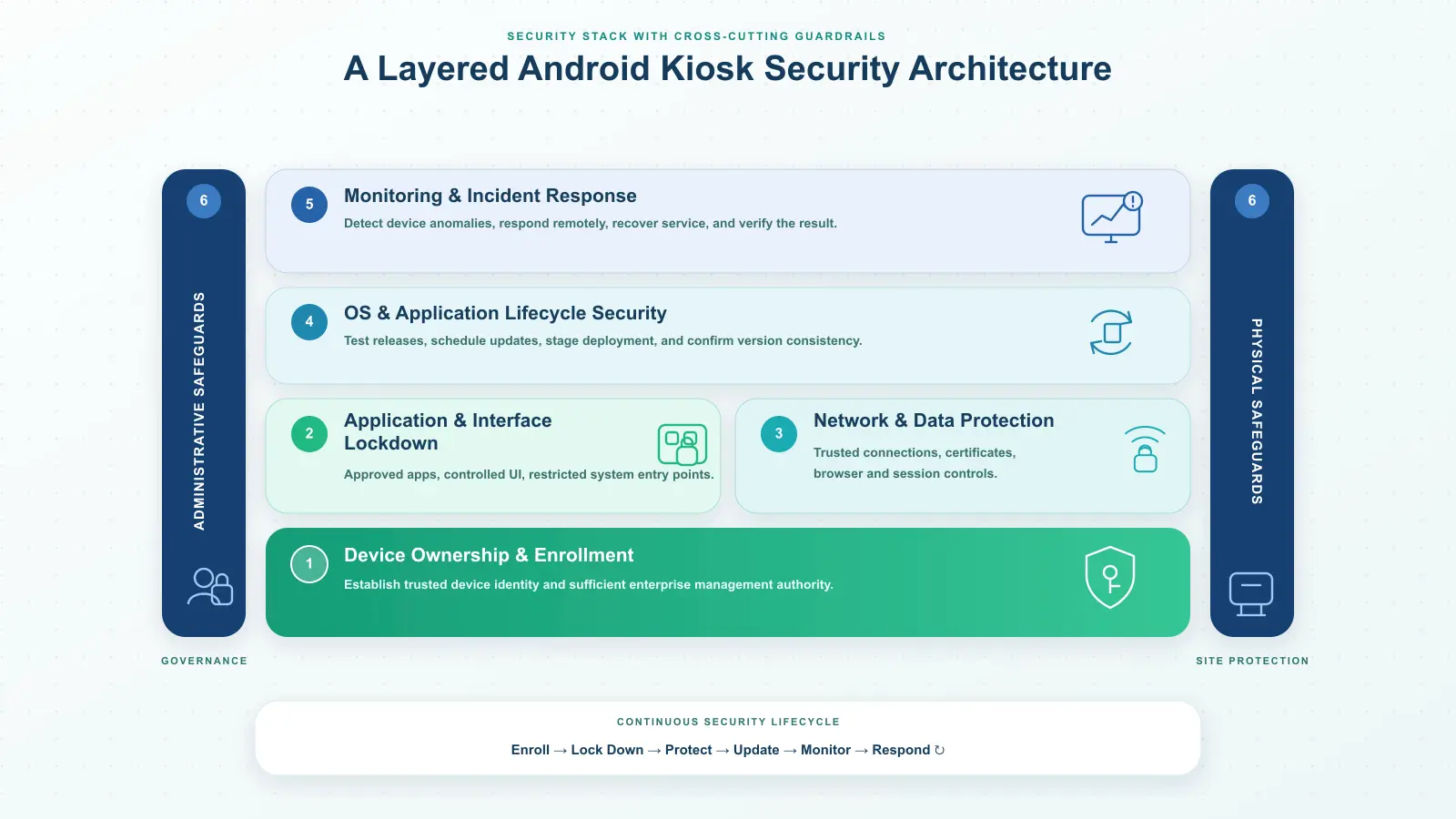
Effective protection requires multiple layers, from enrollment privileges and interface restrictions to network protection, version management, monitoring, and physical safeguards. The following flowchart shows how these layers work together before the next section explains how to configure them with MDM Kiosk.
4How to Secure Android Devices with MDM Kiosk
The following example uses AirDroid Business to organize Android dedicated-device security into six consecutive steps. Each step addresses a specific security objective and identifies the relevant feature and console location, so administrators can configure terminals in deployment order.
1Obtain Device Management Permissions
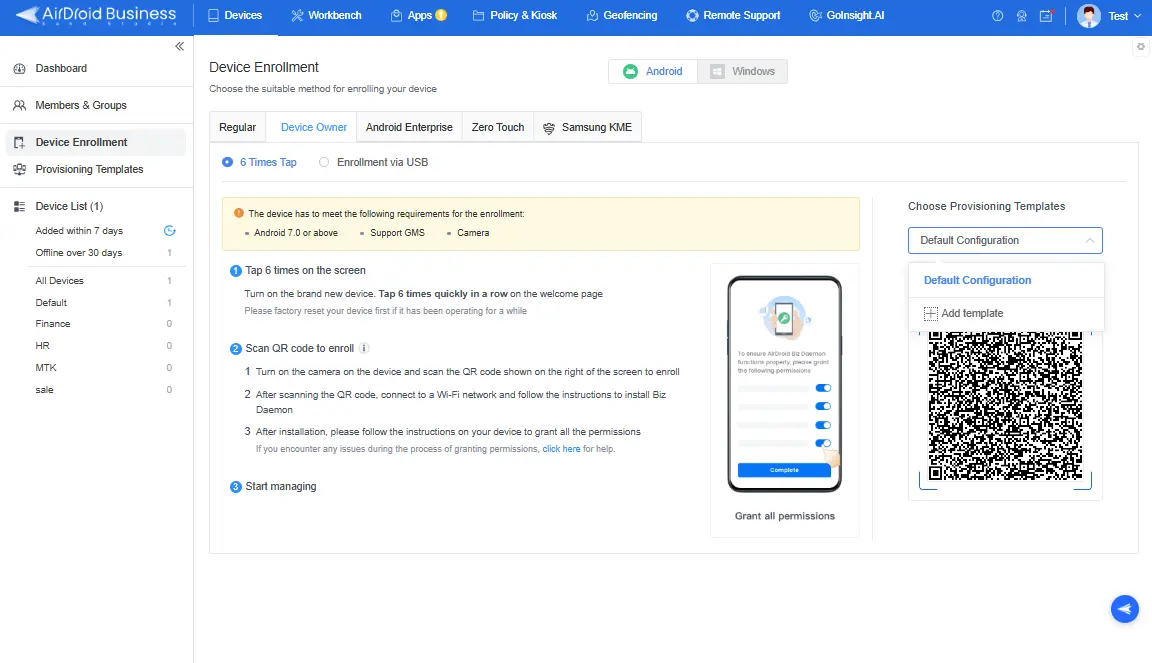
Android kiosk security controls depend on sufficient device management permissions. With regular enrollment alone, some apps, system settings, and network restrictions may not be enforceable, leaving paths that users could exploit to bypass the kiosk. Before deployment, choose an enrollment method based on device ownership and rollout scale. This creates the permission foundation for the Kiosk and Policy settings that follow.
| Security objective | AirDroid Business feature | Configuration path |
|---|---|---|
| Obtain Device Owner permissions | Device Owner Enrollment | Devices > Device Enrollment > Device Owner |
| Set up the device as a company-owned device | Android Enterprise Enrollment | Devices > Device Enrollment > Android Enterprise |
| Enroll new devices in bulk | Zero-Touch Enrollment | Devices > Device Enrollment > Zero Touch |
| Preinstall apps and configurations during enrollment | Provisioning Templates | Devices > Provisioning Templates |
Note: Enrollment methods have different requirements for GMS, Android versions, and the device’s initialization state. Some methods require a factory reset. For details, see the Android Enterprise Kiosk Mode setup guide.
2Restrict apps and the device interface
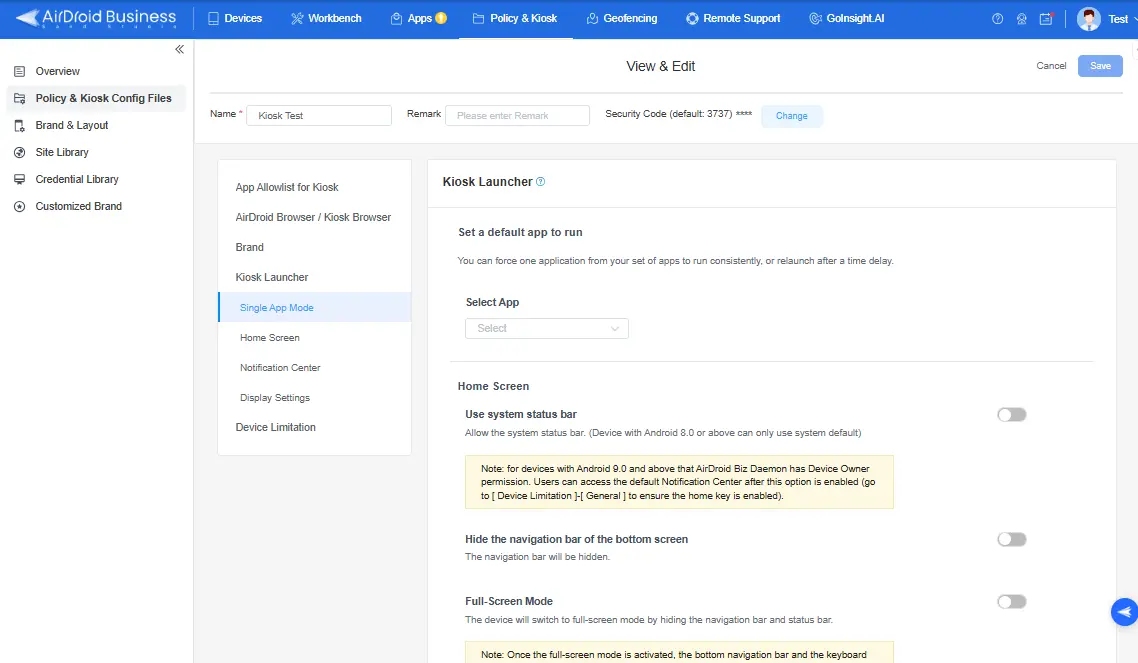
If a device exposes unrelated apps, system settings, or navigation controls, users may leave the business workflow, change critical settings, or access other data on the device. The goal at this stage is to limit the endpoint to the smallest set of actions needed for its task while keeping required capabilities such as scanning, printing, and payment available.
| Security objective | AirDroid Business feature | Configuration path |
|---|---|---|
| Show only approved apps | App Allowlist | Policy & Kiosk > Policy & Kiosk Config Files > Kiosk > App Allowlist for Kiosk |
| Lock the device to one app | Single App Mode | Policy & Kiosk > Policy & Kiosk Config Files > Kiosk > Kiosk Launcher > Single App Mode |
| Allow multiple business apps | App Allowlist for Kiosk + Kiosk Launcher | Policy & Kiosk > Policy & Kiosk Config Files > Kiosk > App Allowlist for Kiosk |
| Hide the navigation and status bars | Home Screen / Notification Center | Policy & Kiosk > Policy & Kiosk Config Files > Kiosk > Kiosk Launcher > Home Screen / Notification Center |
| Restrict system functions and peripherals | Device Limitation / Restriction | Policy & Kiosk > Policy & Kiosk Config Files > Kiosk > Device Limitation; or Policy > Restriction |
Note: After applying the settings, test device restarts, app crashes, and external-link redirects. In each case, confirm that the endpoint returns to the designated business interface.
3Protect Network Connections and Business Data
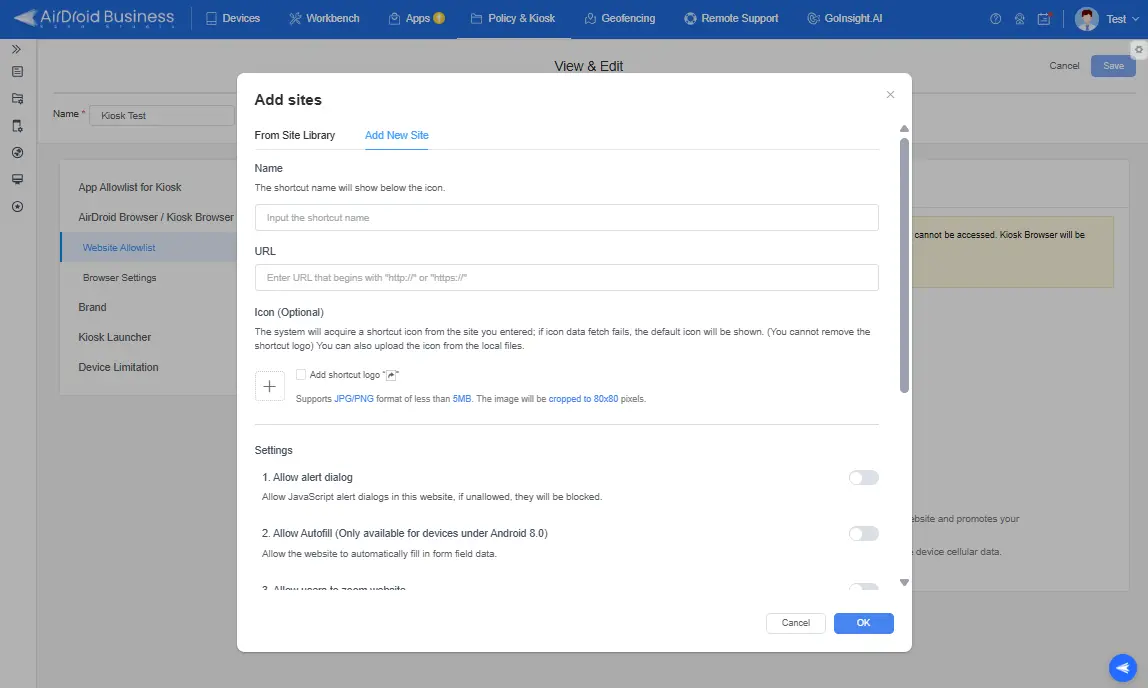
Locking a device to approved apps does not remove every data risk. Open network connections, browser sessions, and local caches can still expose business data or provide a route for malicious access. At this stage, allow only required websites and trusted networks, and prevent accounts, cached content, or downloads from remaining on shared endpoints longer than necessary.
| Security objective | AirDroid Business feature | Configuration path |
|---|---|---|
| Restrict websites | Website Allowlist | Policy & Kiosk > Policy & Kiosk Config Files > Kiosk > Kiosk Browser > Website Allowlist |
| Configure browser behavior | Browser Settings | Policy & Kiosk > Policy & Kiosk Config Files > Kiosk > Kiosk Browser > Browser Settings |
| Configure managed networks | Wi-Fi Configuration / VPN | Policy & Kiosk > Policy & Kiosk Config Files > Kiosk > Device Limitation > Wireless Network; Policy > General Settings > VPN |
| Deploy certificates | Credential Setting | Policy & Kiosk > Policy & Kiosk Config Files > Policy > General Settings > Credential Setting |
| Clear user sessions | Always use incognito mode / Auto-clear cache | Policy & Kiosk > Policy & Kiosk Config Files > Kiosk > AirDroid Browser / Kiosk Browser > Browser Settings |
Note: Incognito mode and Auto-clear cache do not clear the same data, so they should not all be treated as a generic “clear session” control. Define when the device should sign users out, remove cached data, and delete downloaded files based on how the browser and business app work. For centralized certificate deployment, see the Kiosk Mode certificate security guide.
4Manage app and system versions
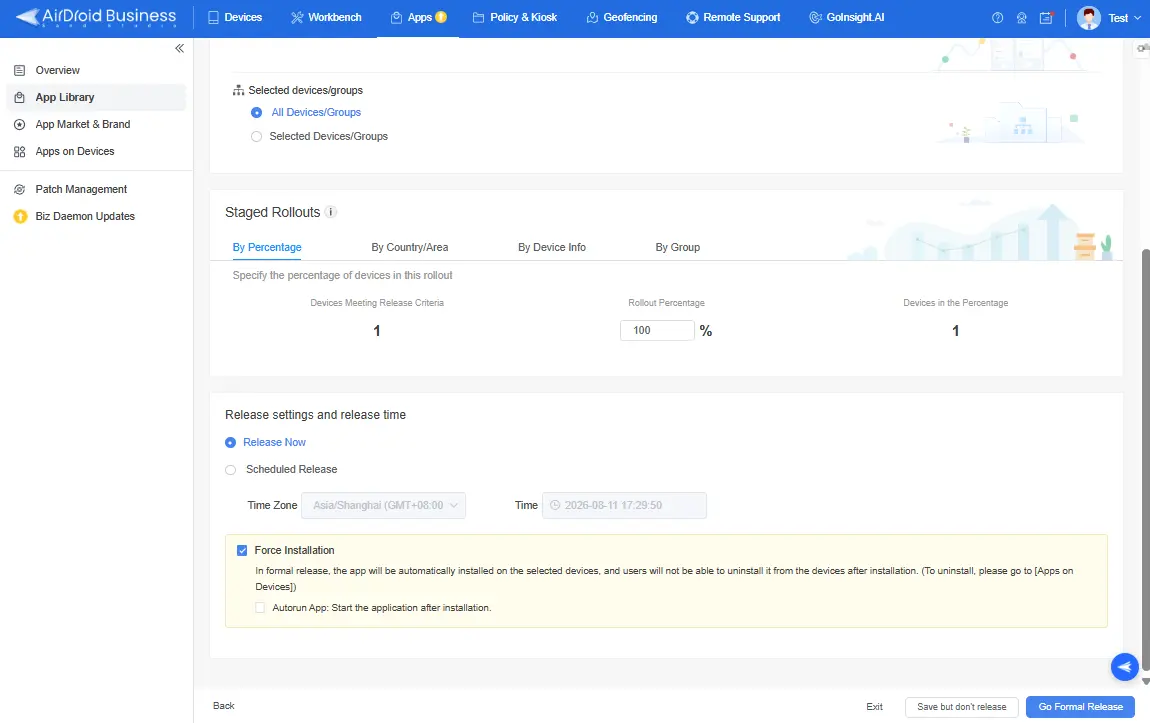
Outdated business apps, Android security patches, and management components can expose kiosks to known vulnerabilities. At the same time, an untested update can interrupt a payment terminal or self-service workflow. Test each release on a representative device group, then deploy it during a controlled maintenance window and verify the result.
| Security objective | AirDroid Business feature | Configuration path |
|---|---|---|
| Publish or update enterprise apps | AMS | Apps > App Library |
| Schedule releases outside business hours | Scheduled Release | Apps > App Library > Add App > Go Formal Release |
| Roll out a new version in stages | Staged Rollout | Apps > App Library > Add App > Go Formal Release |
| Check app release results | Organization App Library / Managed Google Play Store | Apps > App Library |
| Update the management component | Biz Daemon Updates | Apps > Biz Daemon Updates |
5Monitor Devices and Define an Incident Response
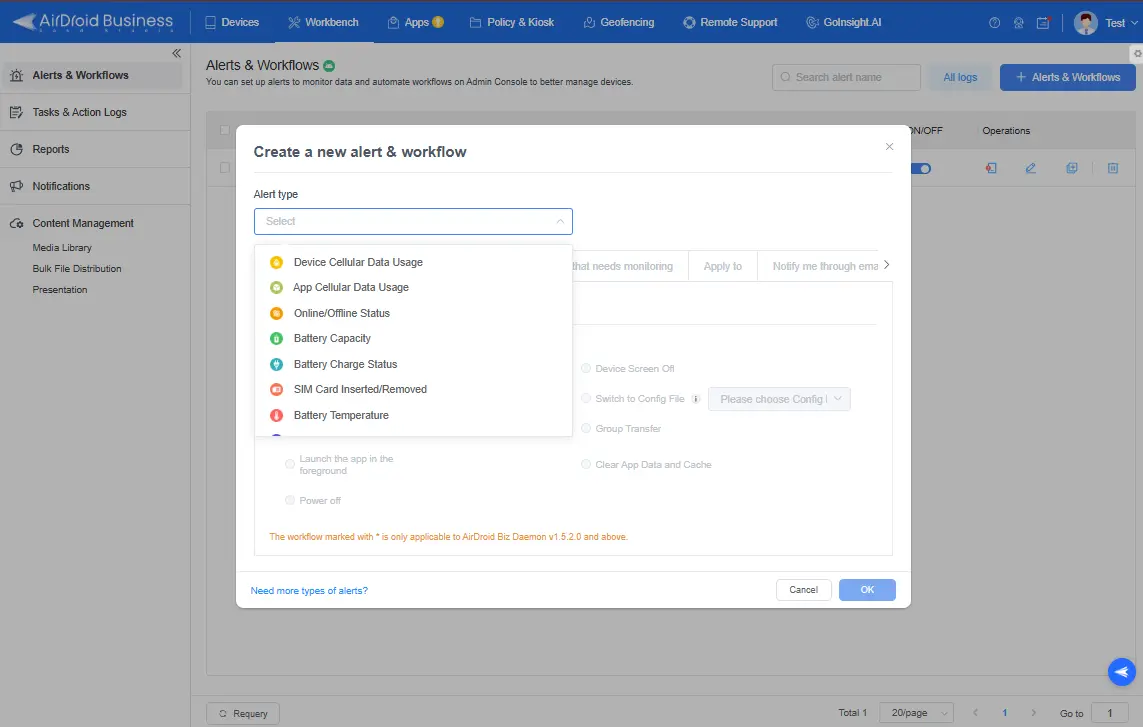
Kiosk Mode can restrict user actions, but it cannot stop a device from going offline, an app from failing, a network connection from dropping, or a configuration from becoming invalid. To prevent problems from persisting on unattended endpoints, the organization must detect anomalies, determine their scope, and respond through remote action or onsite intervention.
| Security objective | AirDroid Business feature | Configuration path |
|---|---|---|
| Check device operating status | Dashboard / Dashboard Templates | Device > Dashboard > Screenshot/ Details |
| Create alerts for abnormal conditions | Alerts | Workbench > Alerts & Workflows |
| Diagnose and recover devices remotely | Remote Support | Devices > Device Details |
| Automate supported response actions | Workflow | GoInsight.AI > InsightFlow |
When a device unexpectedly exits Kiosk Mode, the restrictions protecting its apps, settings, and system functions may no longer be enforced. AirDroid Business can run a preconfigured recovery action, while AI workflow verifies whether the Kiosk configuration has been restored and escalates unresolved incidents to the support team. This auto kiosk recovery process reduces the time that the device remains outside its intended security controls. Learn how to configure auto kiosk recovery.
6Protect Administrative Access and the Field Device
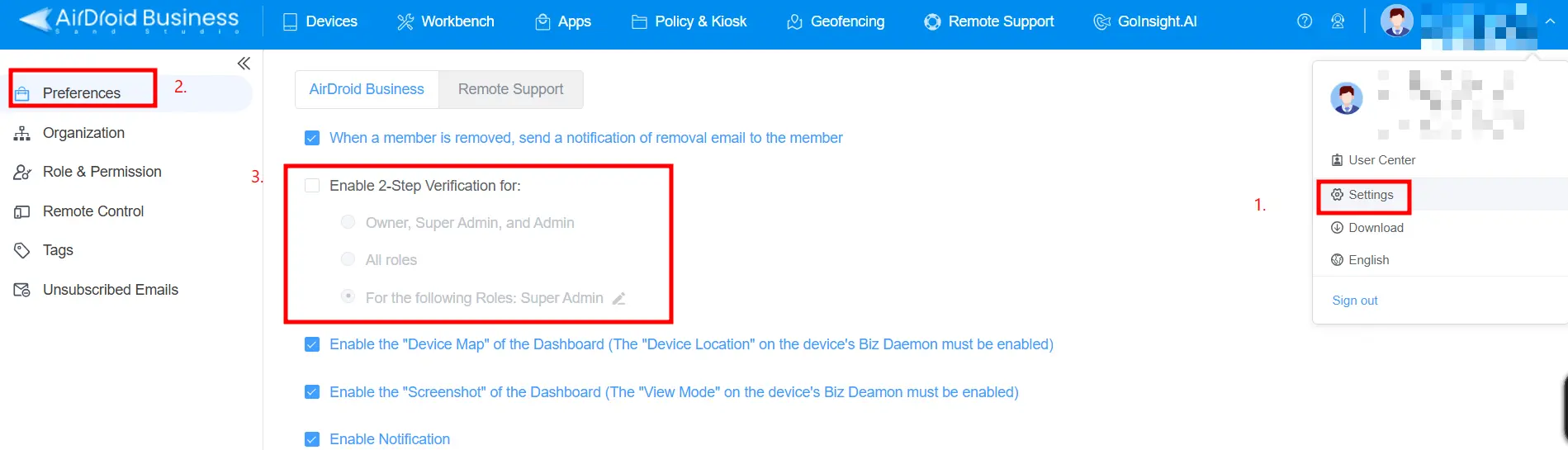
If administrator accounts, the kiosk exit path, or physical interfaces are not protected, attackers may still bypass the app, network, and policy controls configured in the previous steps. The final step is to secure console permissions, kiosk exit privileges, and onsite physical access so unauthorized users cannot change the configuration or disable Kiosk Mode.
| Security objective | AirDroid Business feature | Configuration path |
|---|---|---|
| Restrict administrator permissions | Role & Permission | Admin Console > Settings > Role & Permission |
| Require members to use two-step verification | 2-Step Verification | Admin Console > Settings > Preferences |
| Prevent unauthorized users from exiting Kiosk Mode | Security Code | Policy & Kiosk > Policy & Kiosk Config Files > Security Code |
| Restrict USB file transfer and other interfaces | Restriction | Policy & Kiosk > Restriction |
| Install Android security updates automatically | System Update – Auto update | Policy & Kiosk > Policy & Kiosk Config Files > Policy > Restriction > Device Function > System Update |
Note: AirDroid Business can manage console permissions and some device interfaces. Device enclosures, power switches, and exposed ports still require physical protection at the deployment site.
5Android Kiosk Security Configuration Examples
Dedicated devices handle different data and operate in different environments, so their security settings should reflect the use case. The examples below show the main control priorities for each device type.
| Device type | Primary risks | Recommended security configuration |
|---|---|---|
| Self-service kiosk | Residual session data, unrestricted web access, scanner exposure, or exposed USB peripherals | Single App Mode or Kiosk Browser, Website Allowlist, session cleanup, restrictions on unnecessary peripherals, and alerts for offline devices or app failures |
| POS device | Payment and order data, connection to the wrong network, inconsistent app versions, and service disruption | App allowlist, managed network and certificates, testing and staged rollout, remote support, and recovery procedures |
| Digital signage | Users leaving the playback interface, outdated content, app crashes, and offline devices | Single App Mode, persistent app operation, defined update windows, status monitoring, and remote restart |
| Shared employee device | Access to unrelated apps, shared identities and business data, and changed system settings | Multi-App Allowlist, system restrictions, identity and session management, and least-privilege administrator access |
6Conclusion
Protecting Android dedicated devices starts with enrollment privileges and restrictions on apps and the device interface. It also requires ongoing management of network access, data, app versions, and device health. Enterprises should define security settings for each endpoint’s purpose, validate them on test devices, and then deploy them to comparable device groups. Updates, alerts, and remote maintenance remain part of daily operations after rollout.
AirDroid Business helps IT teams configure Android Kiosk Mode centrally, deploy device policies, manage apps, and monitor device status. To manage Android dedicated devices across multiple locations, visit AirDroid Business Kiosk Mode.
Lock devices to approved apps and websites, apply consistent security policies, manage updates, and respond to kiosk incidents remotely from one centralized console.


Leave a Reply.