Using the Find My iPhone feature, you can locate your phone even when it's offline or switched off. But there are times when you need to turn it off. For instance, you must disable Find My iPhone if you need to to sell your device, exchange it for a newer model, send your phone for repair, or keep your location private.
There are two ways to do that—through your iPhone itself or using iCloud. This guide explains how to turn off Find My iPhone using both methods, whether you have your phone with you or not.
How to Turn off Find My iPhone?
1Turn off Find My iPhone Through Settings
If you have your iPhone with you, then turning off Find My is an easy and straightforward process.
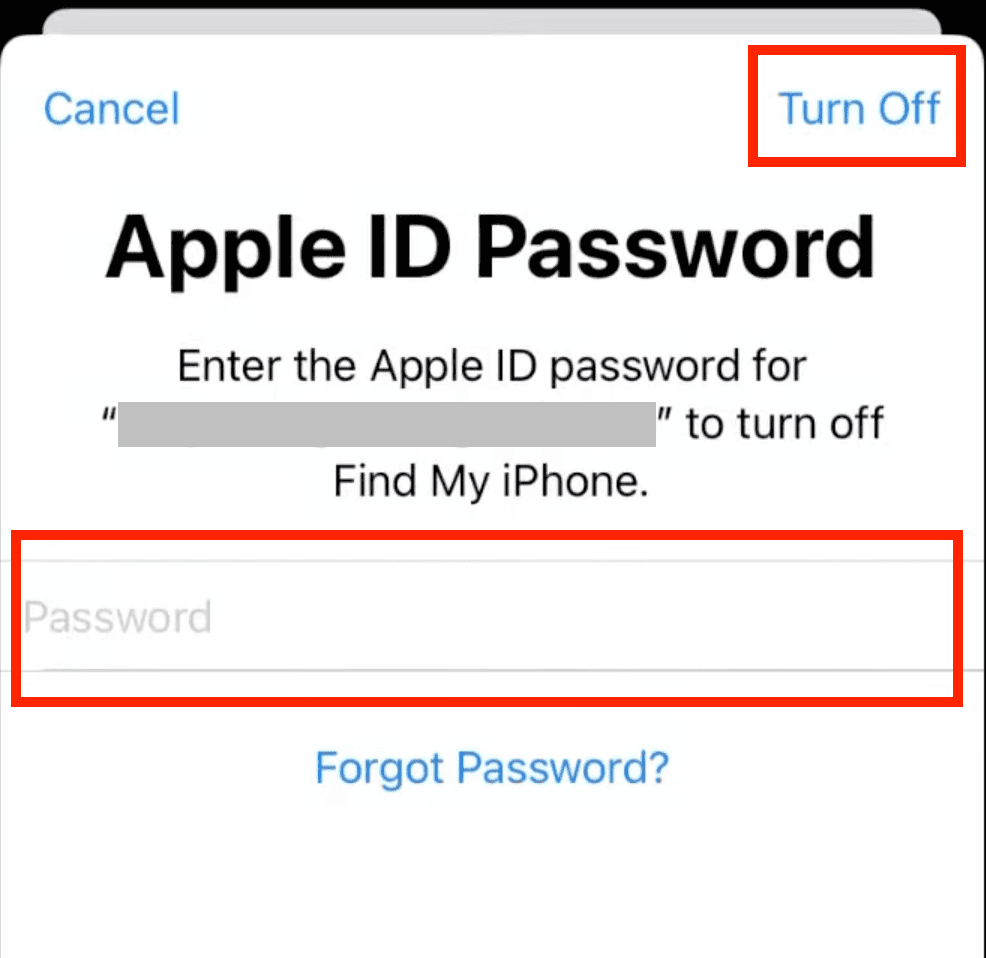
Before you begin, this method requires you to enter your Apple ID password in some of the steps, so make sure you have that handy. Also, you should be connected to Wi-Fi or cellular data. It won't work if you're offline.
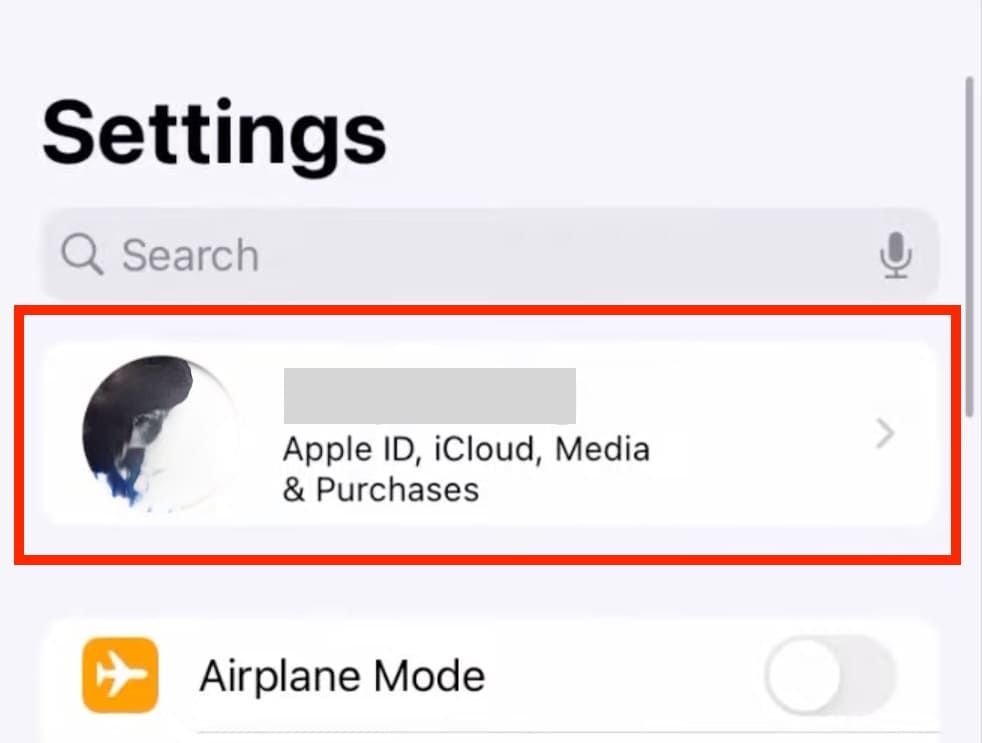
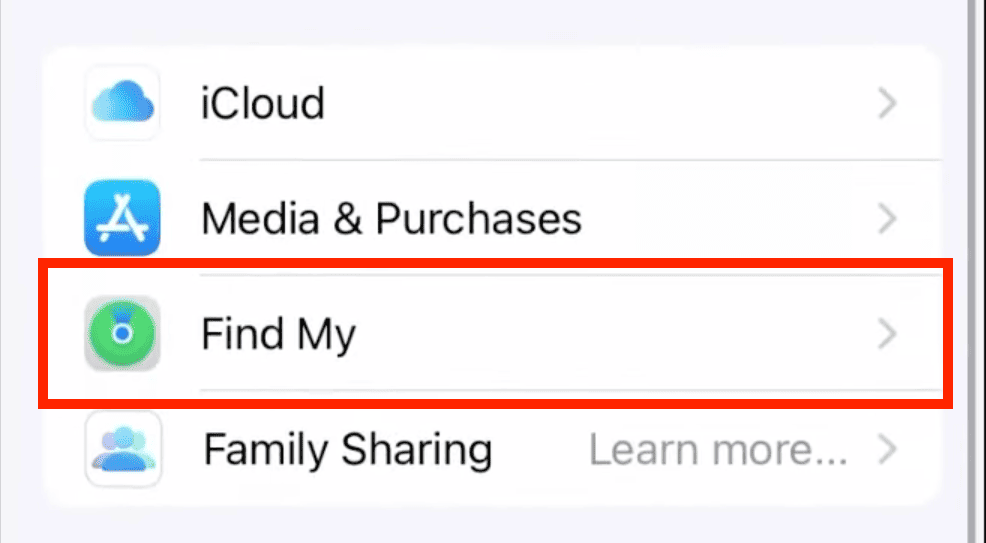
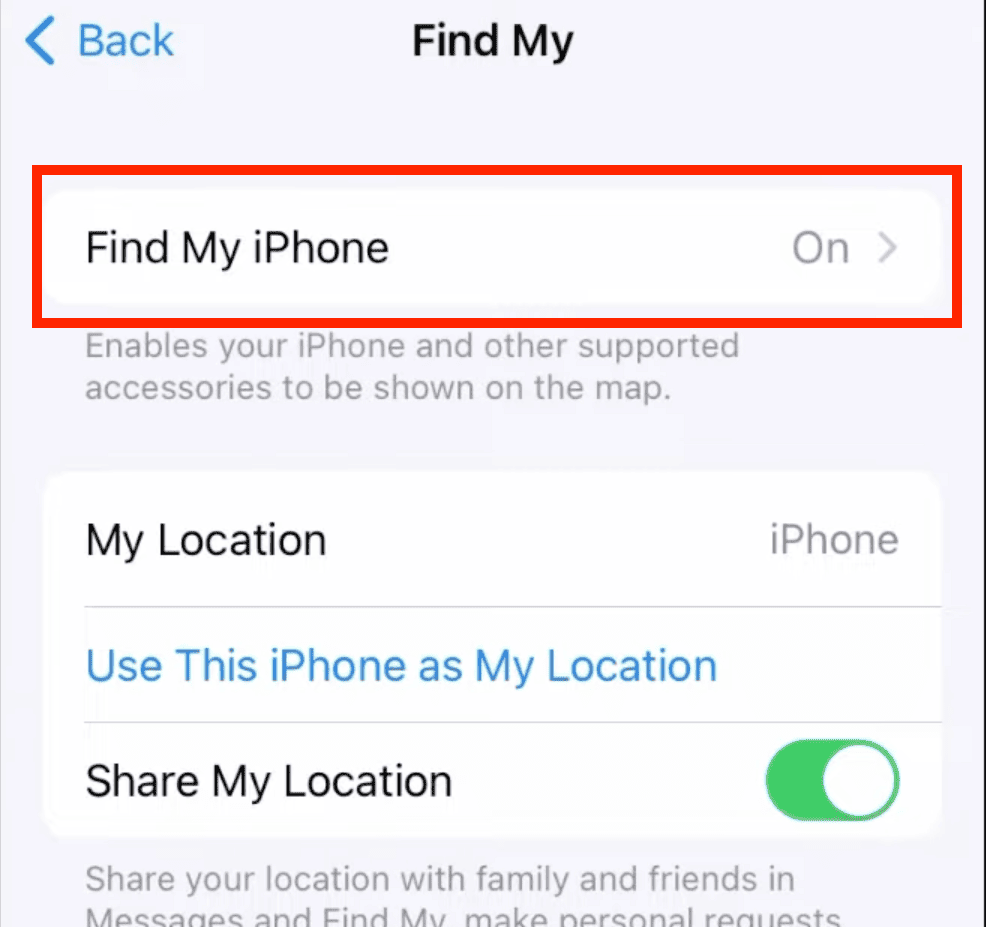
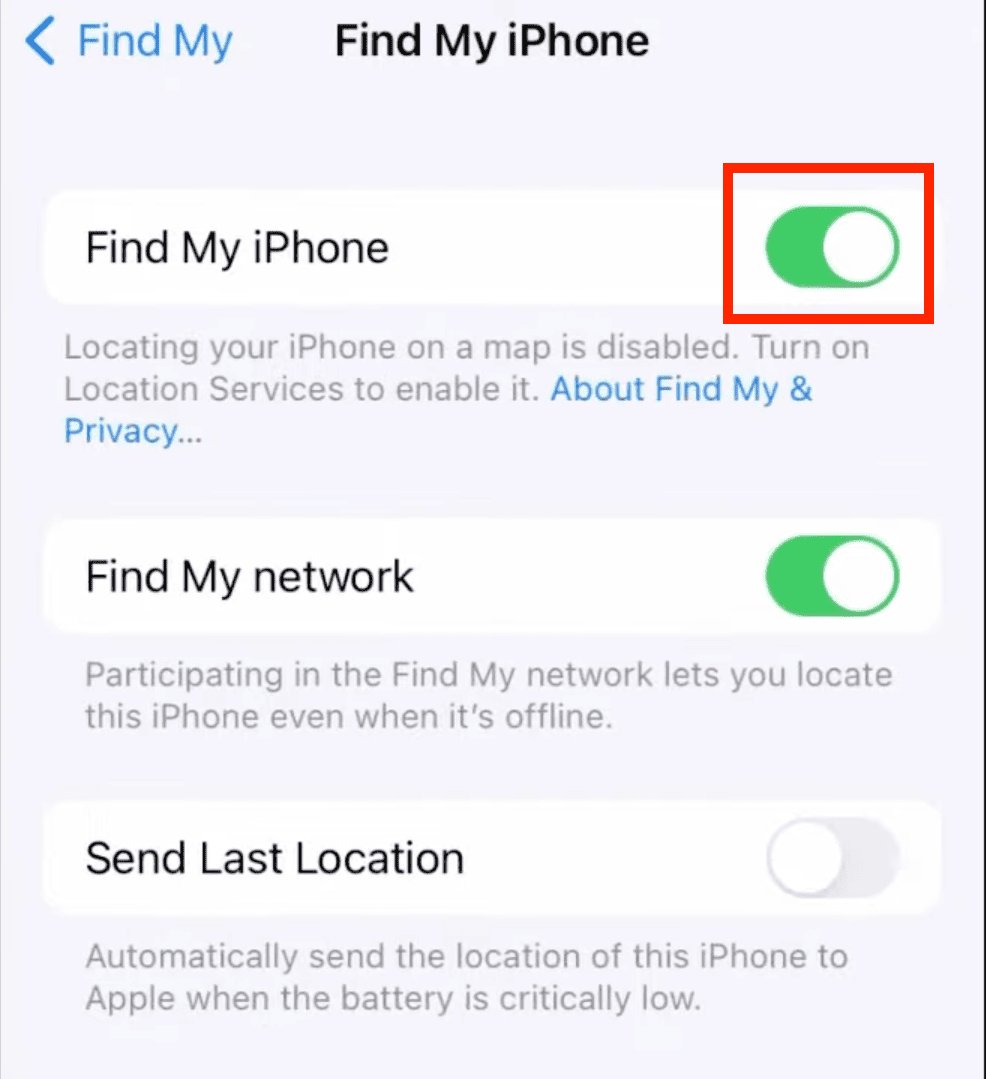
Here's how to turn off Find My iPhone using your phone's settings:
Note: This method works identically for other iOS devices like iPad and iPod touch.
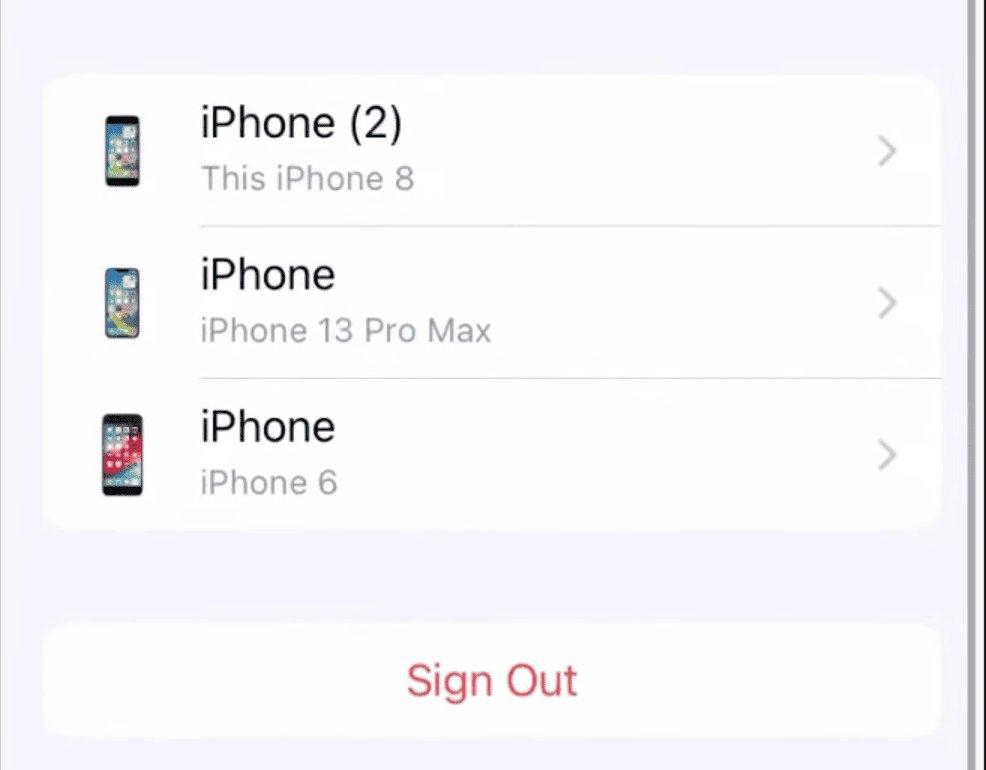
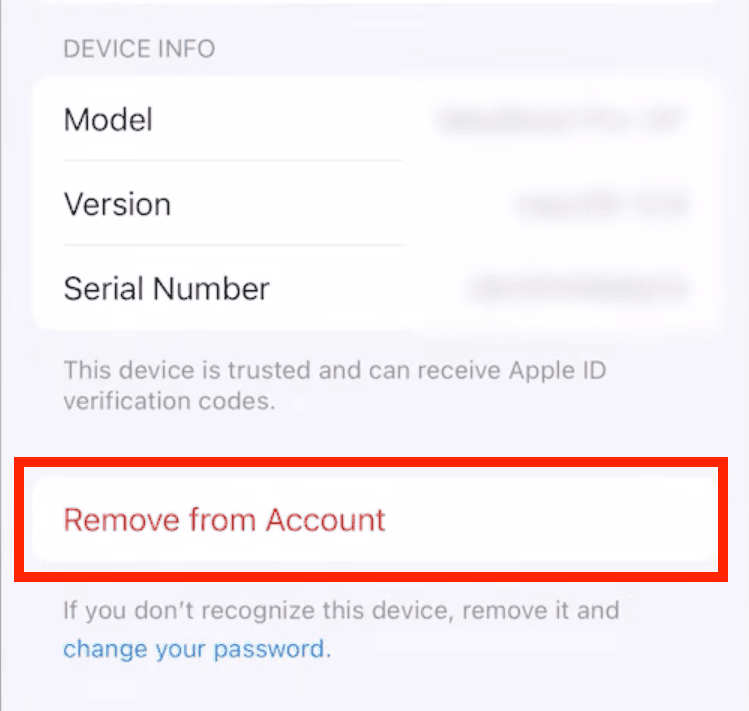
Sometimes, you have multiple devices connected to the same Apple Account, including old ones that you no longer use. In that case, you can remove any of those devices remotely using your iPhone. Follow these steps as mentioned below:
Remember, once you remove a device, it won't appear in Find My or your Apple Account until you add it back.
2Turn off Find My iPhone Without Phone
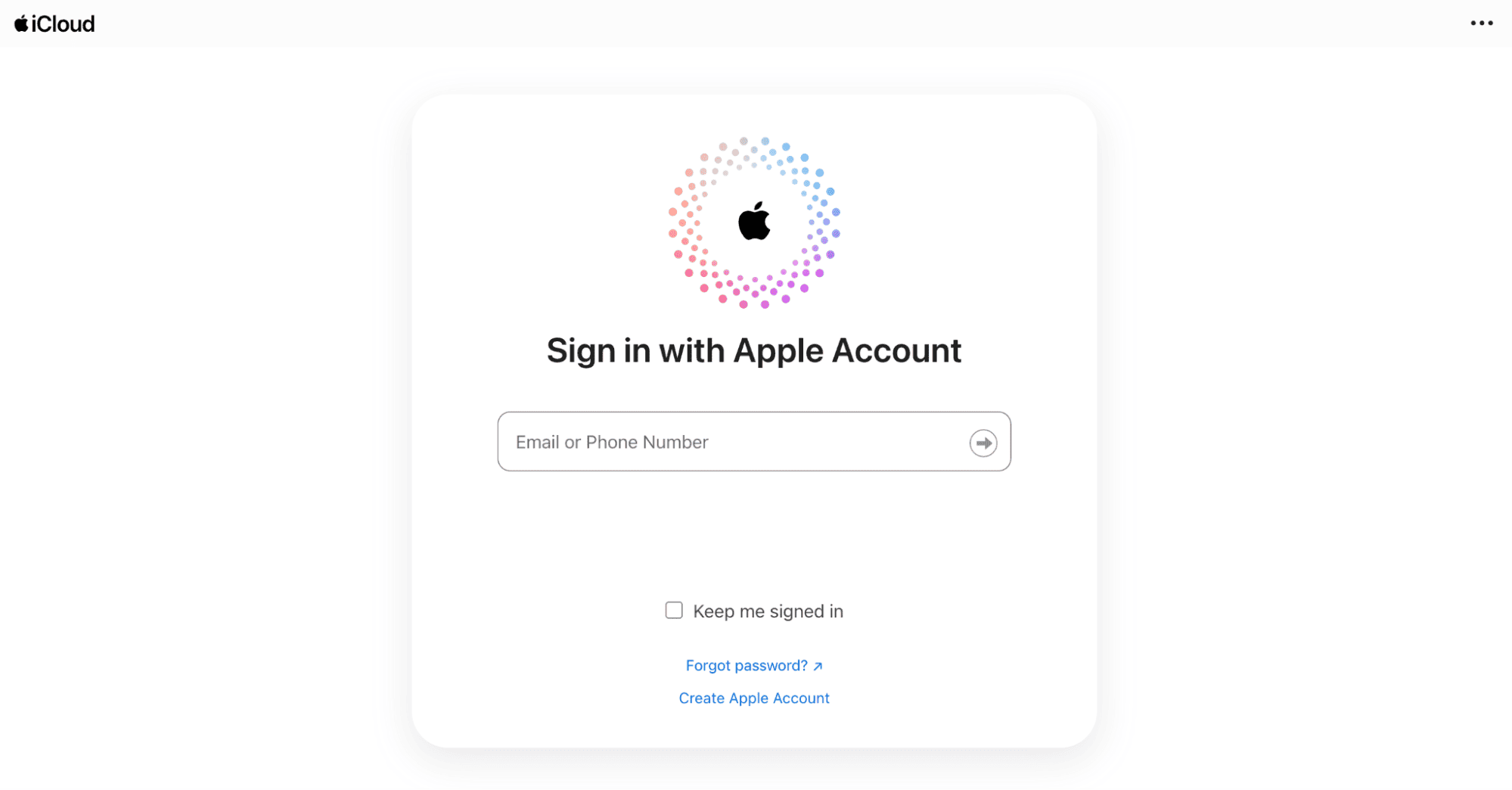
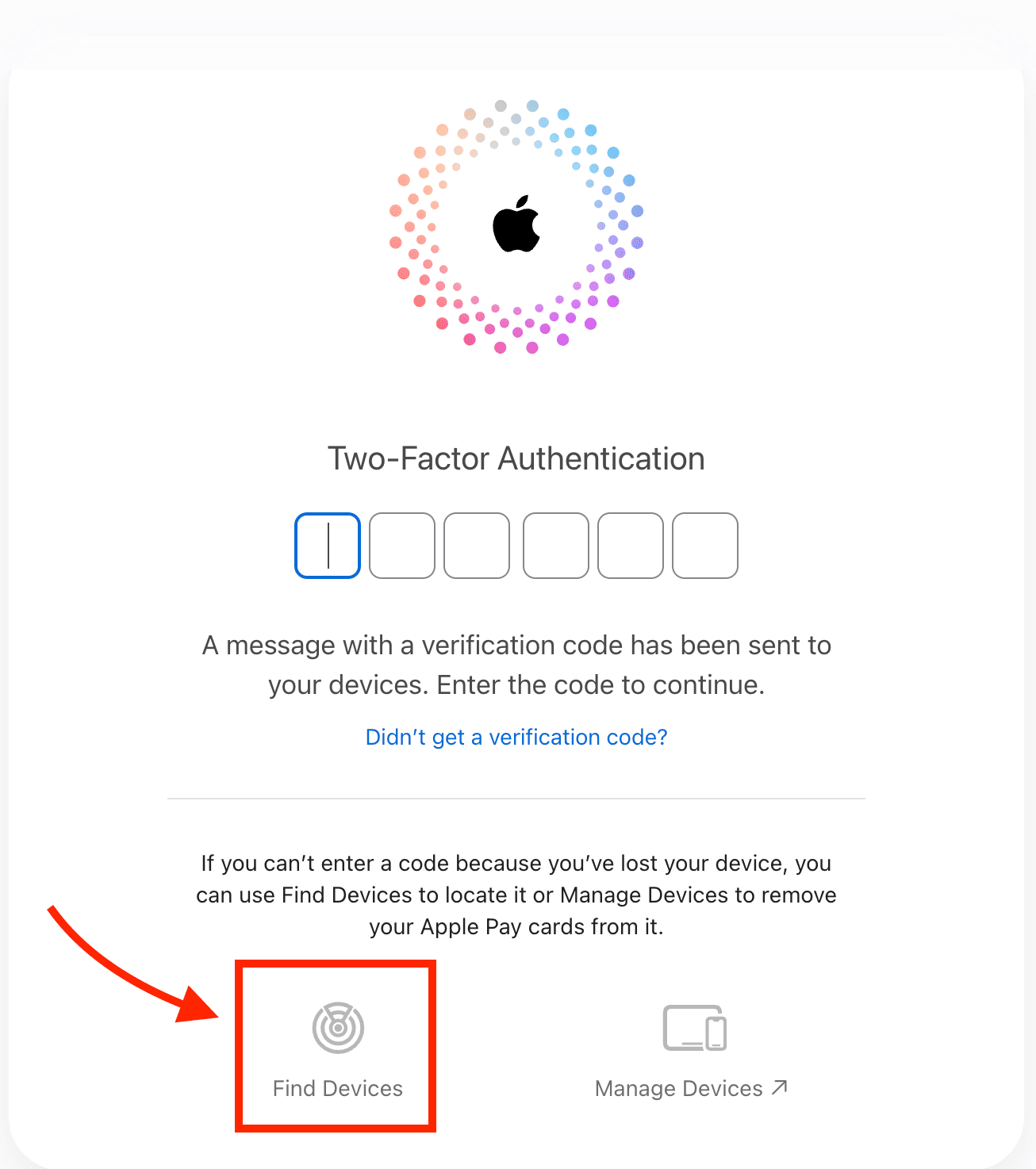
If you don't have your phone with you, you can disable Find My iPhone remotely using iCloud on any computer.
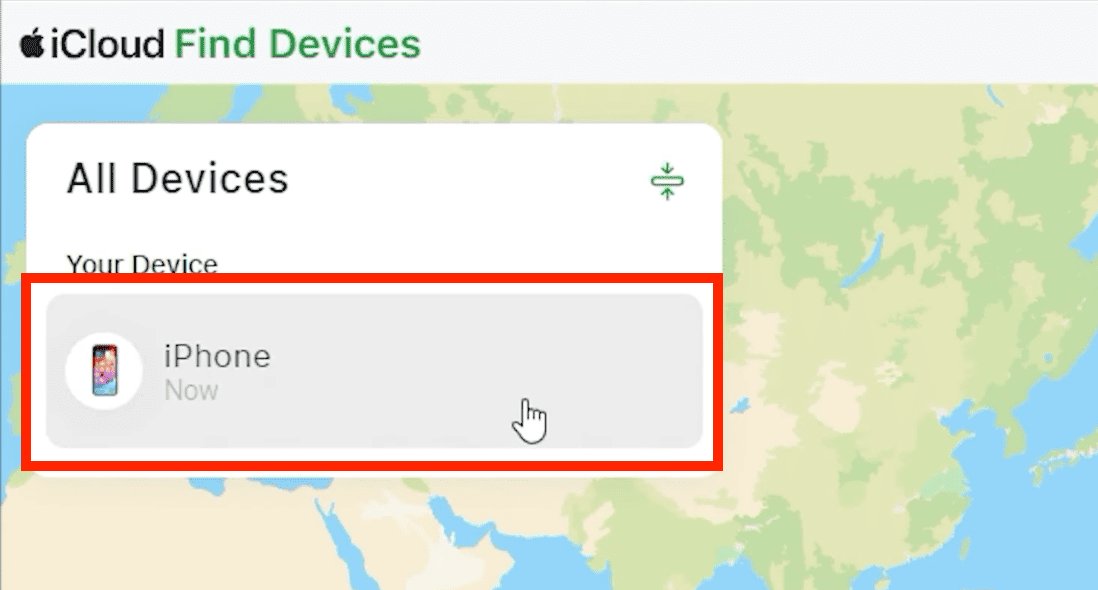
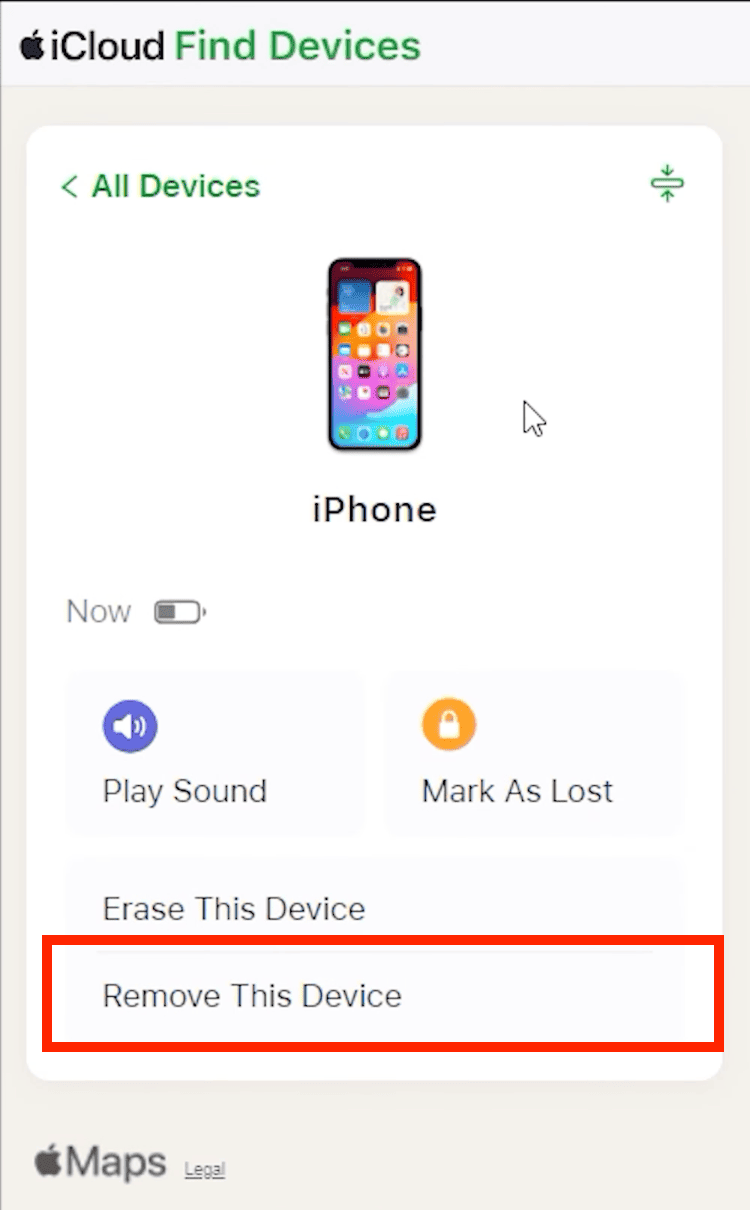
Here's how to turn off Find My iPhone through iCloud:
How to remotely erase your iPhone: If your device is lost and can't not found, you can use this method to erase all your data remotely. To do that, click on the "Erase This Device" option that appears after choosing your iPhone in step four as shown above. This helps protect your privacy and secure your personal info.
How to Turn off Find My iPhone Activation Lock?
Besides Find My, there is another powerful security feature on Apple devices called Activation Lock. They both work in tandem, but there's a difference between them.
Where Find My helps you locate your device, Activation Lock is there to prevent unknown users from accessing your device, even if they erase it.
Think of Activation Lock as your iPhone's anti-theft feature. It automatically turns on when you enable Find My iPhone.
Similarly, you don't have to turn off Find My Activation Lock separately. It gets disabled automatically when you disable Find My iPhone. Just follow one of the methods discussed above.
Note: If you're planning to sell or trade your iPhone, you must remove Activation Lock otherwise the new owner won't be able to set up the device.
Conclusion
Find My iPhone is a crucial security feature and it's advised to have it turned on to maintain your device's security. But whenever you plan to sell your phone or leave it at a service center for repair, you need to turn it off.
Whether you have your device with you or want to know how to turn off Find My iPhone from computer, these methods will help you perform the process smoothly.
Just remember to always back up your data first and keep your Apple ID credentials handy.
FAQs
What to Do If Find My Is Grayed Out?
If the Find My iPhone option is grayed out on your phone, you need to turn off the "Stolen Device Protection" feature.
Just go to the "Face ID & Passcode" menu inside your iPhone's Settings. Then select "Stolen Device Protection" and choose "Turn off Stolen Device Protection." Now you'll be able to turn off Find My easily.
How to Turn on Find My iPhone?
To turn on Find My iPhone, open "Settings" and tap your name at the top. Select "Find My," then toggle on "Find My iPhone."
For best results, also enable "Find My Network" for offline tracking and "Send Last Location" to see your device's last known location before the battery dies.
What Happens If I Turn off My Find My iPhone?
When you turn off Find My iPhone, your device can no longer be tracked through the Find My app or iCloud. Also, the Activation Lock will be disabled automatically.
So, you won't be able to locate your device if it's lost or stolen. The device will also be removed from your Apple ID's device list. Also, you won't be able to use features like Lost Mode and remote erasing.
Will Removing My iPhone from Find My Delete Everything?
No, turning off Find My won't delete any of your personal data. It only makes your location impossible to track.
However, if you choose to "Erase the device" using your iCloud account, then all your data will be erased. Also, the Activation Lock will be removed so a new person can activate the device.











Leave a Reply.