How to Block Adult Content on iPhone: A 2024 Guide
Kids want their own phones as they grow up, but parents may worry about the amount of adult content online. This concern is valid, as the internet can expose kids to inappropriate material, from violence to explicit content. If you're ready to give your child an iPhone, we're here to help you learn how to block adult content on iPhones and keep them safe.
Is Your iPhone Equipped to Block Adult Content?
Yes, iPhones are equipped with built-in features to block adult content. One of the primary tools for this is Screen Time. This feature allows you to set restrictions on different aspects of your iPhone's usage. This includes the following:
- Web Content: You can limit adult websites or even restrict access to specific websites altogether.
- App Store: You can control which apps can be downloaded based on their age rating.
- Explicit Content: You can prevent the playback of explicit music or movies.
While the basic Screen Time setup provides the opportunity to block adult content, for more granular control, you'll need to use the Store, Web, Siri & Game Center Content settings.
In addition to the basic "Limit Adult Content" option, you can customize the specific websites allowed or blocked. In addition, you can prevent accidental or unauthorized app purchases.
Even more, you can limit Siri's ability to provide explicit or mature content. Lastly, there are options to control access to certain game center activities, such as multiplayer games.
Start with Lock Screen Time Settings
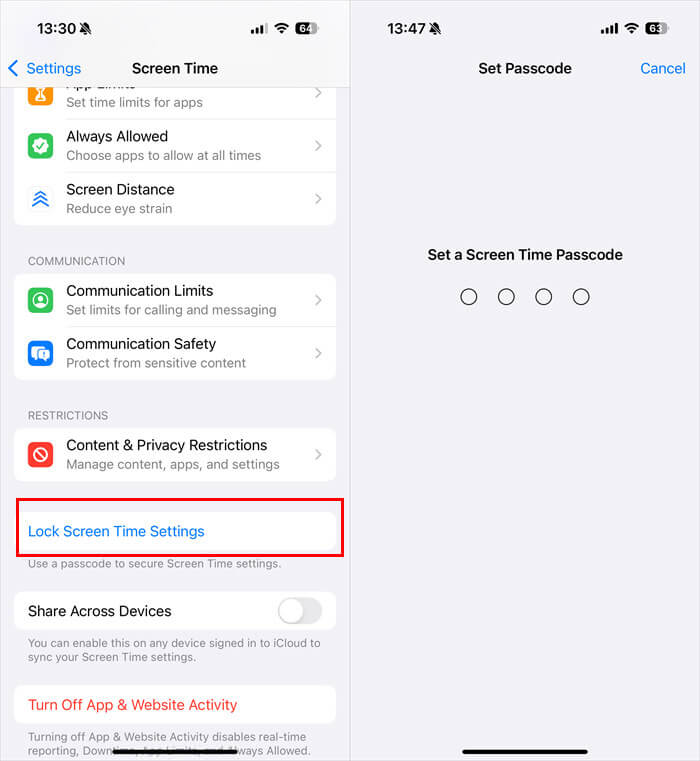
Before you start, make sure to set a passcode for Screen Time. Choose one that's different from the device's lock screen passcode to prevent your child from disabling the settings. You can follow these steps:
Step 1. Open the Settings on the iPhone and go to "Screen Time."
Step 2. Tap "Lock Screen Time Settings."
Step 3. Set a Screen Time passcode and confirm it.
Step 4. Enter your Apple ID in case you forget the Screen Time passcode so that you can reset it.
How to Block Adult Content on Screen Time
Screen Time feature allows the parents to manage access to content, settings, and apps on the kid's device. In addition, you can restrict downloads, purchases, and explicit content. We don't mind saying that parental control features in Apple devices are pretty reliable.
ALLOWED STORE CONTENT
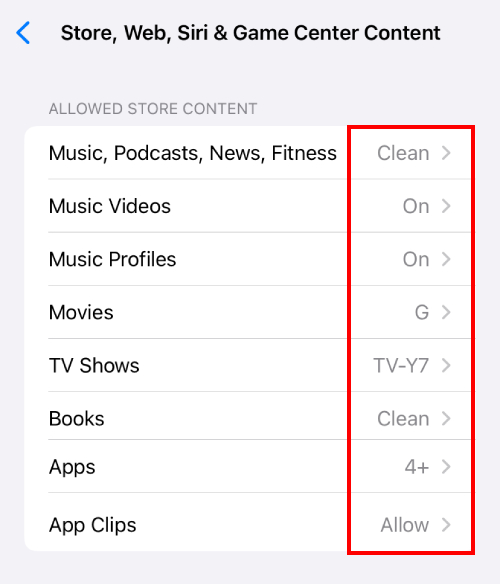
It is possible for parents to limit the store content so the kids cannot purchase music, podcasts, fitness, books, or other content with explicit ratings. In addition, there are ratings available according to the content restrictions. So, let's see which steps you've to follow.
Step 1. Open the Settings on the iPhone and go to "Screen Time."
Step 2. Click on the "Content & Privacy Restrictions" and click on "Store, Web, Siri & Game Center Content."
Step 3. Under the "ALLOWED STORE CONTENT" section, set "Music, Podcasts, News, Fitness" to "Clean."
Step 4. Set "Movies" to "G."
Step 5. Set "TV Shows" to "TV-Y7."
Step 6. Set "Books" to "Clean."
Step 7. Set "Apps" to an appropriate rating according to your child's age.
WEB CONTENT
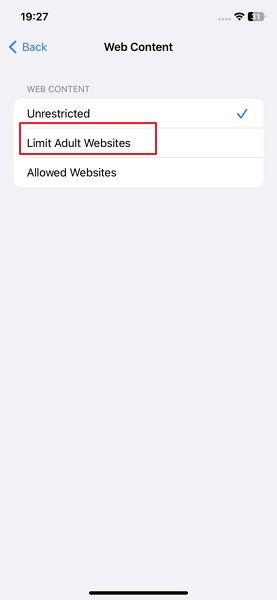
The iPhone has the feature to automatically filter content, as it can block adult websites on the iPhone. It can put these content restrictions in Safari as well as other apps. In addition, you've the option to add specific websites to the blocked or approved lists. So, let's have a look at the steps.
Step 1. Now, scroll down to the "WEB CONTENT" section.
Step 2. Tap "Web Content" and choose "Limit Adult Websites."
SIRI
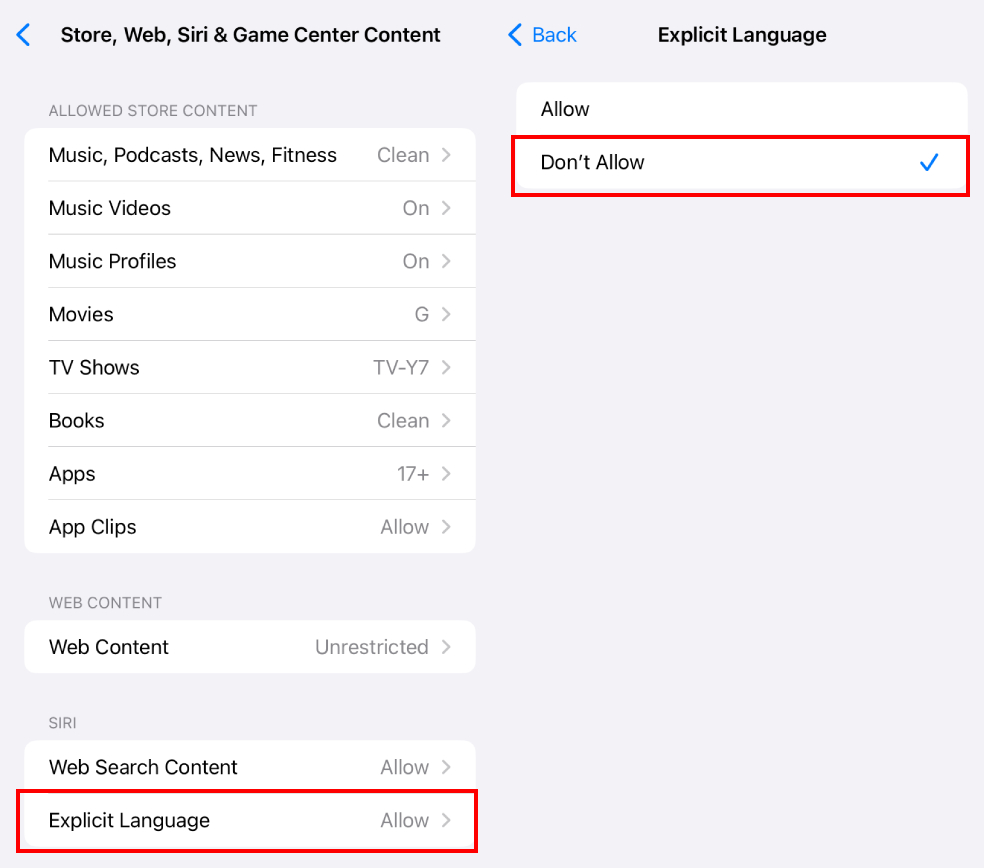
Siri is an important part of the iPhone, and it can be a source of explicit content for many kids. In most cases, it can use the explicit language. For this reason, you can also update the Siri settings to block explicit content on iPhone. So, let's have a look at the steps.
Step 1. Scroll down to the "SIRI" section.
Step 2. Set "Explicit Language" to "Don't Allow."
Other Tips to Block Adult Content with AirDroid
While iPhones offer a lot of features to block adult content, it's important to acknowledge their limitations. Even with age ratings and content restrictions, some apps or websites may still contain content unsuitable for children.
Secondly, the iPhone's built-in filters might not be able to catch all inappropriate content. It mostly happens when it's dynamically generated or hidden within safe apps.
To address these limitations and create a more comprehensive approach, we recommend using the AirDroid Parental Control app. With it, parents can remotely block specific apps, as well as monitor and manage browsing content on their children's iPhones. Here's how:
Step 1. Make sure you have installed AirDroid Parental Controls and linked your child's iPhone via the on-screen prompts.
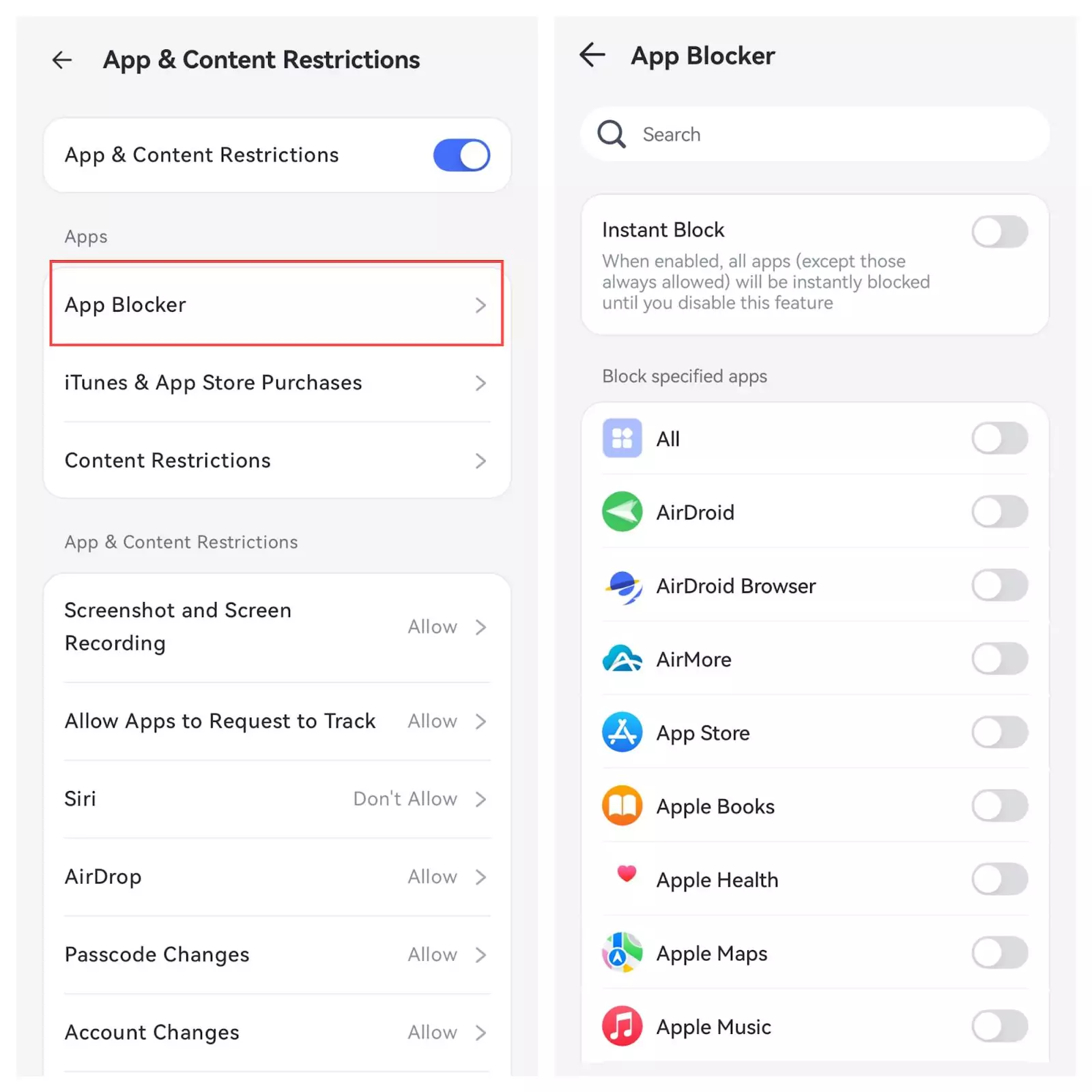
Step 2. Open AirDroid Parental Control and tap "App & Content Restrictions" and enable it.
Step 3. To block a specific app, tap "App Blocker" and toggle on the button next to the app you want to block.
Step 4. Next, to keep your child's iPhone away from adult content while browsing on Safari, go back to the AirDroid interface and tap "Website Restrictions."
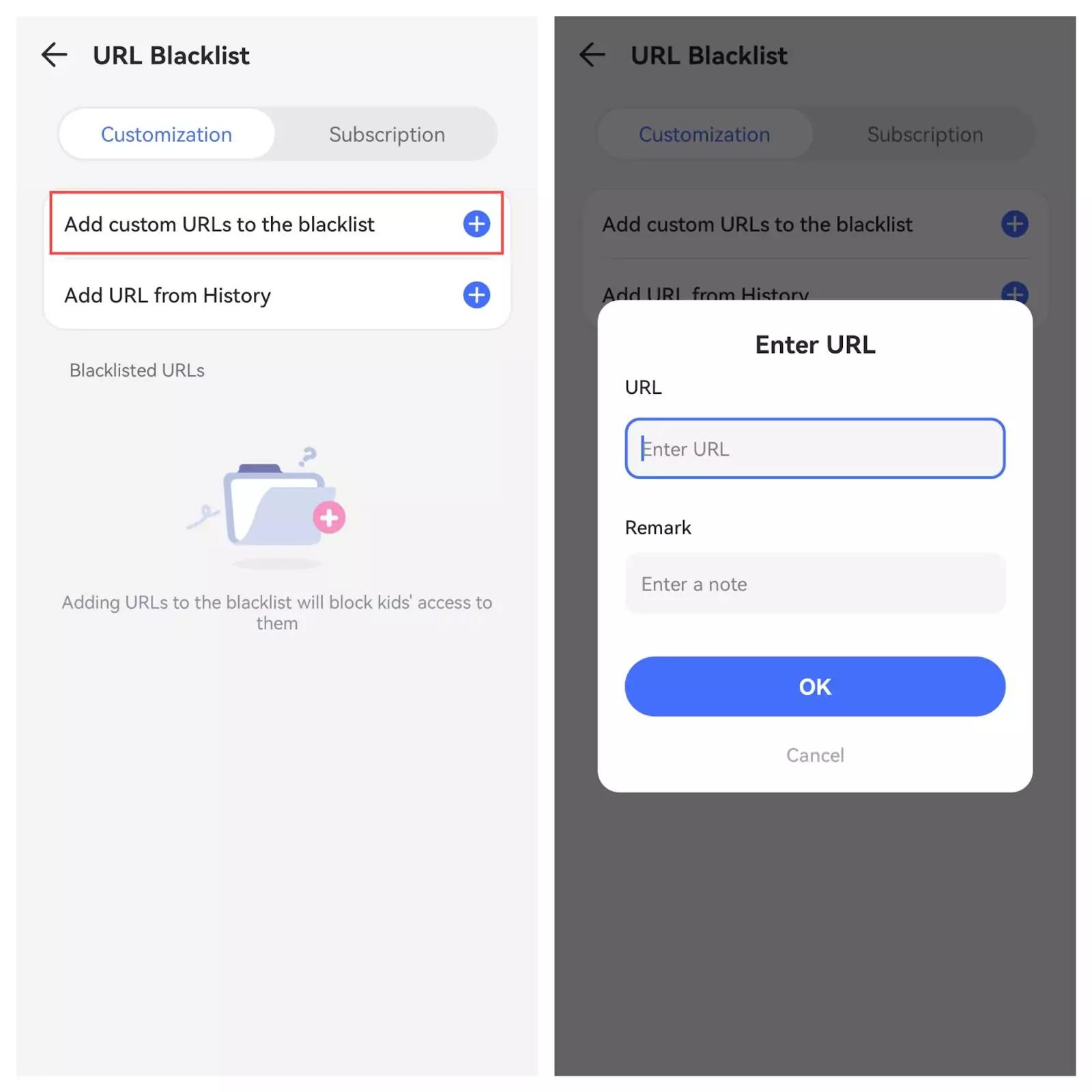
Step 5. Select "Blacklist Mode" in "Mode." You can also add custom URLs to the blacklist.
Conclusion
Knowing how to block adult content on Safari and other iPhone apps is important when you are planning to give a phone to your kids. That's because it will make sure kids don't come across content that's harmful and inappropriate for them. For this reason, we shared a full guide with you. In the end, we want to add that you should use third-party apps, such as the AirDroid Parental Control app. It only adds another layer of security to your kid's life.
FAQs about Blocking Adult Content on iPhone









Leave a Reply.