How to Disable Internet on Your iPhone and iPad Easily
Ever felt like your iPhone is a bit too distracting? Take Sarah from our online community—she was struggling to concentrate while studying for her exams because her phone kept pulling her attention away.
Her solution? Turning off the internet on her iPhone to cut down on distractions and boost her productivity. If that sounds like something you might need to try, I've got you covered.
Let's walk through how to easily disable your or your child iPhone's internet so you can focus on what really matters. Ready to reclaim some peace and quiet?
How to Disable Internet Access on Your iPhone/iPad
If you have the iPhone or iPad you want to disable Internet, the methods below will help you.
1Disable All Internet Access
The below steps will stop the whole device from accessing the Internet.
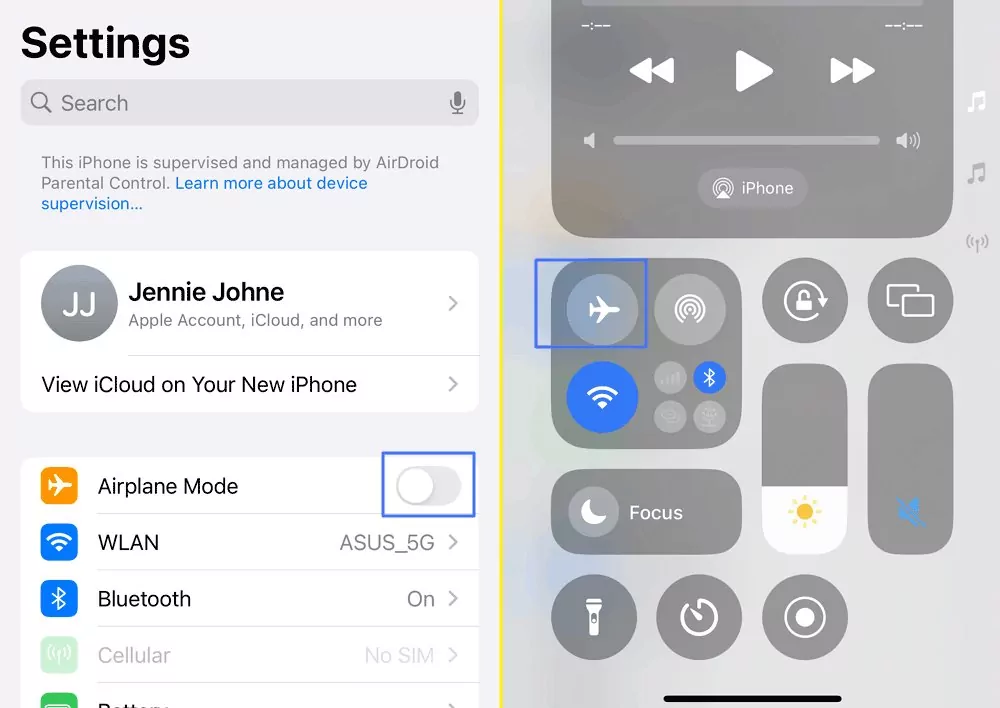
Turn on Airplane Mode
- Go to Settings and tap Airplane Mode to turn it on.
- Swipe down from the top-right corner of your screen to open the Control Center. Tap the Airplane icon. This disables all wireless features, including cellular data and Wi-Fi.
Turn Off Both Wi-Fi and Cellular Data
- Go to Settings.
- Tap Wi-Fi and turn it off.
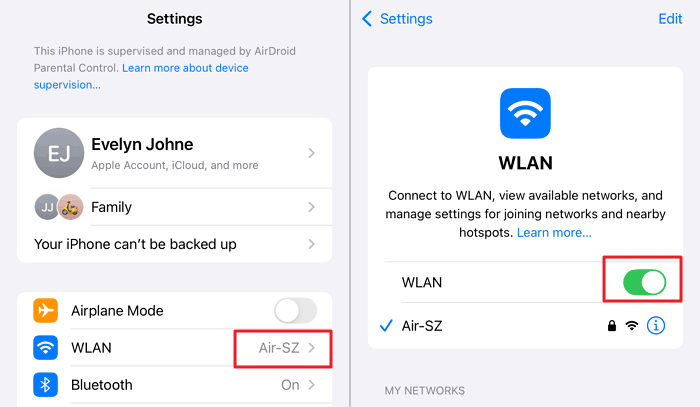

- Go back to Settings, select Cellular, and toggle Cellular Data to off.


2Disable Internet Access for Specific Apps
Apple also allows you to only disable certain apps from connecting to only the Cellular Data or the whole Internet.
- Go to Settings, and tap Cellular.
- Scroll down to the list of apps and select the app you don't want to allow cellular data. If you don't see it, tap Show all to have a check.
- Select WLAN to stop it access the cellular data. You can also choose Off to restrict whole Internet access.


Note: If you can't find an app in the list to block its internet access, it might be set to Wi-Fi only. Go to Settings, select WLAN, and tap "Apps Using WLAN & Cellular" to find it.
3Disable Siri from Accessing the Internet
You can also only restrict Siri's access to the internet.
- Go to Settings, select Siri.
- Tap Talk to Siri and select Off.

4Disable Access for Specific Websites
The build-in Screen Time can block access to certain websites on iPhone and iPad.
- Go to Settings, tap Screen Time > Content & Privacy Restrictions.
- Enable Content & Privacy Restrictions and tap on App Store, Media, Web, & Game.


- Tap Web Content to open it, select Limit Adult Websites to add specific websites to always allow or never allow.


Can You Remotely Restrict Your Child's Internet Access on iPhone/iPad?
Remotely control your child's internet access on iPhone or iPad can ensure safer online experiences.
1Screen Time in Family Sharing
If you have access to your child's iPhone or iPad, you can directly set up Screen Time on their device. Otherwise, Apple Family Sharing allows the Organizer and Parents/Guardians of Family Sharing to lock down child's iPhone/iPad remotely. However, it's important to note that it's relatively easy for tech-savvy kids to bypass these restrictions and only Apple devices can join in a Family.
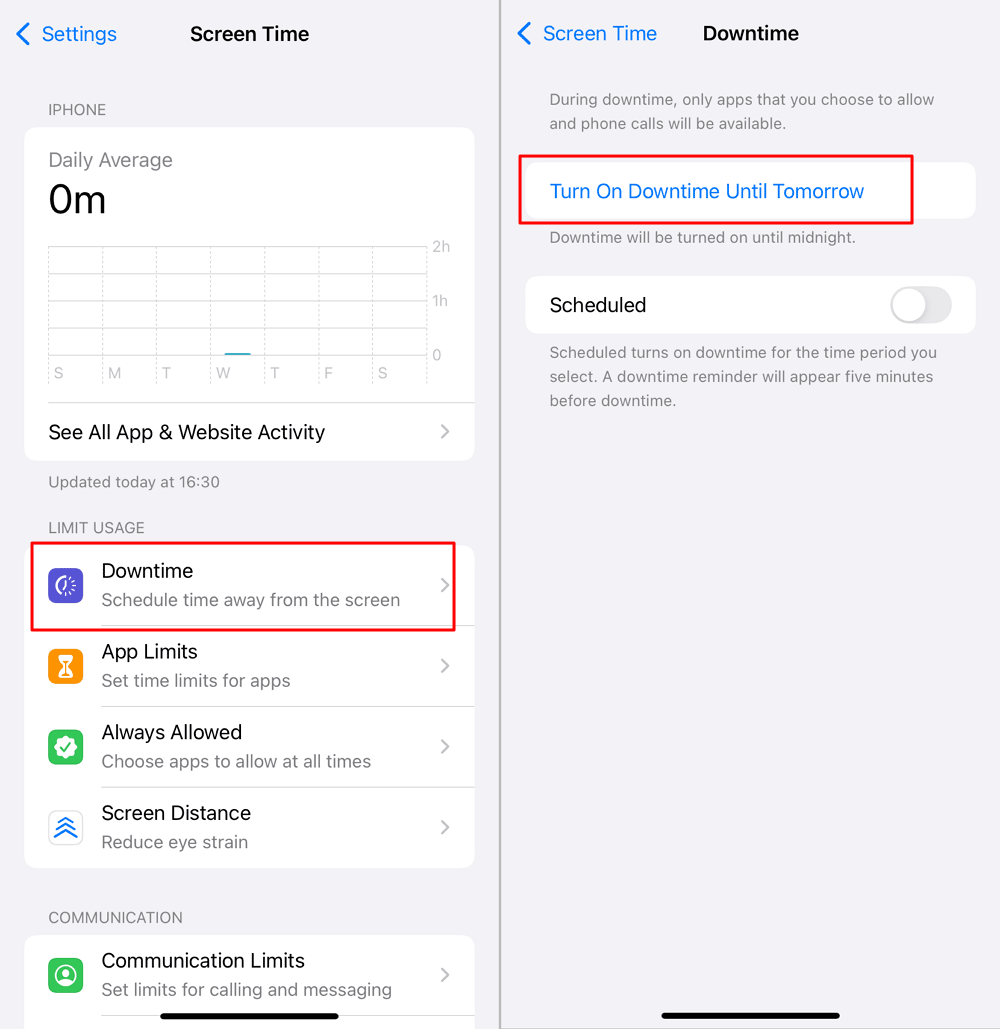
- Go to Settings, tap Screen Time.
- Scroll down and you will see the child's name under FAMILY.


- Tap Downtime > Turn on Downtime until Tomorrow. The whole device will be disabled to access the Internet.

Screen Time also allows you to block age-inappropriate content, apps, and websites that fall outside of the selected age rating.
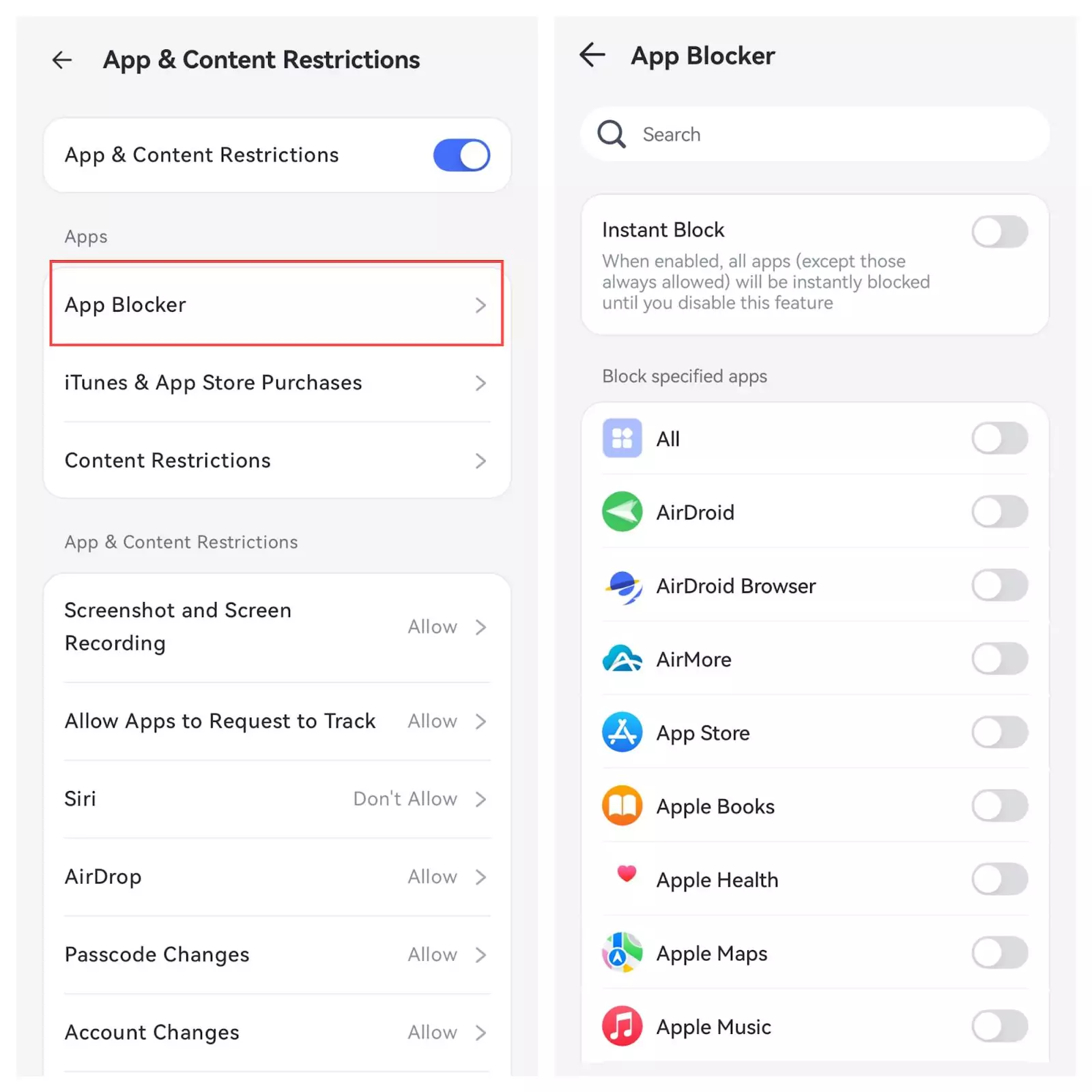
2AirDroid Parental Control
This app offers similar functionalities to Screen Time but includes additional features that make it a more robust option. With AirDroid Parental Control, you can even block any specific apps with just one click from Android and Windows devices. This app is designed to be harder to bypass compared to Screen Time, providing a more secure way to manage and monitor your child's internet usage remotely.
How to Block iPhone/iPad Apps from Using Data in the Background
If you just want to save data usage, you can also block iPhone and iPad apps from using data in the background.
- Open Settings: On your iPhone or iPad, tap the Settings icon to open the settings menu.
- Navigate to General: Scroll down and tap on "General" to open general settings.
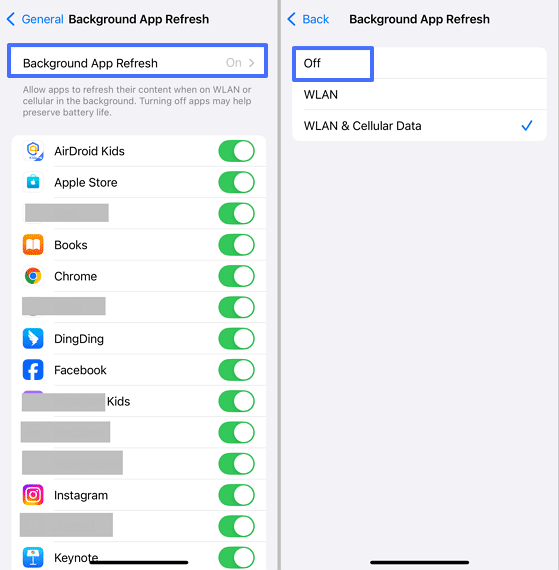
- Go to Background App Refresh: Inside the General settings, scroll down to find and tap on "Background App Refresh."
- Adjust Settings: You'll see three options:
- Off: This disables background refresh for all apps.
- Wi-Fi: Allows apps to refresh their content when connected to Wi-Fi only.
- Wi-Fi & Cellular Data: Permits apps to refresh their content using both Wi-Fi and cellular data.
- Turn Off Background App Refresh Entirely: Select "Off" to prevent all apps from refreshing content in the background. This is the best option if you want to maximize battery life and minimize data usage.

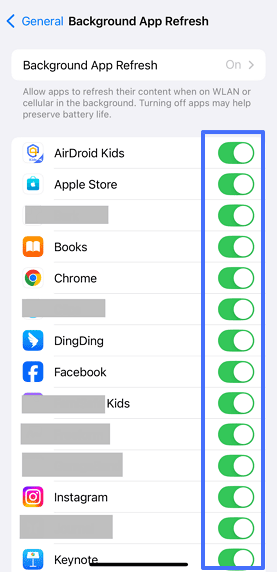
- Disable for Individual Apps: If you don't want to disable background refresh for all apps, you can select either "Wi-Fi" or "Wi-Fi & Cellular Data" at the top, then go through the list of apps and toggle off the ones you want to restrict from using background data.

Hottest Question Related to Restrict Internet on iPhone
1Can I Use Focus Mode to Restrict Internet Access for Specific Apps
Focus Mode on the iPhone allows you to limit notifications from specific apps, which can indirectly restrict their use by reducing distractions. However, it does not explicitly restrict internet access to these apps. For internet restriction, you would need to use Screen Time or a third-party app.
2How Can I Completely Block Internet Access on an iPhone Through Public Wi-Fi?
You can't only but you can stop your iPhone from connecting to it automatically. Go to Settings > Wi-Fi, tap the info icon next to the public network, and select "Forget This Network."
3How to Prevent Unintended Internet Access on My iPhone?
To prevent unintended internet access on your iPhone, especially in scenarios where you want to control or limit connectivity, consider toggling off Wi-Fi.
Wrapping Up
That's all there is to it! Disabling the internet on your iPhone can be a real game-changer when you need some quiet time away from the constant buzz of notifications and social media. Whether you're looking to focus on work, spend quality time with family, or just give yourself a break, managing your connectivity can help make that happen.
So next time you find yourself or your child getting too distracted or overwhelmed, remember these simple steps to take control of your screen time. Here's to more productive days and peaceful moments.











Leave a Reply.